4.3.22. Bluetooth Driver Debug Guide
The X5 EVB development board uses the RTL8852BS module, which supports Wi-Fi and Bluetooth functions.
For debugging Wi-Fi functionality of the RTL8852BS module, refer to Wi-Fi Driver Debug Guide.
The Bluetooth module interface is a UART interface, supporting H4 and Three-wire (H5) protocols.
4.3.22.1. Overview
This chapter mainly describes the adaptation and usage methods of Bluetooth, using the RealTek (Realtek) series UART Bluetooth RTL8852BS as an example.
Main contents include: schematic confirmation, kernel configuration, DTS configuration, Bluetooth usage, and common issues.
4.3.22.2. RealTek RTL8852BS Porting
Schematic Confirmation
Partial schematics of the X5 RTL8852BS are shown below:
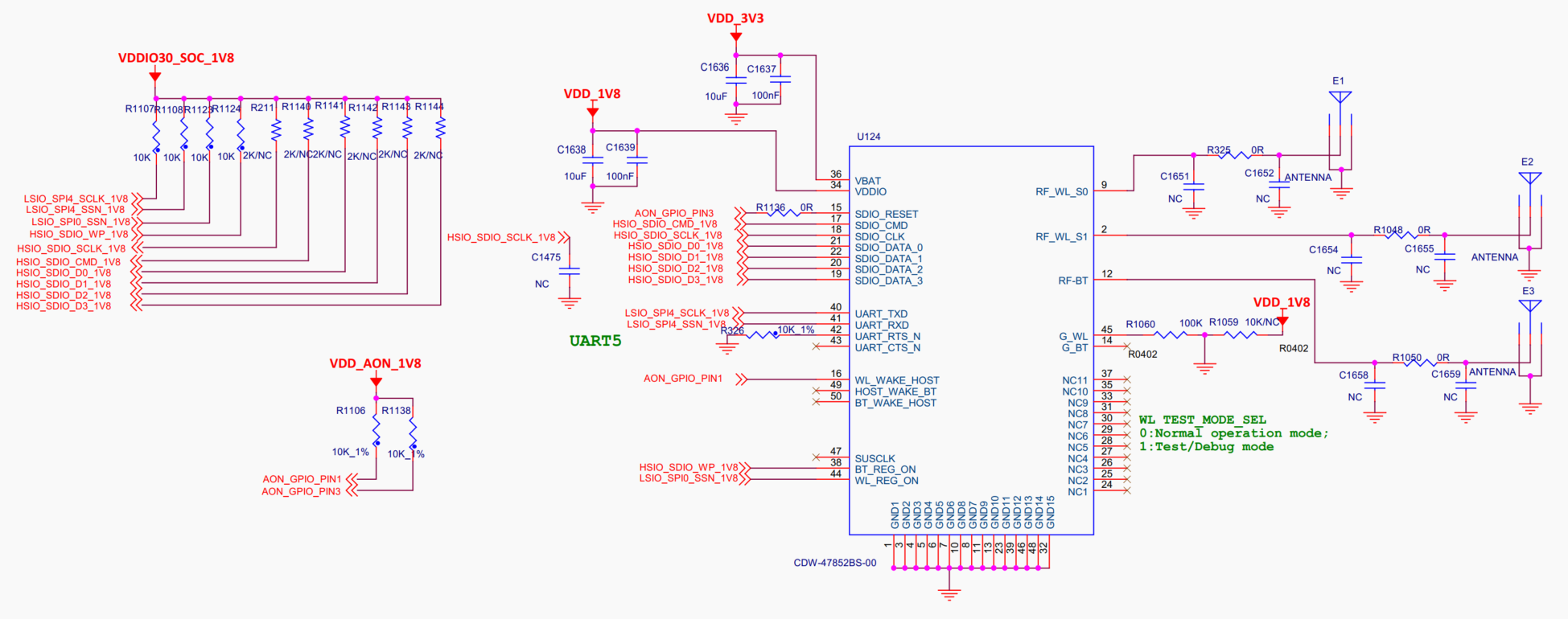
For the RTL8852BS Bluetooth module to operate properly, the hardware must meet the following conditions:
Power supply: The module has two power supplies, where
VDD_3V3is the main power supply andVDD_1V8is the IO pull-up power supply.Enable: For normal operation, a high level must be applied to
BT_REG_ON. Currently, the hardware is pulled high at power-on, so no configuration is needed in the device tree.Clock: The 40MHz clock input can be internally generated by the module, so no external signal input is required.
Communication: Bluetooth communication is via UART, with
UART_TXDandUART_RXDbeing the two data lines of the UART.
1. To maintain interface and functional diversity, the EVB does not connect flow control for the Bluetooth UART interface. In product design, it is recommended to connect flow control; otherwise, audio transmission may suffer from stuttering or degraded audio quality.
Kernel Configuration
Enter the BSP’s build directory and execute ./xbuild.sh boot menuconfig to configure kernel features.
Configuration Command
Executing ./xbuild.sh boot menuconfig launches a text-based menu interface. Navigate the menu using the arrow keys on the keyboard. Press Enter to enter submenus or modify configuration options. After completing the configuration, select the Save menu item to save your settings.
Configuration Options
Option 1: Configure kernel option CONFIG_BT=m

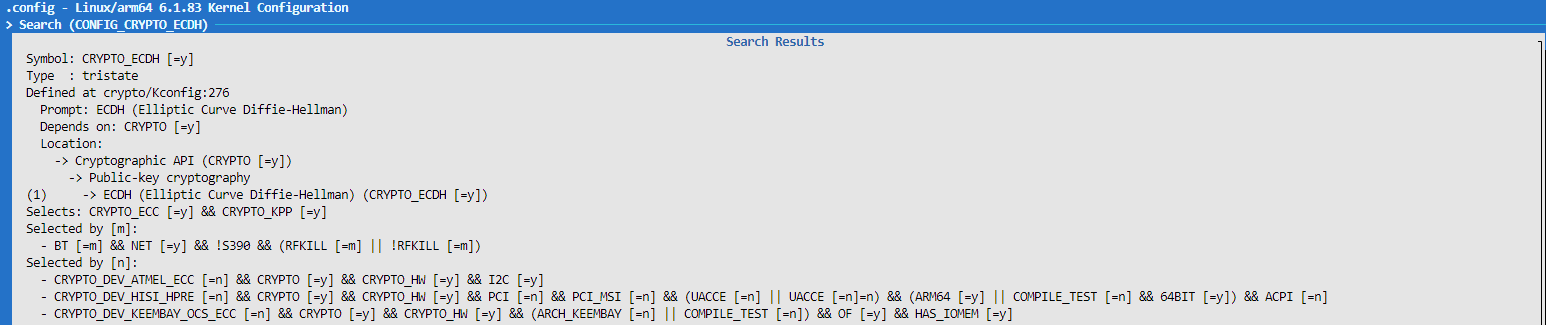
Option 2: Configure kernel option CONFIG_CRYPTO_ECDH=y
Option 3: Configure kernel option CONFIG_BT_HCIUART=m

Option 4: Configure kernel option CONFIG_RFKILL=m

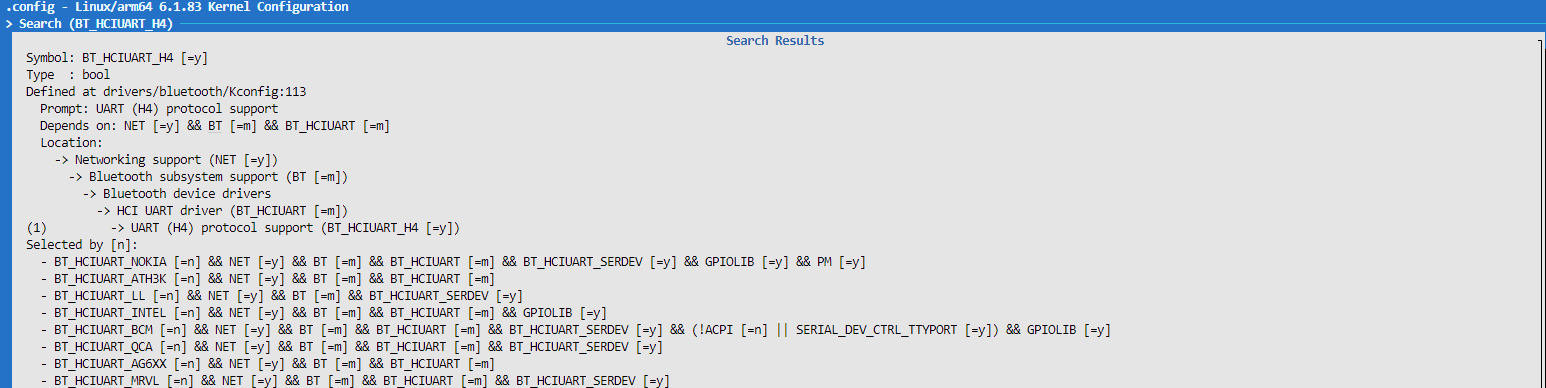
Option 5: Configure kernel option BT_HCIUART_H4=y
DTS Configuration
Confirm DTS Configuration
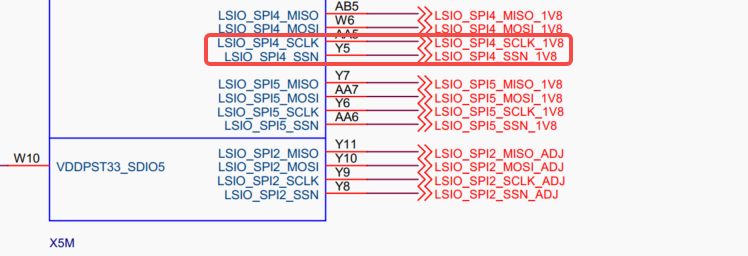
Confirm which UART controller the RTL8852BS Bluetooth is using, as follows:
Based on the schematic connection and the device tree
pinmux-func.dtsi, the pinLSIO_SPI4_SCLKcorresponds to the pin multiplexing configurationpinctrl_uart5.pinctrl_uart5: uart5grp { horizon,pins = < LSIO_SPI4_SCLK LSIO_PINMUX_2 BIT_OFFSET0 MUX_ALT2 &pconf_drv_pu_ds2_1v8 LSIO_SPI4_SSN LSIO_PINMUX_2 BIT_OFFSET2 MUX_ALT2 &pconf_drv_pu_ds2_1v8 >; };
Further check the
x5.dtsifile for thepinctrl_uart5node configuration, confirming that the controller used isserial@341a0000, labeled asuart5.uart5: serial@341a0000 { compatible = "snps,dw-apb-uart"; status = "disabled"; reg = <0x341a0000 0x10000>; reg-shift = <2>; clocks = <&hpsclks X5_LSIO_UART5_CLK>, <&hpsclks X5_LSIO_UART5_PCLK>; clock-names = "clk","apb_pclk"; interrupt-parent = <&gic>; interrupts = <GIC_SPI 70 IRQ_TYPE_LEVEL_HIGH>; resets = <&socrst LSIO_UART5_RESET>; broken-auto-flow-control; pinctrl-names = "default"; pinctrl-0 = <&pinctrl_uart5>; dw-uart,dma-cyclic; };
To make the controller
serial@341a0000work properly, simply reference the&uart5label in the board-level DTS configuration and setstatus = "okay";.&uart5 { status = "okay"; };
Compile and Flash
After saving the configuration, recompile the kernel image with
./mk_boot.sh, then flashboot.imgusingfastboot.exe flash boot boot.img.Then use adb to upload
hci_uart.ko,bluetooth.ko,btrtl.ko, andrfkill.koto the file system. For adb usage, refer to Using adb.
Driver Loading and Debugging
1. Confirm Pin Multiplexing Configuration
After entering the system, use the
hb_gpioinfocommand to check whether the pin multiplexing configurations forLSIO_SPI4_SCLKandLSIO_SPI4_SSNin the schematic are correct.Confirm that the result shows the function as
uart5grp, indicating correct configuration.Below is a partial output example of the
hb_gpioinfocommand:
gpiochip4 - 32 lines: @34120000.gpio: @379-410
    [Number]                [Mode]  [Status]  [GpioName]       [PinName]          [PinNum]   [PinFunc]
    line  0:        unnamed input                             LSIO_UART7_RX         379      lsio_gpio0_0
    line  1:        unnamed input                             LSIO_UART7_TX         380      lsio_gpio0_1
    ......
    line 28:        unnamed input                             LSIO_SPI4_SCLK        407      uart5grp
    line 29:        unnamed input                             LSIO_SPI4_SSN         408      uart5grp
2. Load Drivers
Use
insmodto load the required drivers for the RTL8852BS Bluetooth module.Use
insmod rfkill.koto load the wireless device management module.Use
insmod bluetooth.koto load the Bluetooth core protocol stack module.Use
insmod btrtl.koto load the Realtek Bluetooth firmware loading module, used to initialize the Realtek Bluetooth chip firmware.Use
insmod hci_uart.koto load the HCI UART driver module, enabling communication with Bluetooth hardware via serial port.
Initialization Program Compilation and Firmware Configuration
Program Compilation
For UART-interface Bluetooth, Realtek provides the rtk_hciattach tool to initialize the Bluetooth controller.
Modify the Makefile to specify the toolchain
CROSS_COMPILEfor the X5 platform.
git diff Makefile
diff --git a/Makefile b/Makefile
index 207f808..d24dcf6 100755
--- a/Makefile
+++ b/Makefile
@@ -1,4 +1,5 @@
CFLAGS := -Wall -g
+CROSS_COMPILE := /opt/arm-gnu-toolchain-11.3.rel1-x86_64-aarch64-none-linux-gnu//bin/aarch64-none-linux-gnu-
The Bluetooth module initialization process requires loading firmware files. For UART interfaces, the firmware directory can be defined in
rtb_fwc.c. The default paths are as follows:
#define FIRMWARE_DIRECTORY "/lib/firmware/rtlbt/"
#define BT_CONFIG_DIRECTORY "/lib/firmware/rtlbt/"
After executing
make, the executablertk_hciattachis generated.
Use adb to upload the cross-compiled
rtk_hciattachto the target board’s file system at/usr/bin/.
Use adb to upload the Bluetooth firmware and configuration files
rtl8852bs_configandrtl8852bs_fwobtained from the vendor to the target board’s file system at/lib/firmware/rtlbt/.
1. For Realtek UART Bluetooth modules, compile the `rtk_hciattach` binary from the source code provided by Realtek; avoid using the `hciattach` compiled from BlueZ.
4.3.22.3. FCS960K Porting
Schematic and Compile/Flash
Refer to the FCS960K porting section in the Wi-Fi Driver Debug Guide for information on schematics, kernel configuration, DT configuration, and compilation/flashing.
Initialization Program
The FCS960K Bluetooth module is registered using the following command:
hciattach -s 1500000 /dev/ttyS5 any 1500000 noflow
4.3.22.4. Bluetooth Usage
Status Confirmation
The complete initialization process for both FCS960K and RTL8852BS Bluetooth is integrated into the /etc/init.d/bt_init.sh script.
Before running, check if the following files exist on the current device.
Initialization programs to confirm:
/usr/bin/rtk_hciattach
/usr/bin/hciattach
Firmware configurations to confirm:
/lib/firmware/rtlbt/rtl8852bs_config
/lib/firmware/rtlbt/rtl8852bs_fw
BlueZ programs to confirm:
/usr/bin/dbus-daemon
/usr/bin/bluetoothctl
/usr/bin/hciattach
/usr/bin/hcitool
/bin/hciconfig
/usr/bin/hcitool
Execute cd /lib/modules/$(uname -r) to navigate to the kernel module directory and confirm the driver modules:
kernel/drivers/bluetooth/btrtl.ko
kernel/drivers/bluetooth/hci_uart.ko
kernel/net/rfkill/rfkill.ko
kernel/net/bluetooth/bluetooth.ko
Initialization
Execute
/etc/init.d/bt_init.shto complete RTL8852BS Bluetooth initialization.
Pairing and Connection
The following steps describe how to complete Bluetooth device pairing and connection via the bluetoothctl interactive interface.
1. Enter Bluetooth Configuration Interface
Run
bluetoothctlto enter interactive mode. The system will display the MAC address of the Bluetooth controller and its current state (usually pairable).Run
showto view detailed Bluetooth information, focusing on thepoweredanddiscoverablestates.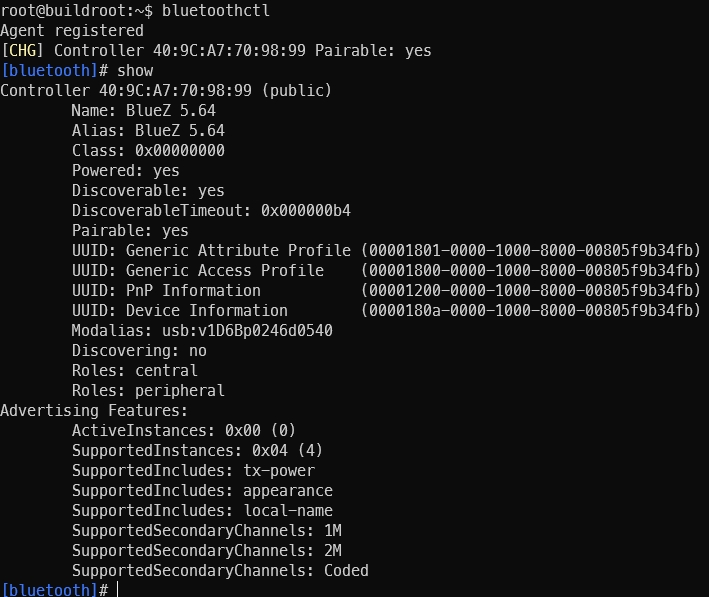
2. Enable Bluetooth Function
Run
power onto enable Bluetooth.
3. Set Bluetooth to Discoverable Mode
Run
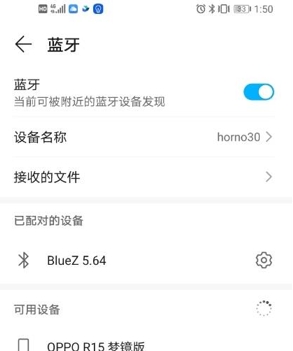
discoverable onto make the Bluetooth device discoverable by nearby devices.
At this point, scanning with a phone or computer will reveal a Bluetooth device named BlueZ 5.64.
4. Scan Nearby Bluetooth Devices
Run
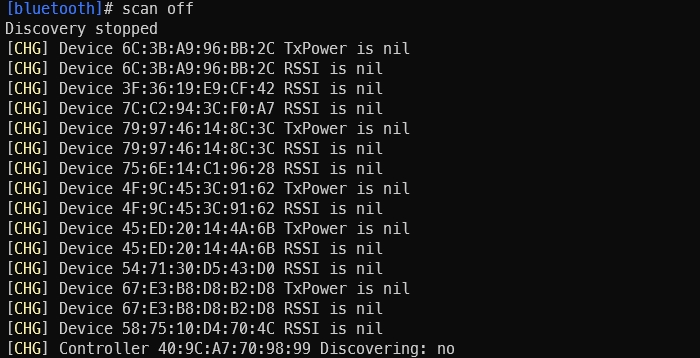
scan onto start active scanning; the system will periodically display nearby Bluetooth devices.Run
scan offto stop scanning and summarize the discovered devices.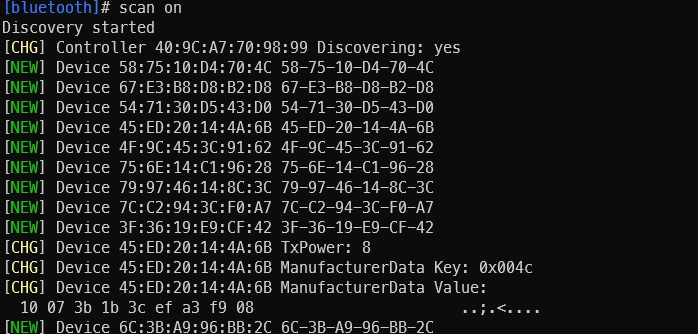
5. Pair with Other Bluetooth Devices
Proceed to pair with other Bluetooth devices:
Run
pair [targetMAC]to initiate pairing. Confirm withyeswhen prompted and confirm pairing on the peer device.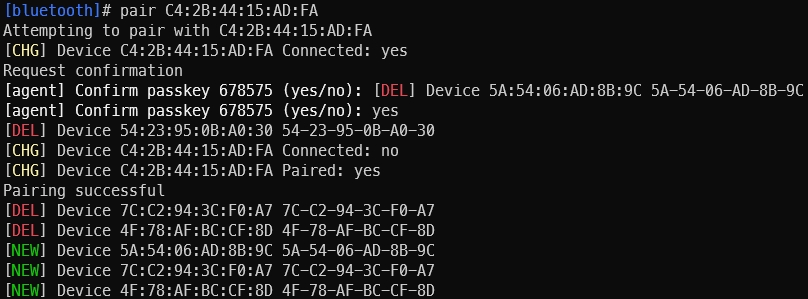
After successful pairing, run
trust [targetMAC]so the device will automatically pair on next connection.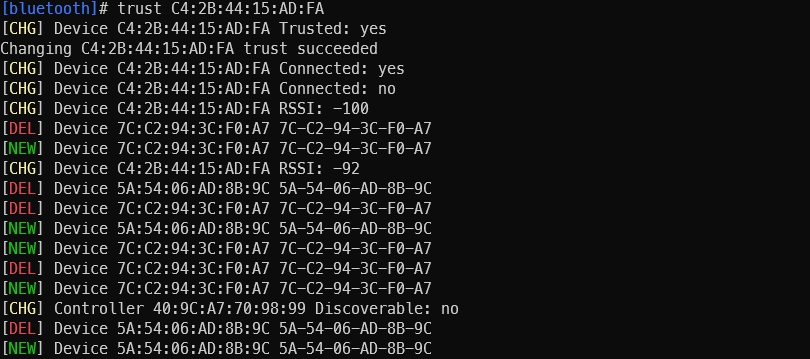
6. Test Bluetooth Device Connection
Use the
l2pingcommand to test Bluetooth network connectivity.
Summary
Through the above steps, you have completed Bluetooth device scanning, pairing, and connection testing. For more features, refer to the official documentation on the BlueZ website.
4.3.22.5. Common Issues
Bluetooth initialization fails when executing /etc/init.d/bt_init.sh
1. Initialization failure due to unloaded driver
Phenomenon: Bluetooth serial protocol (HCI UART) fails during initialization.
Realtek Bluetooth ERROR: Can't set line discipline 22, Invalid argument
Realtek Bluetooth ERROR: Can't initialize devicce 22, Invalid argument
Analysis: The
hci_uartdriver was not loaded.Solution: Load the driver using
modprobe hci_uart, then re-execute/etc/init.d/bt_init.shfor Bluetooth initialization.
2. Initialization failure due to incorrect firmware
Phenomenon: During data transmission, the Bluetooth device encounters sequence errors or packet loss.
Realtek Bluetooth :Enable host hw flow control
Realtek Bluetooth :h5_hci_reset: Issue hci reset cmd
Realtek Bluetooth ERROR: Out-of-order packet arrived, got(7)expected(0)
Realtek Bluetooth ERROR: Out-of-order packet arrived, got(7)expected(0)
Analysis: Firmware with Bluetooth hardware flow control enabled was used, but the hardware design does not connect flow control.
Solution: Obtain firmware without flow control enabled from the vendor, then re-execute
/etc/init.d/bt_init.shfor Bluetooth initialization.
Default Bluetooth Name and Modification Method
In Ubuntu file systems, the default name is
ubuntu; in Buildroot file systems, the default name isBlueZ X.YZ, where X.YZ corresponds to the BlueZ version number.To change the default Bluetooth name, modify the
Namefield under[General]in the configuration file/etc/bluetooth/main.conf.[General] Name = hobot