4.5.16. Bluetooth Performance Testing
This document introduces how to use the iperf3 tool to test classic Bluetooth performance via the Bluetooth PAN protocol.
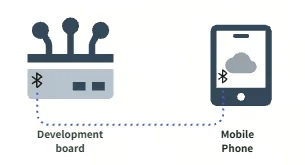
Through the Bluetooth PAN protocol, the development board establishes an IP connection with a phone that has network sharing enabled (NAP), and then uses the iperf3 tool for data transmission to evaluate the actual performance of Bluetooth.
Key aspects of Bluetooth performance testing:
When testing Bluetooth performance, the following aspects are primarily considered:
Bandwidth and throughput: The theoretical maximum net throughput of Bluetooth BR/EDR is approximately 2.1 Mbps. Reasonable bandwidth limits should be set during testing.
Latency: Bluetooth frequency hopping characteristics may cause short-term fluctuations; multiple tests should be conducted to obtain average values.
Packet loss rate: Bluetooth uses frequency hopping technology, but packet loss may still occur due to interference (e.g., Wi-Fi co-frequency) or distance. iperf’s UDP mode can accurately measure packet loss rate.
Signal strength and coverage range: Due to Bluetooth antenna design, the relative orientation of devices may affect signal quality. Keep device positions fixed during testing.
This chapter provides detailed steps and guidelines for conducting Bluetooth performance testing using the iperf3 tool. For instructions on iperf3, please refer to its official documentation.
4.5.16.1. Test Preparation
Performance test diagram:
Before conducting Bluetooth performance testing, ensure the following preparations are completed:
Download Termux terminal on your phone: Termux Android download link:
https://github.com/termux/termux-app/releases
Enable Bluetooth network sharing on your phone: Enable Bluetooth
Android phone: The path is usually Settings -> Personal Hotspot -> Bluetooth Network Sharing, though the exact location may vary slightly across different phones.
iOS Bluetooth sharing is usually limited to Apple devices. If your testing environment involves an iPhone and a Linux development board, it is recommended to use an Android phone instead.

Enable Bluetooth function on the development board: Ensure the development board has Bluetooth enabled and is connected to the phone. For detailed pairing methods, refer to Bluetooth Pairing and Connection. Note the module initialization before pairing.
[bluetooth]# pair C4:2B:44:15:AD:FA
Attempting to pair with C4:2B:44:15:AD:FA
[horno30]# [CHG] Device C4:2B:44:15:AD:FA Connected: yes
[horno30]# Request confirmation
[agent] Confirm passkey 092258 (yes/no): [DEL] Device 5C:77:59:BF:8F:74 5C-77-59-BF-8F-74
[agent] Confirm passkey 092258 (yes/no): yes
[horno30]# hci0 new_link_key C4:2B:44:15:AD:FA type 0x08 pin_len 0 store_hint 1
[horno30]# [CHG] Device C4:2B:44:15:AD:FA Bonded: yes
[horno30]# [DEL] Device 6F:36:92:14:42:2F 6F-36-92-14-42-2F
[horno30]# [CHG] Device C4:2B:44:15:AD:FA Modalias: bluetooth:v010Fp107Ed1436
[horno30]# [CHG] Device C4:2B:44:15:AD:FA UUIDs: 0000046a-0000-1000-8000-00805f9b34fb
[horno30]# [CHG] Device C4:2B:44:15:AD:FA UUIDs: 00001105-0000-1000-8000-00805f9b34fb
[horno30]# [CHG] Device C4:2B:44:15:AD:FA UUIDs: 0000110a-0000-1000-8000-00805f9b34fb
[horno30]# [CHG] Device C4:2B:44:15:AD:FA UUIDs: 0000110c-0000-1000-8000-00805f9b34fb
[horno30]# [CHG] Device C4:2B:44:15:AD:FA UUIDs: 00001112-0000-1000-8000-00805f9b34fb
[horno30]# [CHG] Device C4:2B:44:15:AD:FA UUIDs: 00001115-0000-1000-8000-00805f9b34fb
[horno30]# [CHG] Device C4:2B:44:15:AD:FA UUIDs: 00001116-0000-1000-8000-00805f9b34fb
[horno30]# [CHG] Device C4:2B:44:15:AD:FA UUIDs: 0000111f-0000-1000-8000-00805f9b34fb
[horno30]# [CHG] Device C4:2B:44:15:AD:FA UUIDs: 0000112f-0000-1000-8000-00805f9b34fb
[horno30]# [CHG] Device C4:2B:44:15:AD:FA UUIDs: 00001132-0000-1000-8000-00805f9b34fb
[horno30]# [CHG] Device C4:2B:44:15:AD:FA UUIDs: 00001200-0000-1000-8000-00805f9b34fb
[horno30]# [CHG] Device C4:2B:44:15:AD:FA UUIDs: 00001800-0000-1000-8000-00805f9b34fb
[horno30]# [CHG] Device C4:2B:44:15:AD:FA UUIDs: 00001801-0000-1000-8000-00805f9b34fb
[horno30]# [CHG] Device C4:2B:44:15:AD:FA UUIDs: 0000fdd1-0000-1000-8000-00805f9b34fb
[horno30]# [CHG] Device C4:2B:44:15:AD:FA UUIDs: 0000fe35-0000-1000-8000-00805f9b34fb
[horno30]# [CHG] Device C4:2B:44:15:AD:FA UUIDs: 11c8b310-80e4-4276-afc0-f81590b2177f
[horno30]# [CHG] Device C4:2B:44:15:AD:FA UUIDs: 8ce255c0-200a-11e0-ac64-0800200c9a66
[horno30]# [CHG] Device C4:2B:44:15:AD:FA UUIDs: 9664aa26-d76c-43ad-9775-d310f253a408
[horno30]# [CHG] Device C4:2B:44:15:AD:FA ServicesResolved: yes
[horno30]# [CHG] Device C4:2B:44:15:AD:FA Paired: yes
[horno30]# Pairing successful
The UUID 00001115-0000-1000-8000-00805f9b34fb is the standard identifier for the PAN Network Access Point (NAP) service
This indicates that the phone has enabled Bluetooth network sharing and is broadcasting to the development board that it can provide network services
Use bt-network to connect to the phone’s NAP: “Network service is connected” indicates a successful connection, and a bnep0 network interface will be created on the board
root@buildroot:~# bt-network -c C4:2B:44:15:AD:FA nap &
Network service is connected
root@buildroot:~# ifconfig bnep0
bnep0: flags=4163<UP,BROADCAST,RUNNING,MULTICAST>  mtu 1500
        ether b4:2f:03:31:56:51  txqueuelen 1000  (Ethernet)
        RX packets 0  bytes 8 (8.0 B)
        RX errors 0  dropped 0  overruns 0  frame 0
        TX packets 2  bytes 44 (44.0 B)
        TX errors 0  dropped 0 overruns 0  carrier 0  collisions 0
Use udhcpc to share phone NAP: After automatically obtaining an IP, you can share the phone’s NAP network. Ensure the development board can communicate through the NAP network.
root@buildroot:~# udhcpc -i bnep0
udhcpc: started, v1.35.0
udhcpc: broadcasting discover

udhcpc: broadcasting discover
udhcpc: broadcasting select for 192.168.44.234, server 192.168.44.1
udhcpc: lease of 192.168.44.234 obtained from 192.168.44.1, lease time 3600
deleting routers
adding dns 192.168.44.1
Identify server and client devices: The development board can act as either a client or a server; the peer device can be an Android phone.
The following is the network configuration for this test:
Phone NAP acts as the server, IP address: 192.168.44.1.
Development board acts as the client, IP address: 192.168.44.234.
Use the following command to verify the connection between the development board and the server:
ping -I bnep0 192.168.44.1
Execution result:
PING 192.168.44.1 (192.168.44.1): 56 data bytes
64 bytes from 192.168.44.1: seq=0 ttl=128 time=32.009 ms
64 bytes from 192.168.44.1: seq=1 ttl=128 time=67.866 ms
64 bytes from 192.168.44.1: seq=2 ttl=128 time=14.513 ms
64 bytes from 192.168.44.1: seq=3 ttl=128 time=18.663 ms
4.5.16.2. Test Method
Step 1: Start the Server
Start the iperf3 server on the Android phone:
Open the Termux terminal, download and install iperf3 by executing
pkg install iperf3, as shown below: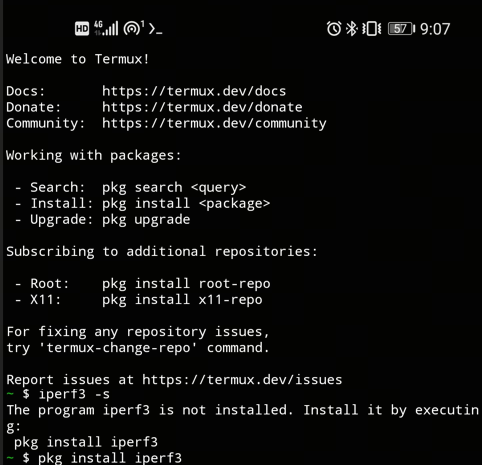
In the Termux terminal, run the following command to start the server:
iperf3 -s
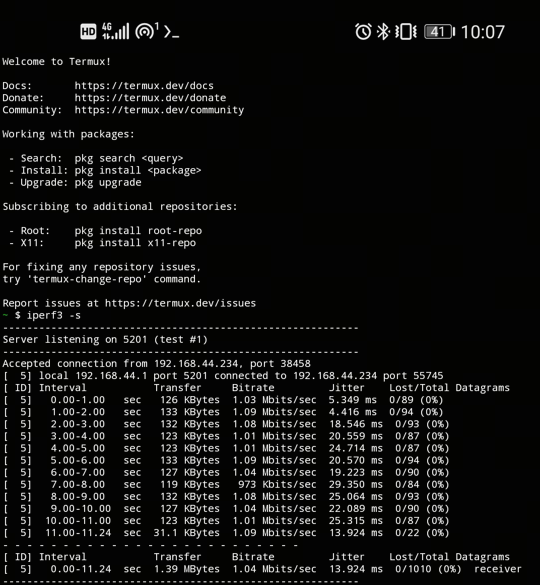
Example server log after startup:
-----------------------------------------------------------
Server listening on 5201
-----------------------------------------------------------
After the client successfully connects, the server log will display:
Step 2: Start the Client
On the development board, start the iperf3 client to connect to the phone server and begin testing:
iperf3 -c 192.168.44.1 -u -t 10 -b 2M
Command parameter explanation:
-c: Specify the server's IP address (192.168.44.1 in this case).
-u: Use UDP protocol for testing.
-t: Set the total test duration (10 seconds in this case).
-b: Set the target bandwidth (2 Mbits/sec in this case).
Example client log output:
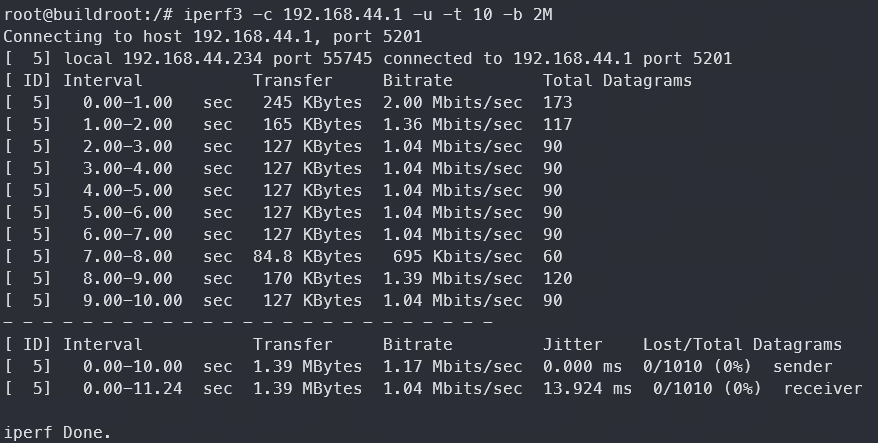
1. To maintain interface and functional diversity on the EVB, the Bluetooth UART interface does not have flow control connected. It is recommended to connect flow control in product design. Without flow control, packet loss may occur during high-volume data transmission such as Bluetooth PAN.
4.5.16.3. Test Results
For explanations and analysis methods of the fields in the iperf3 output log, please refer to the iperf3 - Test Result Analysis section.
4.5.16.4. Performance Standards
Bluetooth throughput expected range:
Classic Bluetooth BR/EDR: Theoretical maximum 2.1 Mbps, typically 1.0-1.45 Mbps in practice
Interference environment: Since Wi-Fi and Bluetooth frequency bands overlap, throughput may fluctuate if there are many surrounding Wi-Fi signals
4.5.16.5. Common Issues
1. Connection disconnects after executing bt-network
root@buildroot:~# bt-network -c AC:45:CA:6E:AE:B4 nap &
[1] 1074
Network service is connected
Network service is disconnect
Cause Analysis:
Bluetooth network sharing is not enabled on the phone.
During pairing, check whether the service UUID 00001115-0000-1000-8000-00805f9b34fb is included.
Ensure that only one paired Bluetooth device is connected. If there are other devices like a Bluetooth watch, the phone needs to disconnect those pairings first.
Solutions:
Make sure Bluetooth network sharing is enabled on the phone.
Disconnect other Bluetooth devices (e.g., Bluetooth watch) from the phone’s pairing list.