4.5.8. Wi-Fi Performance Testing
Wi-Fi (pronunciation: /ˈwaɪfaɪ/), also known as “wireless network,” is a wireless local area network technology based on the IEEE 802.11 standard. Although “Wi-Fi” is often written as “WiFi” or “Wifi,” these forms are not officially recognized by the Wi-Fi Alliance. Wi-Fi is widely used to connect computers, smartphones, tablets, and smart home devices, providing a convenient way to access the internet.
Key aspects of Wi-Fi performance testing:
When testing Wi-Fi performance, the following aspects are primarily considered:
Bandwidth and throughput: Evaluate the actual available bandwidth and determine the performance of the Wi-Fi network under high load conditions.
Latency: Measure data transmission delay; increased latency under high load may negatively impact real-time applications.
Packet loss rate: Detect packet loss rate; excessive packet loss may affect the integrity and reliability of data transmission.
Signal strength and coverage: Analyze signal strength and coverage to ensure signal stability within the test area. Signal quality is typically affected by antenna performance, AP orientation, distance, and other factors.
This chapter provides detailed steps and guidelines for conducting Wi-Fi performance testing using the iperf3 tool. For instructions on iperf3, please refer to its official documentation.
4.5.8.1. Test Preparation
Performance test diagram:
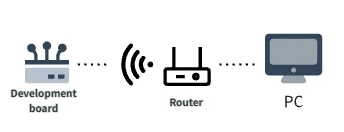
Before conducting Wi-Fi performance testing, ensure the following preparations are completed:
Enable board-side Wi-Fi function: Ensure the development board has Wi-Fi enabled and is connected to the router.
Identify server and client devices: The development board can act as either a client or a server; the peer device can be a PC or another development board.
Network communication test: Ensure the development board and peer device can communicate normally over Wi-Fi.
The following is the network configuration for this test:
Personal computer (PC) acts as the server, IP address: 192.168.137.1.
Development board acts as the client, IP address: 192.168.137.124.
Use the following command to verify the connection between the development board and the server:
ping -I wlan0 192.168.137.1
Execution result:
PING 192.168.137.1 (192.168.137.1): 56 data bytes
64 bytes from 192.168.137.1: seq=0 ttl=128 time=32.009 ms
64 bytes from 192.168.137.1: seq=1 ttl=128 time=67.866 ms
64 bytes from 192.168.137.1: seq=2 ttl=128 time=14.513 ms
64 bytes from 192.168.137.1: seq=3 ttl=128 time=18.663 ms
4.5.8.2. Test Method
Step 1: Start the Server
Start the iperf3 server on the personal computer (PC):
Download and install iperf3:
Visit the iperf official website to download the installer suitable for your operating system.
On Windows, run the following command in the command prompt (cmd) to start the server:
iperf3 -s -p 5002
Example server log after startup:
-----------------------------------------------------------
Server listening on 5002
-----------------------------------------------------------
After the client successfully connects, the server log will display:
Accepted connection from 192.168.137.124, port 47380
[  5] local 192.168.137.1 port 5002 connected to 192.168.137.124 port 47384
[ ID] Interval           Transfer     Bandwidth
[  5]   0.00-1.01   sec   269 KBytes  2.19 Mbits/sec
[  5]   1.01-2.00   sec   386 KBytes  3.19 Mbits/sec
Step 2: Start the Client
On the development board, start the iperf3 client to connect to the server and begin testing:
iperf3 -c 192.168.137.1 -i 1 -t 60 -p 5002
Command parameter explanation:
-c: Specify the server's IP address.
-i: Set the data reporting interval (in seconds).
-t: Set the total test duration (in seconds).
-p: Specify the server's port number.
Example client log output:
Connecting to host 192.168.137.1, port 5002
[  5] local 192.168.137.124 port 47384 connected to 192.168.137.1 port 5002
[ ID] Interval           Transfer     Bitrate         Retr  Cwnd
[  5]   0.00-1.00   sec   512 KBytes  4.19 Mbits/sec    0   74.1 KBytes
[  5]   1.00-2.00   sec   376 KBytes  3.08 Mbits/sec    0   77.0 KBytes
[  5]   2.00-3.00   sec   502 KBytes  4.11 Mbits/sec    0   77.0 KBytes
4.5.8.3. Test Results
For explanations and analysis methods of the fields in the iperf3 output log, please refer to the iperf3 - Test Result Analysis section.
4.5.8.4. Performance Standards
When testing Wi-Fi performance, there are no universal data metrics to reference, as numerous external factors must be considered, including hardware, environment, and more. The following are some common factors that can affect performance:
Antenna quality and directionality: The quality and directionality of Wi-Fi device antennas affect signal propagation and reception. Using high-quality antennas and appropriate directionality can improve signal quality and coverage.
Channel interference: Other Wi-Fi networks, wireless devices, or electronic equipment may generate interference on the same or adjacent frequency bands, affecting Wi-Fi signal quality and performance.
Signal strength and attenuation: Wi-Fi signal strength is inversely proportional to distance and is affected by obstacles, walls, and other physical barriers.
Other wireless devices: Nearby wireless devices such as Bluetooth devices, wireless keyboards, and mice may also impact Wi-Fi performance.
When evaluating Wi-Fi performance data, consider the above factors comprehensively and develop optimization strategies to ensure network performance stability and reliability.