3.2.1 Open the AI Dock
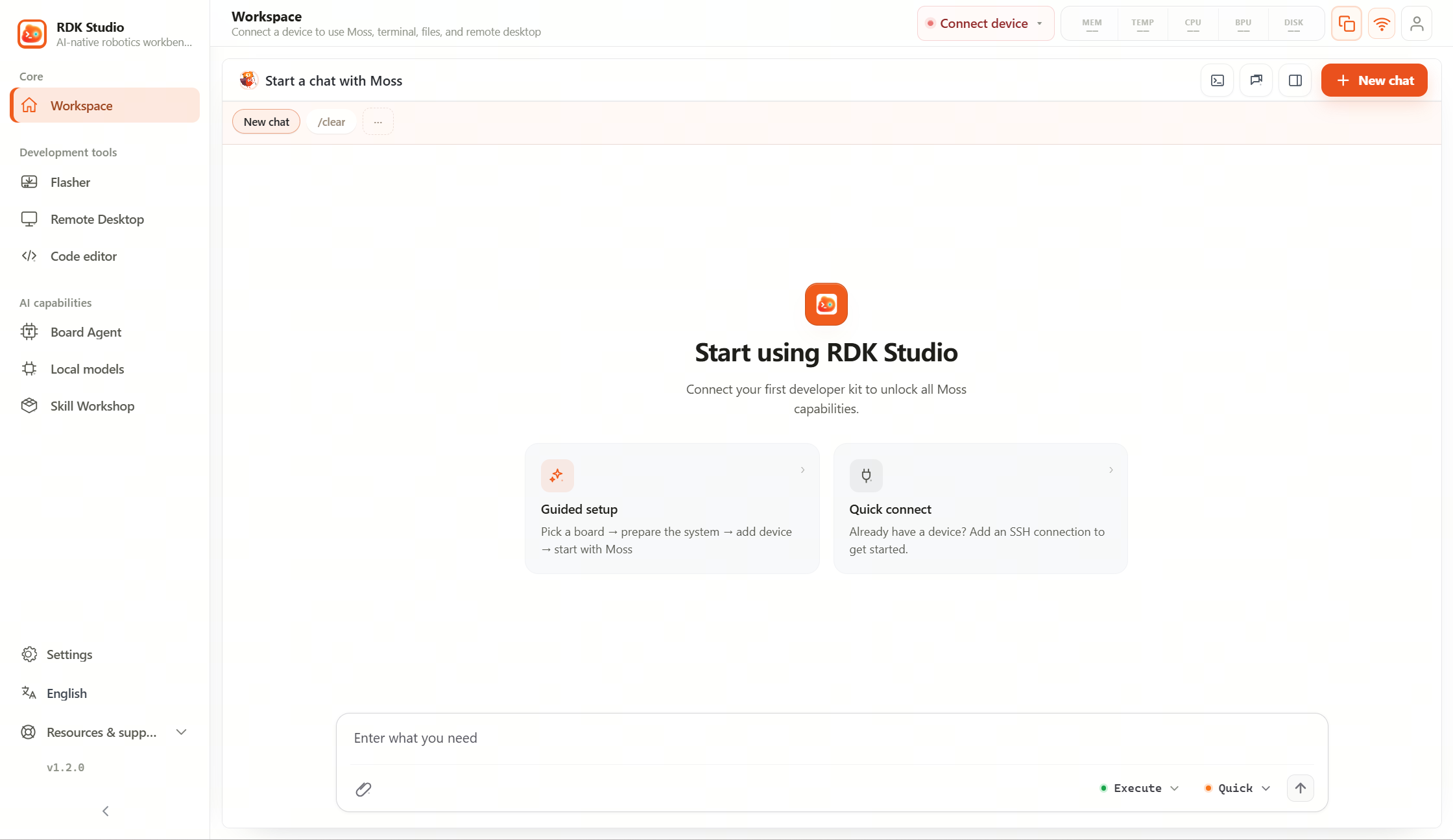
The first time you use the AI Dock, follow open entry → confirm device → choose mode → send message → review results.
Step 1: Open an entry
| Scenario | Entry |
|---|---|
| Daily chat and execution | Left sidebar Core → Workbench |
| Return to Moss from another page | Bottom-right Open Moss button |
| View history | History button on the Dock or History panel in the workspace |
| On-board Agent page | Bottom input reaches OpenClaw directly |
| Model setup issues | AI model settings or Local LLM in input-area banners |
Start from Core → Workbench when you can—it shows Moss and the right workspace together so you are less likely to miss device state, terminal output, or confirmation prompts.
Step 2: Confirm the current device
Before device-related questions, check the device chip:
| State | How to read it |
|---|---|
| Shows a device | Moss treats that device as the current target |
| Not bound | Plans and knowledge Q&A work; on-board commands cannot run directly |
| Device offline | Existing logs can be analyzed; actions wait for reconnect |
If you manage multiple devices, confirm the target in the top device dropdown or in the input area first.
Step 3: Choose work mode
Defaults are fine at first. When impact is unclear, prefer Plan:
| Control | When to use |
|---|---|
| Execute | You already want to inspect, read, or run something specific |
| Plan | You want steps, risks, and confirmations first |
| Fast | Short answers, summaries, light explanations |
| Think | Troubleshooting, code changes, multi-step tasks |
Step 4: Send the first message
When connected, you might ask:
Check current device status—focus on OS version, disk, memory, network, and recent error hints.
When not connected yet:
I have not connected a device yet. What can RDK Studio help me do?
Step 5: Review results
After sending, check four places:
- Whether Moss’s reply ties to the current device and next steps.
- Whether terminal commands, file ops, or errors surfaced in the UI.
- Whether confirmations appear for writing files, changing device state, or outbound sends.
- Whether the right workspace shows diagnostics, terminal, files, or history to dig into.
Top buttons
| Button | Use |
|---|---|
| Chat history | Local session list; resume old tasks |
| Workspace | Expand/collapse the right workspace |
| Terminal drawer | Quick peek at terminal output related to the task |
| New chat | New session with current device and page |
Other pages
Most feature pages have their own controls. When you need Moss, use the bottom-right button or return to the Workbench for full chat.