4.4.7. Log System Introduction
4.4.7.1. Introduction to Linux Log System
The Linux logging system can primarily be divided into three main components:
Log Buffer: The log buffer is the core component of the logging system.
Log Writing: Logs are written into the log buffer via interfaces such as
printk,printk_deferred,devkmsg_write, anddev_printk_emit.Log Extraction: Log information is extracted through registered consoles,
/dev/kmsg, andsyslogd.
These three components can be illustrated in the following diagram:

Log Buffer
In Linux systems, the log buffer is a circular region used by the kernel to temporarily store log messages. Its primary purpose is to provide a fast mechanism for collecting log messages, allowing the kernel to record important information without affecting system performance.
The log buffer is defined as a static global variable and its size is controlled by __LOG_BUF_LEN:
// kernel/printk.c
#define __LOG_BUF_LEN (1 << CONFIG_LOG_BUF_SHIFT)     // i.e., 2 to the power of CONFIG_LOG_BUF_SHIFT
static char __log_buf[__LOG_BUF_LEN] __aligned(LOG_ALIGN);
The value of __LOG_BUF_LEN is determined by CONFIG_LOG_BUF_SHIFT, which is set in the kernel configuration:
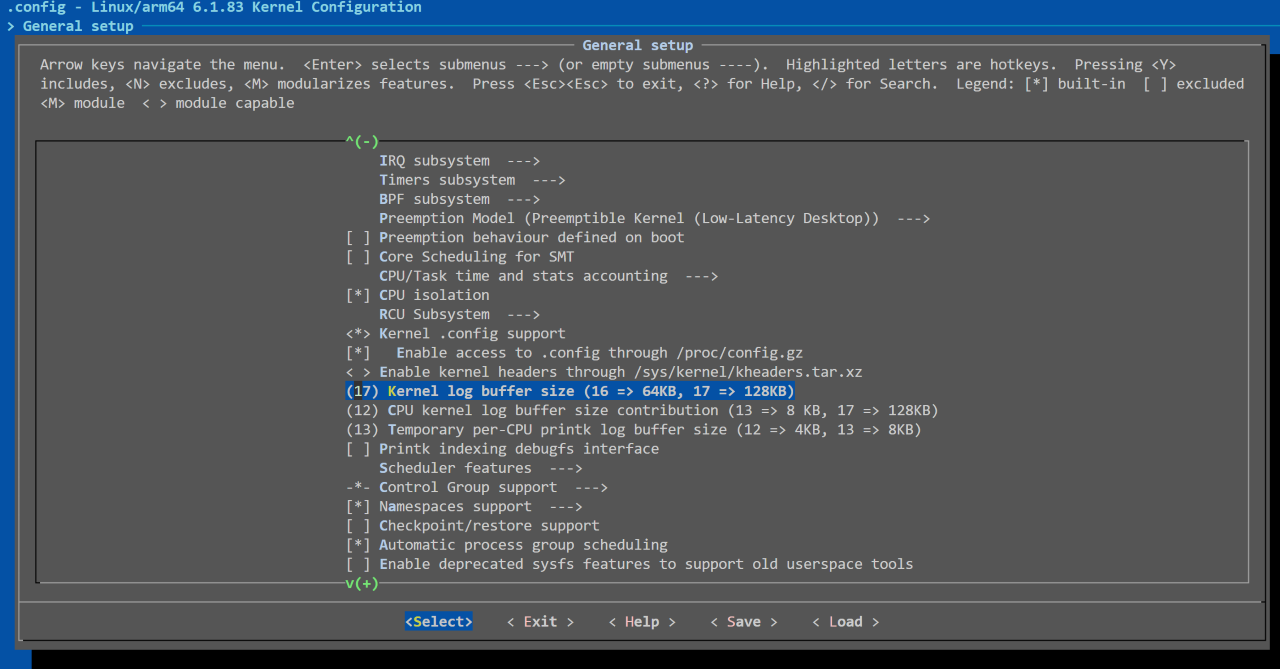
As shown, the current system’s CONFIG_LOG_BUF_SHIFT is set to 17, so the log buffer size is 2^17 bytes (128KB). To modify the log buffer size, simply adjust CONFIG_LOG_BUF_SHIFT in menuconfig and recompile the kernel image.
Note that in the current kernel version (Linux V6.1.83), the log buffer size ranges from 4KB to 32MB (the range of CONFIG_LOG_BUF_SHIFT is 12 to 25):
# init/Kconfig
config LOG_BUF_SHIFT
	int "Kernel log buffer size (16 => 64KB, 17 => 128KB)"
	range 12 25
	default 17
	depends on PRINTK
	help
	  Select the minimal kernel log buffer size as a power of 2.
	  The final size is affected by LOG_CPU_MAX_BUF_SHIFT config
	  parameter, see below. Any higher size also might be forced
	  by "log_buf_len" boot parameter.

	  Examples:
		     17 => 128 KB
		     16 => 64 KB
		     15 => 32 KB
		     14 => 16 KB
		     13 =>  8 KB
		     12 =>  4 KB
Log Writing Interfaces
printk Function
printk is the core function in the Linux kernel used to output log information. It is similar to printf in user space but operates in kernel space. printk is a crucial tool for kernel debugging, logging, and information reporting. It writes debug messages, error messages, etc., into the kernel log buffer, which can then be displayed to users by system logging daemons such as dmesg.
Basic Overview of
printkprintkis a function provided by the Linux kernel for outputting log information. Its prototype is as follows:int printk(const char *fmt, ...);
fmt: A format string, similar to the format string inprintf.Subsequent arguments: Data corresponding to the format string.
printkbehaves similarly toprintf, but the output is saved in the kernel log buffer instead of standard output.Log Levels in
printkprintksupports multiple log levels, helping developers distinguish between log messages based on importance, severity, and purpose. These log levels are defined by the kernel’s logging system and can affect how messages are displayed and whether they are saved. Common log levels include:KERN_EMERG(0): Emergency event messages, typically used for system crashes or critical errors. These messages are printed immediately and may trigger a system reboot.KERN_ALERT(1): Alert messages, indicating serious system issues that require immediate attention.KERN_CRIT(2): Critical error messages, usually for severe hardware or software operation failures.KERN_ERR(3): Error messages, indicating system errors that require further debugging or handling; commonly used by drivers to report hardware errors.KERN_WARNING(4): Warning messages, indicating potential issues that typically do not cause system crashes.KERN_NOTICE(5): Notice messages, indicating important operations being performed that are not errors or warnings; commonly used for security-related notifications.KERN_INFO(6): Informational messages, indicating normal operations or status changes, such as hardware information printed during driver initialization.KERN_DEBUG(7): Debug messages, used for outputting detailed debugging information during development.
Examples:
printk(KERN_INFO "Device initialized successfully.\n");
printk(KERN_ERR "Failed to allocate memory for device.\n");
printk(KERN_DEBUG "Debugging device register read.\n");
If no log level is specified, the default log level is
default_message_loglevel, which defaults to 4, meaning only messages atKERN_WARNINGlevel and above will be displayed:// kernel/include/linux/printk.h #define default_message_loglevel (console_printk[1]) /* printk's without a loglevel use this.. */ #define MESSAGE_LOGLEVEL_DEFAULT CONFIG_MESSAGE_LOGLEVEL_DEFAULT // kernel/kernel/printk/printk.c int console_printk[4] = { CONSOLE_LOGLEVEL_DEFAULT, /* console_loglevel */ MESSAGE_LOGLEVEL_DEFAULT, /* default_message_loglevel */ CONSOLE_LOGLEVEL_MIN, /* minimum_console_loglevel */ CONSOLE_LOGLEVEL_DEFAULT, /* default_console_loglevel */ };
The actual value of
default_message_loglevelisMESSAGE_LOGLEVEL_DEFAULT, which is set in the kernel configuration: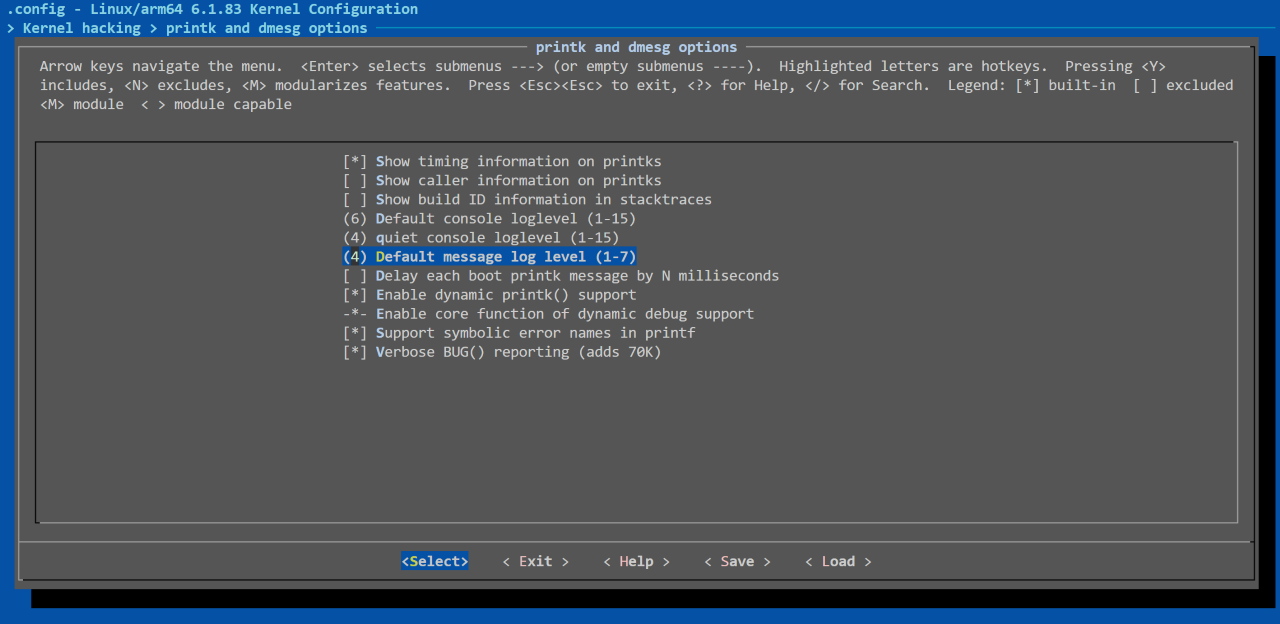
The value of
MESSAGE_LOGLEVEL_DEFAULTranges from 1 to 7:# lib/Kconfig.debug config MESSAGE_LOGLEVEL_DEFAULT int "Default message log level (1-7)" range 1 7 default "4" help Default log level for printk statements with no specified priority. This was hard-coded to KERN_WARNING since at least 2.6.10 but folks that are auditing their logs closely may want to set it to a lower priority. Note: This does not affect what message level gets printed on the console by default. To change that, use loglevel=<x> in the kernel bootargs, or pick a different CONSOLE_LOGLEVEL_DEFAULT configuration value.
Thread Safety of
printkThe
printkfunction is thread-safe in multi-core systems. This means multiple kernel threads can callprintksimultaneously, and the kernel ensures that log messages do not become interleaved.However,
printkuses a global log lock (logbuf_lock) to synchronize access to the log buffer. This lock ensures that multiple log messages do not interfere with each other, but it may introduce performance overhead during high-frequency logging, especially under heavy system load. Therefore, during development, we can choose more fine-grained, flexible, and controllable logging interfaces instead of usingprintkdirectly in drivers.Dynamic Debugging
The kernel allows dynamic enabling of debug output (
printkdebug messages) by modifying the/sys/kernel/debug/dynamic_debug/controlfile to control which module or file’s debug messages are enabled. For example, you can enable debug output for a specific driver:echo "file drivers/net/* +p" > /sys/kernel/debug/dynamic_debug/control
This enables debug message output for all source files under the
drivers/net/directory.To disable the corresponding debug message printing, you can write a disable command
-pto thedynamic_debug/controlfile. Example:echo "file drivers/net/* -p" > /sys/kernel/debug/dynamic_debug/control
Limitations of
printkFrequent logging can sometimes lead to system performance issues, especially when the same error or warning occurs repeatedly. To avoid this, the kernel provides two mechanisms:
printk_once: Ensures a log message is printed only once, regardless of how many times the function is called. This is suitable for error messages that only need to be printed once.printk_once("This error message will be printed only once.\n");
printk_ratelimited: Limits the frequency of log output. By default, the kernel prints the same error message no more than 10 times every 5 seconds. This is useful for errors that are triggered repeatedly, reducing redundant log output.
printk_ratelimited("Resource usage high, please check.\n");
Common Logging Interfaces in Drivers
The kernel provides specialized logging interfaces for device drivers, designed around the device structure (struct device), allowing logs to be associated with specific device instances, facilitating tracking of device behavior.
Commonly used logging interfaces in driver development include:
dev_err, dev_warn, dev_info, dev_dbg
These four interfaces are mainly used for device-related log output and depend on the struct device structure, requiring the use of a dev (device structure) pointer in driver code. Below are descriptions of these interfaces:
dev_errdev_err(dev, fmt, ...)is used to print error messages, typically when device operations fail or serious errors occur. This function outputs error messages to the system log for developers to troubleshoot issues.Example:
dev_err(dev, "Failed to initialize device: %d\n", ret);
dev_warndev_warn(dev, fmt, ...)is used to print warning messages, suitable for non-fatal errors or exceptional conditions, indicating potential issues without affecting device operation.Example:
dev_warn(dev, "Device is running low on resources\n");
dev_infodev_info(dev, fmt, ...)is used to print regular information or status reports, suitable for device initialization, state changes, and other common logging.Example:
dev_info(dev, "Device initialized successfully\n");
dev_dbgdev_dbg(dev, fmt, ...)is used to print debug messages, suitable for development and debugging stages, providing detailed device operation information. Note thatdev_dbgis generally disabled by default and only effective in debug mode.Example:
dev_dbg(dev, "Reading register value: 0x%X\n", value);
Advantages of these interfaces:
Strong association: These interfaces are bound to the device structure
dev, clearly recording which device experienced what event, facilitating debugging and issue resolution.Clear log level distinction: Different log levels (error, warning, info, debug) allow effective control over log verbosity.
Easy to extend and maintain: Using these device-related interfaces ensures consistent log formatting and enhances code maintainability.
Interfaces for Use Without a Device Structure
In some cases, log output may not depend on a specific device structure, such as in other parts of kernel modules or more generic code. In such cases, the pr_* series of interfaces can be used, such as: pr_err, pr_warn, pr_info, pr_debug.
pr_err(fmt, ...): Used to output error messages.Example:
pr_err("Memory allocation failed\n");
pr_warn(fmt, ...): Used to output warning messages.Example:
pr_warn("The configuration value is set to the default\n");
pr_info(fmt, ...): Used to output general information.Example:
pr_info("Kernel module loaded successfully\n");
pr_debug(fmt, ...): Used to output debug information, suitable for development stages.Example:
pr_debug("Debugging internal state: %d\n", state);
pr_debug and dev_dbg debug outputs are disabled by default to avoid excessive log generation in production environments. During development and debugging, these logs can be enabled via dynamic debugging features, such as:
echo "file drivers/mmc/host/* +p" > /sys/kernel/debug/dynamic_debug/control
Application-Level Log Interfaces
It is recommended to use ALOG interfaces, with corresponding log levels: ALOGV, ALOGD, ALOGI, ALOGW, ALOGE, ALOGV_TAG, ALOGD_TAG, ALOGI_TAG, ALOGW_TAG, ALOGE_TAG, ALOGF_TAG.
When using ALOG* interfaces, modules can define the LOG_TAG macro to print their own module name; logcat supports filtering logs by tag. This can be passed via Makefile, e.g., DLOG_TAG=camera, or declared at the beginning of the code.
When using ALOG*_TAG interfaces, modules can print their own module name via the first parameter; logcat supports filtering logs by tag.
The log system supports one 2MB log_main buffer, and one 256KB each for log_radio, log_system, and log_event buffers. It is recommended to use the log_main buffer.
When bufID is LOG_ID_RADIO, logs are saved to the log_radio buffer; when bufID is LOG_ID_SYSTEM, logs are saved to the log_system buffer; otherwise, they go to the log_main buffer.
Code Example:
Complete code can be found in the hbre/liblog/log_test.cpp file.
#define LOG_TAG "alog_test"

#include <stdio.h>
#include <logging.h>

int main(int argc, char *argv[])
{
printf("\n  logcat test !!!!!!!!!!!!!!!\n");

if (argc == 2 && 0 == strcmp(argv[1], "--test")) {
  logprint_run_tests();
  exit(0);
}

if (argc == 2 && 0 == strcmp(argv[1], "--help")) {
  android::show_help(argv[0]);
  exit(0);
}

printf("\n LogV LogD test start!!! \n");

ALOGV("**************************ALOGV test start***************************");
ALOGV("**************************1***************************");
ALOGV("**************************2***************************");
ALOGV("**************************3***************************");
ALOGV("**************************4***************************");
ALOGV("**************************5***************************");
ALOGV("**************************ALOGV test  end ***************************");

ALOGD("**************************ALOGV test start***************************");
ALOGD("**************************1***************************");
ALOGD("**************************2***************************");
ALOGD("**************************3***************************");
ALOGD("**************************4***************************");
ALOGD("**************************5***************************");
ALOGD("**************************ALOGV test  end ***************************");

RLOGV("**************************RLOGV test log_radio start***************************");
RLOGD("**************************1*****************************************************");
RLOGE("**************************RLOGV test log_radio end******************************");

SLOGV("**************************SLOGV test log_system start***************************");
SLOGD("**************************2*****************************************************");
SLOGE("**************************RLOGV test log_system end**************************** *");
printf("\n LogV LogD write test success!!! \n");

return 0;
}
Test Results:
# ./logtest

Without filtering:
# logcat
logcat test start !!!
--------- beginning of /dev/log_main
V/alog_test(21590): *ALOG test start*
D/alog_test(21590): ********1********
I/alog_test(21590): ********2********
W/alog_test(21590): ********3********
E/alog_test(21590): ********4********
V/tag     (21590): ********1********
D/tag     (21590): ********1********
I/tag     (21590): ********2********
W/tag     (21590): ********3********
E/tag     (21590): ********4********
F/tag     (21590): ********1********
V/alog_test(21590): *ALOG test end***

Filtering with -s *:F
# logcat -s *:F
logcat test start !!!
--------- beginning of /dev/log_main
F/tag     (21590): ********1********

Filtering with -s *:E
# logcat -s *:E
logcat test start !!!
--------- beginning of /dev/log_main
E/alog_test(21590): ********4********
E/tag     (21590): ********4********
F/tag     (21590): ********1********

Filtering with -s tag:E
# logcat -s tag:E
logcat test start !!!
--------- beginning of /dev/log_main
E/tag     (21590): ********4********
F/tag     (21590): ********1********

Switching buffer to log_radio:

logcat test start !!!
--------- beginning of /dev/log_radio
V/        ( 1319): **************************RLOGV test log_radio start***************************
D/        ( 1319): **************************1*****************************************************
E/        ( 1319): **************************RLOGV test log_radio end******************************

Switching buffer to log_system:

  logcat test start !!!
--------- beginning of /dev/log_system

V/        ( 1319): **************************SLOGV test log_system start***************************
D/        ( 1319): **************************2*****************************************************
E/        ( 1319): **************************RLOGV test log_system end**************************** *
logcat command format is as follows:
| Parameter | Description | |
|---|---|---|
| 1 | -b <buffer> |
Load a usable log buffer for viewing, e.g., event and radio; default is main |
| 2 | -c |
Clear all logs in the buffer and exit (can use -g afterward to check buffer) |
| 3 | -d |
Dump logs from the buffer to screen and then exit |
| 4 | -f <filename> |
Output logs to a specified file <filename>; default is stdout |
| 5 | -g |
Print the size of the log buffer and exit |
| 6 | -n <count> |
Set maximum number of logs <count>; default is 4, used with -r |
| 7 | -r <kbytes> |
Rotate log file every <kbytes> output; default is 16, used with -f |
| 8 | -s |
Set filter |
| 9 | -v <format> |
Set output format of log messages; default is brief format |
Log Extraction
In Linux systems, there are multiple ways to output logs, including extraction via console, /dev/kmsg, and syslogd. The following sections detail these three primary log extraction methods.
Console
console refers to the terminal device connected to the system, typically used to output kernel log messages and system messages. In Linux, the console is one of the most basic log output methods, especially in systems without a graphical interface.
Commonly used console types include uart, net, and pstore. However, note that the write function of uart is limited by the serial port baud rate. A low baud rate (e.g., 115200) can cause several milliseconds of interrupt disablement per log line, and if excessive logging occurs over serial, the CPU may remain in interrupt-disabled state, making it difficult for other processes to gain scheduling opportunities, leading to timing anomalies, softlockups, etc. Additionally, logging over serial is slow. For scenarios requiring fast logging, net console (i.e., SSH window) is recommended.
Characteristics of Console Output:
Real-time Display: Console output is directly displayed on the terminal, typically used for interactive system diagnostics.
Kernel Messages: Kernel log messages output via
printk()and similar functions are sent to the console. These include boot-time kernel logs, hardware information, error messages, etc.Multiple Console Support: Linux supports multiple virtual consoles (e.g.,
/dev/tty1to/dev/tty6). Users can view logs on these virtual terminals or use thedmesgcommand to view logs in the kernel ring buffer.Console Log Level: The kernel allows users to set different log levels to control which messages are output to the console. This can be configured via kernel boot parameters or by modifying the
console_loglevelvariable at runtime.
Console Configuration and Usage:
The dmesg command can be used in the console to view logs in the kernel buffer and set the desired log level.
First, check the system’s current log level settings:
root@buildroot:~# cat /proc/sys/kernel/printk
6       4       1       6
These four numbers correspond to console_loglevel, default_message_loglevel, minimum_console_loglevel, and default_console_loglevel, respectively.
console_loglevel: Log level used by the console;default_message_loglevel: Log level used whenprintk()is called without specifying a level;minimum_console_loglevel: Minimum allowed value forconsole_loglevel;default_console_loglevel: Log level used at system startup.
Typically, to speed up system boot, startup messages are kept minimal. For example, when default_console_loglevel and console_loglevel are set to 4, only err, crit, alert, and emerg messages are displayed. Therefore, during kernel module debugging, the log display level should be adjusted.
In the console, the following two methods are commonly used to adjust the verbosity of console log output:
Modify
/proc/sys/kernel/printkecho "8" > /proc/sys/kernel/printk
This command sets the console log level to
8, displaying logs of all levels. Note that the console only displays messages with priority greater than the set level. To show debug messages,console_loglevelshould be set to a value greater than 7. This change is lost after system reboot.Modify using
dmesgcommanddmesgis a userspace command used to display and control the contents of the kernel ring buffer. It displays kernel messages (log information) since system boot, including boot messages, driver loading, hardware detection, filesystem mounting, and device driver status.dmesg -n <value>has the same effect asecho x > /proc/sys/kernel/printk. Like the above method, this change is also lost after reboot.dmesg -n 7
dmesg Command Format:
| Option | Description |
|---|---|
-C, --clear |
Clear the kernel ring buffer |
-c, --read-clear |
Read and clear all messages |
-D, --console-off |
Disable console message printing |
-E, --console-on |
Enable console message printing |
-F, --file <file> |
Use specified file instead of kernel log buffer |
-f, --facility <list> |
Restrict output to defined facility list |
-H, --human |
Display output in human-readable format |
-J, --json |
Use JSON output format |
-k, --kernel |
Display kernel messages |
-L, --color[=<when>] |
Enable message coloring (auto, always, or never); color enabled by default |
-l, --level <list> |
Restrict output to defined log levels |
-n, --console-level <level> |
Set message level printed to console |
-P, --nopager |
Do not pass output through a pager |
-p, --force-prefix |
Force timestamp output on every line of multi-line messages |
-r, --raw |
Print raw message buffer content |
--noescape |
Do not escape non-printable characters |
-S, --syslog |
Force use of syslog(2) instead of /dev/kmsg |
-s, --buffer-size <size> |
Set buffer size for querying kernel ring buffer |
-u, --userspace |
Display userspace messages |
-w, --follow |
Wait for new messages |
-W, --follow-new |
Wait and print only new messages |
-x, --decode |
Decode facility and level into readable strings |
-d, --show-delta |
Show time difference between printed messages |
-e, --reltime |
Show local time and time difference in readable format |
-T, --ctime |
Show human-readable timestamps (may be inaccurate) |
-t, --notime |
Do not show any timestamps |
--time-format <format> |
Use specified format for timestamps: [delta |
--since <time> |
Show logs since specified time |
--until <time> |
Show logs until specified time |
-h, --help |
Show help information |
-V, --version |
Show version information |
Supported Log Facilities:
| Facility | Description |
|---|---|
kern |
Kernel messages |
user |
Random user-level messages |
mail |
Mail system |
daemon |
System daemons |
auth |
Security/authorization messages |
syslog |
Internal messages generated by syslogd |
lpr |
Printer subsystem |
news |
Network news subsystem |
Supported Log Levels (priorities):
| Level | Description |
|---|---|
emerg |
System is unusable |
alert |
Immediate action must be taken |
crit |
Critical condition |
err |
Error condition |
warn |
Warning condition |
notice |
Normal but significant condition |
info |
Informational messages |
debug |
Debug-level messages |
/dev/kmsg
/dev/kmsg is a virtual device file in Linux that provides an interface to read kernel logs. Its primary purpose is to allow user-space processes to directly read messages from the kernel log and write messages into the kernel log.
How to use /dev/kmsg:
Viewing kernel logs: You can use the
catcommand to view logs in/dev/kmsg:sudo cat /dev/kmsg
This command outputs the contents of the kernel log, including all log messages printed via
printk(). The effect ofcat /dev/kmsgis similar todmesg -w, as both are used to display kernel logs in real time.Writing to kernel logs: You can use the
echocommand to write messages into the kernel log. For example:echo "Custom log message from user space" | sudo tee /dev/kmsg dmesg | tail -n 5
Many log collection tools (such as rsyslog or systemd-journald) periodically read the /dev/kmsg file to extract kernel logs and store them in log files or forward them to remote servers.
Note: Unlike dmesg, the first execution of sudo cat /proc/kmsg prints all kernel messages up to the current point. Subsequent executions of sudo cat /proc/kmsg will not print messages that were already printed previously.
syslogd
syslogd (System Log Daemon) is a daemon used for managing and recording system logs. In Unix and Linux systems, syslogd is a core component responsible for collecting, storing, forwarding system log messages, and delivering these messages to files, remote servers, or other destinations. System logs typically contain various information generated by the operating system, applications, device drivers, and other software, such as errors, warnings, debugging information, etc.
The history of syslogd dates back to the early 1980s and is a core and important component in Unix systems. Below is a brief historical overview of the development of syslogd:
Early 1980s: syslog emerged as the foundation for Unix system logging, with the syslogd daemon responsible for handling logs.
1983: syslog was introduced into the BSD 4.2 Unix system, becoming a standardized log management tool.
1990s: syslogd became widely used in Unix and Linux systems and began supporting remote log forwarding.
2000s: rsyslog, as an enhanced version of syslogd, provided additional features such as high performance, log encryption, and database integration.
2010s: systemd, as a core component of modern Linux systems, gradually replaced traditional syslogd by introducing systemd-journald, while still maintaining compatibility with the traditional syslog protocol.
syslogd Configuration Explanation:
In the kernel, the /etc/syslog-startup.conf file configures the syslogd process and its child services. The file content is as follows:
# This configuration file is used by the busybox syslog init script,
# /etc/init.d/syslog[.busybox] to set syslog configuration at start time.

DESTINATION=file                        # log destinations (buffer file remote)
LOGFILE=/userdata/log/kernel/message     # where to log (file)
REMOTE=loghost:514                      # where to log (syslog remote)
REDUCE=no                               # reduce-size logging
DROPDUPLICATES=no                       # whether to drop duplicate log entries
BUFFERSIZE=64                           # size of circular buffer [kByte]
FOREGROUND=no                           # run in foreground (don't use!)
#LOGLEVEL=5                             # local log level (between 1 and 8)
Below is a detailed explanation of each configuration item:
DESTINATION=fileMeaning: Defines the destination of logs, which can be
file(log file),buffer(circular buffer), orremote(remote syslog server).Explanation: This configuration sets the log destination to a file. This means logs will be written to the specified file instead of being stored only in a memory buffer or sent over the network to a remote server.
LOGFILE=/userdata/log/kernel/messageMeaning: Specifies the path of the log file.
Explanation: This configuration sets the storage path of the log file to
/userdata/log/kernel/message. The system will store log information in this file. IfDESTINATIONis configured asfile, this file will be the actual log output file.
REMOTE=loghost:514Meaning: Specifies the address and port of the remote syslog server.
Explanation: If
DESTINATION=remoteis selected, logs will be sent to the specified remote host. Here, logs will be sent to port 514 of theloghosthost (the default syslog port). This configuration may be used to forward log information to a centralized remote log server.
REDUCE=noMeaning: Whether to reduce the size of logs.
Explanation: This option determines whether to compress logs or otherwise reduce their size. Setting it to
nomeans logs will not be compressed and will be stored as-is.
DROPDUPLICATES=noMeaning: Whether to drop duplicate log entries.
Explanation: This option controls whether duplicate entries in the logs are discarded.
nomeans duplicate entries are not dropped, so the logs may contain the same log message multiple times.
BUFFERSIZE=64Meaning: Size of the circular buffer (in KB).
Explanation: Specifies the size of the circular buffer used to store log data, set here to 64KB. A circular buffer is a fixed-size buffer used to temporarily store log data; when full, it overwrites the oldest log entries.
FOREGROUND=noMeaning: Whether to run
syslogin the foreground.Explanation: Setting it to
nomeanssyslogwill run in the background rather than in the foreground. Typically, background-running services do not block the terminal, while foreground-running services occupy the terminal and output logs.
#LOGLEVEL=5Meaning: Sets the local log level (1 to 8), consistent with the
printklog level.Explanation: This line is commented out and therefore not enabled. The
LOGLEVELconfiguration allows setting the verbosity level of local logs, ranging from 1 to 8, with higher numbers indicating more detailed logs. Typically, level 5 represents “warning”-level logs, showing important warnings and error messages.
The /etc/syslog-startup.conf file is ultimately parsed by the /etc/init.d/S91syslogd script to configure logging behavior.
syslogd Log Format Explanation:
After configuring /etc/syslog-startup.conf and running syslogd or klogd, all log information is generally appended to /userdata/log/kernel/message. Below are some log entries:
root@buildroot:~# cat /userdata/log/kernel/message
Jan  1 00:00:04 buildroot kern.debug kernel: [    0.140925] dr-power-domain 31030000.power-controller: Looking up bpu-supply from device tree
Jan  1 00:00:04 buildroot kern.info kernel: [    0.141973] horizon-aon-pinctrl 31040000.aon_iomuxc: Initialized D-Robotics pinctrl driver
Jan  1 00:00:04 buildroot kern.err kernel: [    0.144257] (NULL device *): no horizon,gpio-banks in node /soc/disp_apb/disp_iomuxc@3e0a0054
……
Jan  1 00:51:52 buildroot user.notice ptp4l: [3112.607] selected local clock 8ea1d5.fffe.4ca67d as best master
Jan  1 00:51:55 buildroot kern.debug kernel: [ 3115.366849] sdhci-dwcmshc 35040000.sdhci: dwcmshc_runtime_resume
Jan  1 00:51:55 buildroot kern.debug kernel: [ 3115.366971] sdhci-dwcmshc 35040000.sdhci: Get fixed-drv-type: 2
The format of log entries in the /userdata/log/kernel/message file is as follows:
<timestamp> <hostname> <level> <label>: [duration] <message>
Using the following log as an example, here is a detailed explanation of the log format:
Jan 1 00:51:52 buildroot user.notice ptp4l: [3112.607] selected local clock 8ea1d5.fffe.4ca67d as best master
timestamp (timestamp):
Jan 1 00:51:52, the time when the log message was recorded, typically including the month (MMM), date (dd), and time (hh:mm:ss).hostname (hostname):
buildroot, the hostname of the machine that generated the log message.level (log level):
user.notice, indicates the level of the log message, here meaning it is a notice-level message from a user.label (label):
ptp4l, indicates the name of the process, service, or system component that generated the log, here indicating the message comes from the PTP time synchronization daemon.duration (duration):
[3112.607], indicates the log was printed at 3112.607 seconds after system boot.message (message content):
selected local clock 8ea1d5.fffe.4ca67d as best master, the specific content of the log message.
For more detailed information about syslogd, refer to the official documentation.
4.4.7.2. Log Directory Structure
Log Partition
The log system partition on this platform is as follows:
| Log Type | Storage Location | Single Log Size | Compressed | Content | |
|---|---|---|---|---|---|
| Basic System Log | kernel | /userdata/log/kernel | 2M | No | Kernel log information |
| pstore | /userdata/log/pstore | Max 3M | No | Kernel crash log information | |
| coredump | /userdata/log/coredump | Unlimited | No | Application crash log information | |
| remoteproc | /userdata/log/dsp | 2M | No | DSP output log information | |
| uboot | /userdata/log/uboot | 4KB | No | Uboot output log information | |
| reset | /userdata/log/reset_reason.txt | 1M | No | Records the reason for each system reboot | |
| /userdata/log/reset_count.txt | 4KB | No | Records the current system reboot count | ||
| ALOG System | ALOG | /userdata/log/usr | 2M | No | Application logs |
Log Partition Content Description
Kernel Log
Kernel log: Transferred to the
/userdata/log/kerneldirectory via klogd and syslogd.pstore log: When the kernel crashes and reboots, move the logs from the
/sys/fs/pstoredirectory to the/userdata/log/pstoredirectory, recording kernel logs before and after system panic.
Boot Reason Log
reset-reason.txt Information:
COLD_BOOT: Power off and power onUBOOT_RESET: Reboot within ubootPANIC: Panic occurredWATCHDOG: Watchdog triggeredREBOOT_CMD: Reboot command issued in kernel
reset_count.txt: Current system reboot count
remoteproc Log
dsp: Log information output by ADSP
ALOG System
Log information printed using the ALOG interface
Application software is recommended to use the ALOG interface
Application Crash Log
coredump: Stores a memory snapshot of a process at the moment of sudden crash, dumping the process’s memory, register state, runtime stack, and other information into files in this directory.
4.4.7.3. Log Management
Log Processes
Log Process Information Explanation
Log process runtime information on board:
# ps -aux | grep log
root       817  0.0  0.2   3852  2764 ?        S    00:00   0:00 /bin/bash /usr/bin/hobot-log start
root       826  0.0  0.0   3008   332 ?        S    00:00   0:02 /sbin/syslogd -n -O /userdata/log/kernel/message -s 2048 -b 99
root       892  0.0  0.0   2724   332 ?        S    00:00   0:00 /usr/hobot/bin/hrut_remoteproc_log -b dsp -f /userdata/log/dsp/message -r 2048 -n 50
root       896  0.0  0.1   5088  1756 ?        S    00:00   0:00 /usr/hobot/bin/logcat -v time -f /userdata/log/usr/message -r2048 -n 100
root       900  0.0  0.0   3008   308 ?        S    00:00   0:01 /sbin/klogd -n
kernel: klogd + syslogd
Retrieve kernel-recorded messages and transfer message data into files.
usr: ALOG (libalog.so) + logcat
Write log information into the log buffer via the ALOG interface; logcat extracts data from the log buffer into files.
remoteproc_log: hrut_remoteproc_log process
Log recording: Obtain ADSP log information via remoteproc nodes and write it into files.
Log management: Control log storage space based on log file size and quantity limits specified in input parameters.
Log management: hobot-log
Log recording: Record logs for reset, pstore, and uboot.
Log management: Periodically archive original log files into fixed-format files, manage storage space in each partition directory, delete older files when capacity exceeds limits.
Log Process Startup Order Explanation
After all partitions are mounted, the system indexes the corresponding log scripts in the /etc/init.d/ directory and starts them in a specified order as follows:
S90log_daemon
S91syslogd
S92hobot_log_start
S92klogd
Execution order:
|- etc/init.d/S90log_daemon
        |- /usr/bin/hobot-log first // Archive logs from the previous boot
                |- record_reset_count(shell function)
                |- system_config(shell function)
                |- wait_for_timesync(shell function)
                |- record_reset_reason(shell function)
                |- set_pstore(shell function)
                |- set_uboot(shell function)
                |- check_first_log(shell function)
        |- /usr/bin/hobot-log
                |- check_log(shell function, major cycle)

|- /etc/init.d/S91syslogd
        |- /sbin/syslogd -n $SYSLOG_ARGS

|- /etc/init.d/S92hobot_log_start
        |- /usr/bin/hrut_remoteproc_log -b dsp
        |- logcat -v time

|- /etc/init.d/S92klogd
        |- /sbin/klogd -n $KLOGD_ARGS
Log Management Methods
Log file generation and directory space management are primarily handled by the /usr/bin/hobot-log script.
hobot-log Script Overview
The hobot-log script manages and archives various log files. It periodically checks the size and number of log files and performs file rotation according to configuration. It can handle different log sources (such as kernel logs, user-space logs, uboot, pstore, etc.) and back up logs to designated directories when needed.
Log generation:
At each system boot, logs are archived. The log file naming format is as follows:
X5_Uboot-count-time.Log: When the system boots, the uboot log is archived to the
/userdata/log/uboot/archivedirectory.X5_Pstore-count-time (folder): When the system boots, if an abnormal reboot is detected from the previous session, a folder in this format is created, and corresponding exception log information is recorded in this folder.
During system operation, logs are archived every 10 minutes to the archive directory of each module. The log file naming format is as follows:
X5_Kernel-count-time_<inode>.Log
X5_Usr-count-time_<inode>.Log
X5_Bl31-count-time_<inode>.Log
X5_Dsp0-count-time_<inode>.Log
X5_Dsp1-count-time_<inode>.Log
X5_Mcore-count-time_<inode>.Log
Example log file naming format explanation: Take the log file
X5_Kernel-0003-2022_05_01_08_01_00_131599.Login the/userdata/log/kernel/archivedirectory as an example.Naming explanation:
[board]_[module]-[count]-[time]_<inode>.Logboard: X5
module: Kernel, Usr, Dsp, Uboot, Pstore. Capitalized first letter
count: 4-digit number, from 0000 to 9999; in the example, it represents the 3rd reboot
time: e.g., 2022_05_01_08_01_00
inode: e.g., 131599. Normally not present; only added to distinguish when multiple files archived at the same time have conflicting names
Capacity Management:
Initially, different log directory space capacities are allocated. Every 10 minutes, the script checks the space of designated directories. If capacity is exceeded, files are sorted by creation time and older files are deleted.
hobot-log
Manages space for usr, kernel, remoteproc_log, pstore, and uboot. The quantity limits for each type are set internally. The size limits for each log type are described in Log Partition. The default quantity limit for usr, kernel, pstore, and uboot log file systems is 100, while the default for dsp log file systems is 50. Relevant definitions in the
hobot-logscript are as follows:ROTATESIZE=2048 #KB ROTATEGENS_KER=100 ROTATEGENS_USR=100 ROTATEGENS_REMOTE=50 ROTATEGENS_CHIP=50 ROTATEGENS_ALL=$((${ROTATEGENS_REMOTE} + ${ROTATEGENS_KER} + ${ROTATEGENS_USR} + ${ROTATEGENS_CHIP})) ROTATESIZE_BYTES=$((${ROTATESIZE} * 1024)) PSTORE_LOGMAX=100
With this configuration, log rotation is achieved: when a log file reaches a certain size (currently set to 2048KB), the system renames the current log file and creates a new one to continue recording new log messages. It also limits the total number of saved files; when the set file count limit is reached, the oldest logs are deleted in timestamp order, preventing logs from growing infinitely and consuming excessive disk space.
hrut_remoteproc_log:
The size and number of logs are managed by the process itself, with corresponding parameter configurations set within hobot-log.
Customizing the Log System for Users
Modifying Log Naming
Modify in hobot-log; the specific logic for modification is implemented in the
check_logfunction:$1: Original log directory
$2: Directory where logs are archived from the original files
$3: Prefix for log file names
$4: Suffix for log file names
$5: Maximum number of log files
#$1 origin log dir
#$2 save log dir
#$3 filename prefix
#$4 filename suffix
#$5 maximum log count
function check_log()
{
    local origin_dir="$1"
    local save_dir="$2"
    local prefix="$3"
    local suffix="$4"
    local log_cnt_max="$5"
    local save_log_dir max_file_size file_name time_type_name file_repeat file_inod
The purpose of the
check_logfunction is to check whether log files matching specific rules exist in the log directory and handle these log files according to the configured log rotation strategy.
Specific usage example
In the
startfunction, describe the new log files, using the 3rd, 4th, and 5th parameters ofcheck_logto define the log file naming format and limit the number of log files:function start() { LOG_EXE_FLAG=1 record_reset_count while true; do check_log ${KER_ORI_LOG_DIR} ${KER_SAVE_LOG_DIR} "${SOC}_Kernel-${RESET_COUNT}-" ".Log" ${ROTATEGENS_KER} check_log ${USR_ORI_LOG_DIR} ${USR_SAVE_LOG_DIR} "${SOC}_Usr-${RESET_COUNT}-" ".Log" ${ROTATEGENS_USR} check_log ${DSP0_ORI_LOG_DIR} ${DSP0_SAVE_LOG_DIR} "${SOC}_Dsp-${RESET_COUNT}-" ".Log" ${ROTATEGENS_REMOTE} check_log ${BL31_ORI_LOG_DIR} ${BL31_SAVE_LOG_DIR} "${SOC}_Bl31-${RESET_COUNT}-" ".Log" ${ROTATEGENS_REMOTE} check_log ${CHIP_ORI_LOG_DIR} ${CHIP_SAVE_LOG_DIR} "${SOC}_Chip-${RESET_COUNT}-" ".Log" ${ROTATEGENS_CHIP} check_log_cnt_with_keyword ${CORE_DUMP_LOG_DIR} "adsp" 20 check_log_dir_size ${CORE_DUMP_LOG_DIR} ${CORE_DUMP_LOG_DIR_SIZE} sleep 600 done }
Parameters for each
check_logcall:Source and destination directories: Each call has two directory parameters, representing the original location of the log files and the target save location. For example,
KER_ORI_LOG_DIRrepresents the original directory for kernel logs, andKER_SAVE_LOG_DIRrepresents the target save directory.Log filename template:
"${SOC}_Kernel-${RESET_COUNT}-" ".Log"is the prefix for the log filename (SOC and RESET_COUNT are variables, usually representing system information and reboot count). This generates a unique log filename.Rotation count (e.g.,
ROTATEGENS_KER): This parameter controls the rotation count or quantity limit for log files, used to manage log file size or backup numbers. Different log directories have different rotation settings.
Additionally, the final
sleep 600means that after each loop, thestart()function waits 600 seconds (i.e., 10 minutes). This implies that the above log checking and management operations are performed every 10 minutes.
Trimming Log Processes
You can control log startup scripts in init.d to add or remove log process startups.
When adding new development features, it is recommended to integrate them through the S92hobot_log_start shell script in init.d.
Log Retrieval
The log-service demo uploads files from the log partition directories at regular intervals; this process does not compress logs.
pstore
pstore (Persistent Store) is a mechanism provided by the Linux kernel designed to save critical error information (such as kernel crash logs, memory snapshots during crashes, etc.) to persistent storage (such as flash memory), so that this information remains accessible and analyzable even after system restarts. This is beneficial for debugging and analyzing hardware faults, kernel crashes, or severe system errors in Linux systems.
pstore has the following characteristics:
Persistent Storage: pstore can save important kernel debugging information (such as Oops information, kernel crash logs, etc.) to persistent storage devices, so that crash-time information can still be retrieved even after system restarts.
Support for Multiple Storage Media: pstore supports various storage media, such as memory (through certain memory regions), flash (e.g., eMMC, NAND flash), and other memory devices (e.g., SPI Flash, NVRAM).
Kernel Crash Information Recording: When a kernel crash occurs, pstore can save crash stack information, register states, kernel error information, etc., for subsequent debugging and analysis.
Support for Multiple Crash Scenarios: pstore not only supports kernel crashes (Oops) but can also be used to record other types of error information, such as memory leaks and hardware errors.
Pstore Mechanism
pstore is essentially a file system mounted under the /sys/fs/pstore directory:
root@buildroot:~# cat /proc/mounts |grep "^pstore"
pstore /sys/fs/pstore pstore rw,relatime 0 0
When the system panics, logs are saved to the /sys/fs/pstore directory:
root@buildroot:/sys/fs/pstore# ls
console-ramoops-0  dmesg-ramoops-0  sched-ramoops-0
console-ramoops-0: This file typically stores console output logs at system crash (e.g., kernel panic information, error messages, debug information, etc.).dmesg-ramoops-0: This file typically stores kernel logs after boot, including hardware detection, driver loading, errors or warnings during system startup, etc.sched-ramoops-0: This file typically stores scheduler-related log information, recording the state of the kernel scheduler at the time of crash.
Configuring pstore
On the board system, 256KB of space is reserved to save Ramoops logs, with relevant descriptions in the device tree file:
# kernel/arch/arm64/boot/dts/hobot/x5-memory.dtsi
ramoops@A4080000 {
    compatible = "ramoops";
    reg = <0x0 0xA4080000 0x0 0x00040000>;
    console-size = <0x8000>;
    pmg-size = <0x8000>;
    ftrace-size = <0x8000>;
    sched-size  = <0x8000>;
    record-size = <0x4000>;
    ecc-size = <0x0>;
};
ramoops@A4080000 { ... }This is a device node defining a device named
ramoops, with the node address atA4080000. This node indicates the system has aramoopsdevice located at physical memory address0xA4080000.
compatible = "ramoops";This line defines compatibility between the device and the
ramoopsdriver. Here, it indicates the device uses theramoopsdriver, a mechanism used to save kernel crash information (such as console output, scheduling information, etc.).
reg = <0x0 0xA4080000 0x0 0x00040000>;This is the address and size configuration of the device, in the format
<base address size>. -0x0: Indicates the starting address of the address space (usually 0, indicating physical address). -0xA4080000: Indicates the starting physical address of the device, here0xA4080000. -0x0: Indicates the offset (usually 0). -0x00040000: Indicates the size of the device’s memory region, here0x00040000, i.e., 256 KB.This means the
ramoopsdevice’s memory region starts at address0xA4080000and occupies 256 KB.
console-size = <0x8000>;This line configures the size of the console log buffer.
console-sizespecifies the memory region size for saving kernel console logs, in bytes.0x8000: Represents 32 KB. This meansramoopswill allocate 32 KB of memory space for console logs.
pmg-size = <0x8000>;pmg-sizespecifies the memory region size for saving kernelpanicinformation.0x8000: Represents 32 KB. This meansramoopswill allocate 32 KB of memory space for kernel panic information.
ftrace-size = <0x8000>;ftrace-sizeconfigures the buffer size forftrace(kernel tracing function) logs.0x8000: Represents 32 KB. This meansramoopswill allocate 32 KB of memory space for kernelftracetrace logs.
sched-size = <0x8000>;sched-sizeconfigures the buffer size for kernel scheduler logs.0x8000: Represents 32 KB. This meansramoopswill allocate 32 KB of memory space for kernel scheduler-related information (e.g., task scheduling logs).
record-size = <0x4000>;record-sizeconfigures the memory region size for recording logs.0x4000: Represents 16 KB. This meansramoopswill allocate 16 KB of memory space for the log area recording crash information.
ecc-size = <0x0>;ecc-sizeconfigures the size of the ECC (Error Correction Code) log area.0x0: Indicates no memory is allocated for ECC. This means no memory region is reserved for ECC error recording in this configuration.
To enable pstore functionality, relevant options must be enabled in the kernel configuration (enabled by default):
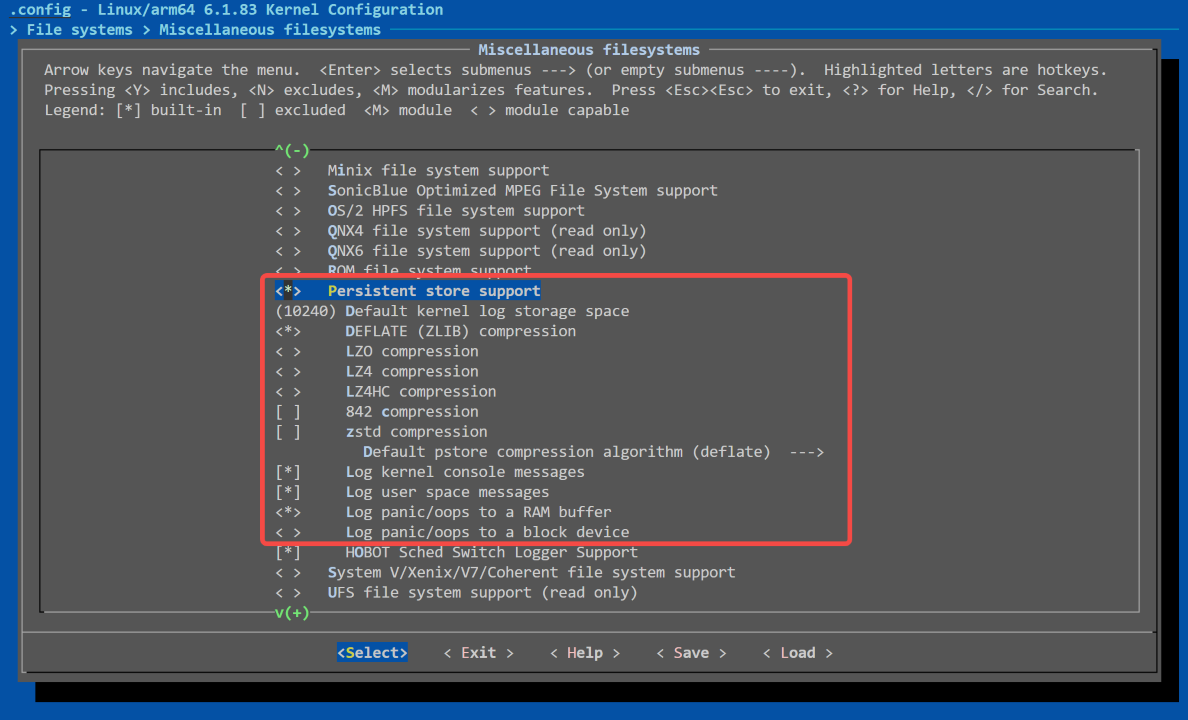
Note: The configured pstore log storage location is on RAM, so corresponding logs can only be seen in /sys/fs/pstore after the automatic reboot following a system panic. Once powered off and restarted, files in /sys/fs/pstore will be cleared:
<*> Log panic/oops to a RAM buffer
After a power-off restart, you need to check the latest log in the transfer directory /userdata/log/pstore/.
After enabling pstore support, the corresponding driver will be loaded, and relevant content can be seen in the system boot logs:
root@buildroot:~# dmesg | grep "ramoops"
[    0.114818] printk: console [ramoops-1] enabled
[    0.114822] pstore: Registered ramoops as persistent store backend
[    0.114827] ramoops: using 0x40000@0xa4080000, ecc: 0
pstore Log Archiving
On the board system, the hobot-log script archives log files from /sys/fs/pstore to the /userdata/log/pstore/ directory. The specific implementation relies on the set_pstore function:
#pstore log information
PSTORE_FS=$(cat /proc/mounts |grep "^pstore" |awk '{print $2}')
PSTORE_LOG=${LOG_SOURCE_DIR}/pstore
PSTORE_LOGMAX=100

function set_pstore()
{
  if [ -n "${PSTORE_FS}" ] && [ ! -e ${PSTORE_LOG}/disable ]; then
    if [ "$(ls -A ${PSTORE_FS})" == "" ];then
      return 0
    fi

    local UBOOTCMD=$(cat /proc/cmdline| sed 's/ /\n/g' | grep -i hobotboot.reason)
    local BOOTREASON=$(echo ${UBOOTCMD#*=})
    if [ "${BOOTREASON}" == "COLD_BOOT" ] || [ "${BOOTREASON}" == "UBOOT_RESET" ] || [ "${BOOTREASON}" == "WATCHDOG" ] || [ "${BOOTREASON}" == "REBOOT_CMD" ]; then
      return 0
    fi

    local pstore_log_date=$(date +%Y_%m_%d_%H_%M_%S)
    local pstore_log_dir="${PSTORE_LOG}/${SOC}_Pstore-${RESET_COUNT_NOW}-${pstore_log_date}"
    mkdir -p ${pstore_log_dir}
    output "pstore log to ${pstore_log_dir}"
    cp ${PSTORE_FS}/* ${pstore_log_dir}/
    /usr/hobot/bin/hrut_sched_log_parse ${PSTORE_FS}/sched-ramoops-0 > ${pstore_log_dir}/sched-ramoops-0
    change_file_time ${pstore_log_dir}

    local pstore_log_cnt=$(ls -l ${PSTORE_LOG} | grep "^d" | wc -l)

    while [ ${pstore_log_cnt} -gt ${PSTORE_LOGMAX} ]; do
        local deldir_name=$(ls -ltr ${PSTORE_LOG} | grep "^d" | head -n 1 | awk '{print $9}')
        rm -rf ${PSTORE_LOG}/${deldir_name}
        pstore_log_cnt=$(ls -l ${PSTORE_LOG} | grep "^d" | wc -l)
    done
    sync
  fi
}
The set_pstore function only moves pstore log files to the pstore_log_dir directory (/userdata/log/pstore/) when the system boot reason is PANIC (not COLD_BOOT, UBOOT_RESET, WATCHDOG, or REBOOT_CMD). It also controls the number of log files; once the count exceeds the configured limit, the oldest logs are deleted to ensure the total does not exceed the set capacity.
After the transfer, a new log directory for the current panic will be generated under /userdata/log/pstore/:
root@buildroot:/userdata/log/pstore# ls
X5_Pstore-0074-1970_01_01_00_00_03  X5_Pstore-0075-1970_01_01_00_00_03
A new directory is created for each panic event, and the log files within each directory are copied from /sys/fs/pstore:
root@buildroot:/userdata/log/pstore/X5_Pstore-0075-1970_01_01_00_00_03# ls
console-ramoops-0  dmesg-ramoops-0  sched-ramoops-0
pstore usage example
After a crash, you can view the log information using the following commands:
# Trigger panic
echo c > /proc/sysrq-trigger

# View pstore logs
cat /sys/fs/pstore/console-ramoops-0

# Or view the logs in the latest subdirectory under /userdata/log/pstore/
cd /userdata/log/pstore/X5_Pstore-0075-1970_01_01_00_00_03/console-ramoops-0
4.4.7.4. log debug
log debugging notes
Save large volumes of logs separately during debugging to prevent loss and facilitate review:
Kernel logs:
dmesg -w > /userdata/dmesg.log &ALOG logs:
logcat -v time -f /userdata/logcat.log &
Generating more logs than the rotate count within each log rotation cycle (10 minutes) may result in log loss:
First, only output necessary logs.
If a large number of logs are generated, carefully consider the appropriate rotate count and file size.
Avoid viewing logs in real-time via serial port or SSH terminal. Log loss may occur due to slow output and buffer overwriting. If necessary, use SSH terminal for real-time viewing.
For example, if “logcat lost message” appears in kernel output when using
logcaton serial port, it indicates log loss.
Logs should be written to storage for persistence. Considering limited storage lifespan and the impact of excessive logging on I/O and CPU performance, only essential logs should be output. Release versions should not include large volumes of debug logs:
For example, with an eMMC storage device (64GB, MLC, 3000 write/erase cycles), writing 10MB of logs per minute continuously for ten years would consume 27% of its lifespan—more when accounting for write amplification.
How to preserve effective logs during system hang
When a system panic occurs, the pstore mechanism can store the kernel log information from the panic into the pstore directory. However, note that BL31 panic information cannot be preserved.
For specific panic root causes, refer to the system stability troubleshooting guide for further analysis.
How to effectively obtain logs from the time of issue
The filenames in the log partition include the last modification time of the corresponding log file, which can be used to locate logs from the time of the issue.
If no corresponding log file exists on the current device, the logs from the time of the issue may have already been overwritten. In this case, retrieve uploaded logs from the cloud and analyze the corresponding log file.
4.4.7.5. Recording AB/BAK abnormal switch reasons
Introduction
Currently, the following conditions may lead to AB or BAK switching due to boot failure:
BL3x in miniboot is corrupted (BAK switch)
The region in the misc partition storing AB information is corrupted (including empty misc partition, switch to A)
U-Boot is corrupted (AB switch)
Boot partition is corrupted (AB switch)
System partition is corrupted (i.e., dm-verity failure, AB switch)
When bootloaders at various stages detect such corruption, they write the corresponding flag into the AON (Always-On) register. On the next boot, BL2 reads the AON register and writes the corruption reason into the misc partition. The misc partition retains only the reasons for the last 10 boot failures. In the device’s file system, the hrut_switch_reason tool is provided to parse the misc partition or a dumped misc partition file, printing either the last switch reason or all 10 recorded reasons.
Additionally, a Python3 script is provided to support parsing dumped misc partition files on a PC and printing the boot failure reasons. The script is located in the BSP source package at hbre/hbutils/utility/pc_tools/hrut_switch_reason.py.
hrut_switch_reason tool usage
On-device tool
root@buildroot:~# hrut_switch_reason -h
Usage: hrut_switch_reason [misc_path] <--current|--all>
misc_path: misc partition or file path (default: /dev/block/platform/by-name/misc)
--current: The reason for the last abnormal switch
--all: The reason for all abnormal switches
example: hrut_switch_reason --all
misc_file: Optional. Specifies the path of the dumped misc partition file. If not provided, defaults to the misc partition node/dev/block/platform/by-name/misc. If specified, it must be the first argument.<--current|--all>: Required.--currentprints the reason for the last boot failure;--allprints all 10 recorded boot failure reasons.
PC tool
❯ ./hrut_switch_reason.py -h
Usage: ./hrut_switch_reason.py <misc_file> <--current|--all>
misc_file: Required. Specifies the path of the dumped misc partition file.<--current|--all>: Required.--currentprints the reason for the last boot failure;--allprints all 10 recorded boot failure reasons.
Usage examples
# On-device tool
root@buildroot:~# hrut_switch_reason --current  # Print last boot failure reason
dm-verity corruped

root@buildroot:~# hrut_switch_reason --all  # Print all boot failure reasons
All Reasons (From the latest to the oldest):
1: dm-verity corruped
2: misc broken
3: unused
4: unused
5: unused
6: unused
7: unused
8: unused
9: unused
10: unused

# PC tool
❯ ./hrut_switch_reason.py ~/misc_file --current   # Print last boot failure reason
miniboot corruped

❯ ./hrut_switch_reason.py ~/misc_file --all  # Print all boot failure reasons
All Reasons (From the latest to the oldest):
1: miniboot corruped
2: miniboot corruped
3: miniboot corruped
4: uboot corruped
5: uboot corruped
6: dm-verity corruped
7: boot corruted
8: boot corruted
9: dm-verity corruped
10: misc broken
Test case construction
To test for misc partition corruption, flash the disk image to the board. This will clear the entire misc partition, including the area storing boot failure reasons.
mmc
# system corrupted (dm-verity) — AVB verification must be enabled
mount / -o rw,remount
echo 132 > ~/test
sync

# boot corrupted — AVB verification must be enabled
dd if=/dev/random of=/dev/block/platform/by-name/boot_a bs=1 count=4

# uboot corrupted
dd if=/dev/random of=/dev/block/platform/by-name/uboot_a bs=1 count=4

# bl3x in miniboot corrupted
dd if=/dev/random of=/dev/block/platform/by-name/miniboot seek=262144 bs=1 count=512
flash
# system corrupted (dm-verity)
# dm-verity is not supported on flash

# boot corrupted — AVB verification must be enabled
# Execute in uboot cmd
mtd write boot_a ${kernel_addr} 0 0x1000

# uboot corrupted
mtd write uboot_a ${kernel_addr} 0 0x1000

# bl3x in miniboot corrupted
mtd write miniboot ${kernel_addr} 0x40000 0x1000
View via cmdline
U-Boot also reads the AON register, passes the last boot failure reason to the kernel via bootargs, and clears the AON register.
root@buildroot:~# cat /proc/cmdline
console=ttyS0,921600n8 root=/dev/mmcblk0p13 ro rootwait hobotboot.slot_suffix=_b hobotboot.reason=WATCHDOG hobotboot.medium=MMC hobotboot.mode=normal hobotboot.ab_switch_reason=dm-verity-corruted pmic_type=single-pmic
Explanation of parameters in the log:
console=ttyS0,921600n8: Specifies the serial port for system console output. ttyS0 is the serial port name, 921600 is the baud rate, and n8 means no parity, 8 data bits.root=/dev/mmcblk0p13: Specifies the device and partition for the root file system. Here, it is partition 13 (p13) of /dev/mmcblk0.ro: Mounts the root file system in read-only mode.rootwait: Instructs the kernel to wait for the root file system device to become ready during boot. Commonly used for network or USB boot where the device may take time to initialize.hobotboot.slot_suffix=_b: A system-specific parameter indicating the boot slot suffix is _b.hobotboot.reason=WATCHDOG: Indicates the boot was triggered by a watchdog timeout. Watchdog is a hardware/software mechanism to detect system hangs and trigger reboot.hobotboot.medium=MMC: Indicates the boot medium is MMC.hobotboot.mode=normal: Indicates normal boot mode.hobotboot.ab_switch_reason=dm-verity-corruted: Indicates the AB switch was due to dm-verity verification failure. dm-verity verifies boot partition integrity; failure suggests tampering or corruption.pmic_type=single-pmic: Indicates the power management IC (PMIC) type is single PMIC.
The boot reason flag in cmdline is hobotboot.ab_switch_reason.
View via system log
System log files also record the command for each boot and the reason for the previous boot failure. The log file is located at /userdata/log/reset_reason.txt on the device. For example, the log on first boot may appear as:
root@buildroot:~# cat /userdata/log/reset_reason.txt
1970-01-01-00-00-08: UBOOT_RESET        misc-broken             LNX6.1.83_PL5.1_V1.0.11_20240912-1542   0000
Here, misc-broken indicates that the misc partition was initialized during this boot, and the system booted from slot A.