2.5 Connect to AI Models
All AI capabilities in RDK Studio are powered by large language models. This section provides the simplest way to connect; detailed explanations of model entry fields, dual-lane routing mechanisms, and protocol determination rules can be found in 3.12 Configuration Center.
Two Connection Methods
| Your Situation | Recommended Method |
|---|---|
| Default case (all RDK Studio users) | Use the built-in official recommended model, requiring no configuration |
| You already have an external model API key and wish to replace the default model | Add a custom model entry in the Configuration Center |
Method 1: Use the Built-in Official Recommended Model
RDK Studio provides all logged-in users with an official recommended model: after completing SSO login, simply open AI Dock and send a message directly—Studio will automatically use the built-in model. No additional API key application or field filling in Studio is required. This built-in model is routed through D-Robotics' official gateway, treating internal company accounts and external developer accounts equally.

The built-in model is sufficient for most scenarios. If you don’t need to integrate other vendors’ models for now, you can click Send on the "Say hello" card shown above or proceed directly to 2.6 Start Your First Conversation.
Method 2: Custom Model Integration
For developers who already have accounts and API keys with external model providers.
Step 1: Access AI Engine Settings
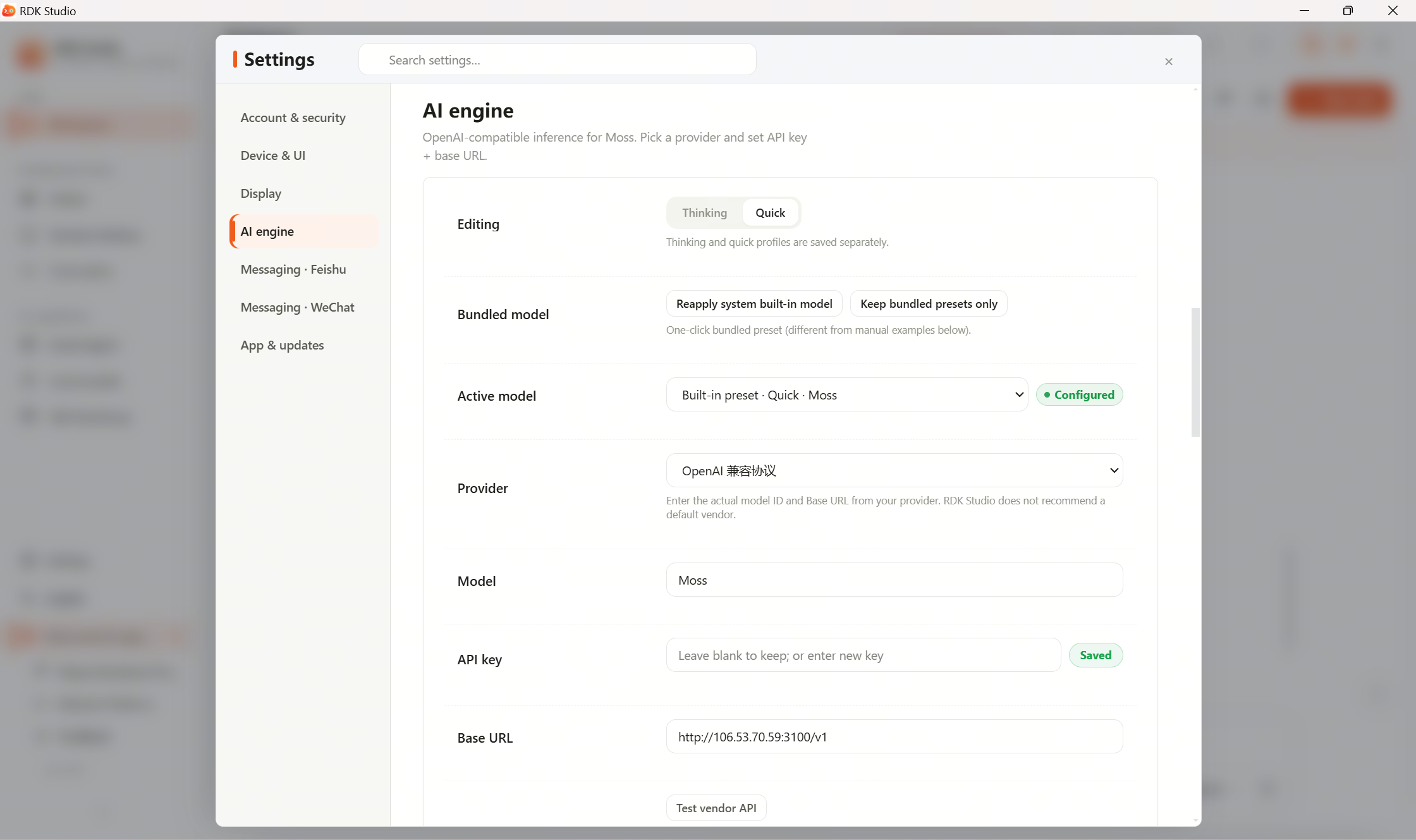
Open the desktop client and navigate to Settings Panel → AI Engine. Alternatively, click the "Models" tab at the bottom of AI Dock to jump directly.
Step 2: Create a New Model Entry
Click Create New Model Entry and fill in the following fields:
| Field | Description | Example |
|---|---|---|
| Label | Give the entry a recognizable name | "My GPT-4" |
| Provider | Select vendor/protocol | openai / anthropic / qwen / doubao / gemini / deepseek / moonshot / ollama / openai-compatible / anthropic-compatible, etc. |
| Model | The vendor's exact model ID (must be precise) | gpt-4o-mini / claude-sonnet-4-20250514 / qwen-plus / doubao-1.5-pro-256k |
| API Key | Obtain from the vendor’s console | sk-xxxx... |
| Base URL | Service endpoint; leave blank to use the vendor’s default | (Leave blank) |
Step 3: Test Connectivity
Click Test Connectivity. Studio will send a test request to the model. A successful return of the model list indicates correct configuration.
Step 4: Save and Activate
After saving the model entry, select it from the dropdown menu at the top of the AI Engine as your currently active model. Studio applies the change immediately—no restart required.
About Dual Lanes
RDK Studio features two dedicated model slots: Thinking and Quick:
- Thinking Lane: Handles main conversations, complex reasoning, and planning
- Quick Lane: Handles tool result summarization, file browsing, and short Q&A
Studio automatically routes tasks based on their characteristics. If only the Thinking lane is configured and the Quick lane remains empty, all tasks will be processed through the Thinking lane, significantly increasing token costs (by 5–10×). We strongly recommend configuring both lanes—use a cost-effective small model for the Quick lane.
Protocol Determination Rules
Studio determines which API protocol to use based on the Provider field in the model entry (not the URL):
| Provider Field | Protocol Used | Authentication Header |
|---|---|---|
openai / qwen / doubao / openai-compatible, etc. | OpenAI Completions | Authorization: Bearer <key> |
anthropic / anthropic-compatible | Anthropic Messages | x-api-key: <key> |
If you're using a reverse proxy to wrap an Anthropic service under a path that doesn't contain "anthropic," you must still set the Provider to anthropic-compatible; otherwise, Studio will send requests using the OpenAI protocol and receive a 401 error.
Next Steps
Once model configuration is complete, proceed to 2.6 Start Your First Conversation to send your first message to the AI.