USB Bus Speed Test
Test Principle
The basic principle of USB speed testing is to measure the data transfer rate between the USB device and the host, calculate the data transfer time, and thereby determine the actual bus speed.
Test Content
The USB bus speed test uses both a USB virtual network interface and the dd command to perform read/write operations on a USB flash drive. These two testing methods are used to evaluate the transfer speeds of USB 2.0 and USB 3.0.
Explanation of the dd Command Principle
The principle of using the dd command to test USB bus speed involves disk I/O performance testing. Although it does not directly measure the speed of the USB bus itself, it indirectly reveals potential USB bus performance bottlenecks by measuring the throughput during data read/write operations with the USB device.
dd if=/dev/zero of=/mnt/usb/testfile bs=1M count=1024 conv=sync oflag=direct
if=/dev/zero: The input file is/dev/zero, which generates a continuous stream of zero bytes.of=/mnt/usb/testfile: The output file istestfileunder the mount point of the USB storage device, meaning data is written to the USB flash drive.bs=1M: Block size is set to 1 MB. Each operation reads or writes 1 MB of data.count=1024: Write 1024 blocks in total, i.e., 1 GB of data.conv=sync: This parameter handles block alignment. If the input data block size is smaller thanbs(4 KB in this example),conv=syncpads the missing portion with zeros to ensure each block is exactly 4 KB.oflag=direct: Bypasses the system cache and writes directly to the USB flash drive.
dd if=/path/to/source_file of=/dev/null bs=4K iflag=direct
if=/path/to/source_file: Specifies the input file path;/path/to/source_fileis the file from which data will be read.of=/dev/null: Specifies the output file location; here, data is discarded by writing to/dev/null.bs=4K: Sets the block size for each read/write operation to 4 KB (4096 bytes).iflag=direct: Thedirectflag ensures data is read directly from the USB flash drive without going through the OS cache.
By executing the dd read/write commands, the system writes zero-filled data to the USB flash drive and measures the throughput during the write process. After the command completes, the system displays the number of bytes written and the time taken, allowing calculation of the write speed. The dd read command works similarly.
Explanation of USB Virtual Network Interface Principle
Configure the USB port to operate in device mode and enable the RNDIS driver. Once connected to a PC, a remote network adapter appears on the computer. After configuring IP addresses on both the board and the PC, use the iperf3 tool to test bandwidth and throughput.
Preparation
USB Flash Drive Read/Write Preparation
1. Insert the USB flash drive into the USB 3.0 port of the RDK_S100 development board. You can run the following command to check the USB interface type:
root@ubuntu:~# lsusb
Bus 004 Device 001: ID 1d6b:0003 Linux Foundation 3.0 root hub
Bus 003 Device 001: ID 1d6b:0002 Linux Foundation 2.0 root hub
Bus 002 Device 002: ID 24a9:205a          MoveSpeed YD 3.1
Bus 002 Device 001: ID 1d6b:0003 Linux Foundation 3.0 root hub
Bus 001 Device 001: ID 1d6b:0002 Linux Foundation 2.0 root hub
The lsblk command identifies the USB flash drive as /dev/sda1:
root@ubuntu:~# lsblk
NAME         MAJ:MIN RM   SIZE RO TYPE MOUNTPOINTS
sda            8:0    1 117.2G  0 disk
-sda1         8:1    1 117.2G  0 part
mmcblk0      179:0    0  58.2G  0 disk
|-mmcblk0p1  179:1    0     1M  0 part
|-mmcblk0p2  179:2    0     1M  0 part
|-mmcblk0p3  179:3    0     1M  0 part
|-mmcblk0p4  179:4    0     2M  0 part
|-mmcblk0p5  179:5    0     2M  0 part
|-mmcblk0p6  179:6    0     2M  0 part
|-mmcblk0p7  179:7    0     2M  0 part
|-mmcblk0p8  179:8    0     8M  0 part
|-mmcblk0p9  179:9    0     8M  0 part
|-mmcblk0p10 179:10   0     8M  0 part
|-mmcblk0p11 179:11   0     8M  0 part
|-mmcblk0p12 179:12   0    60M  0 part /boot
|-mmcblk0p13 179:13   0    60M  0 part
|-mmcblk0p14 179:14   0     8G  0 part /ota
|-mmcblk0p15 179:15   0     4G  0 part /log
|-mmcblk0p16 179:16   0     2G  0 part /userdata
`-mmcblk0p17 179:17   0  44.1G  0 part /
mmcblk0boot0 179:32   0     4M  1 disk
mmcblk0boot1 179:64   0     4M  1 disk
2. Mount the /dev/sda1 device to /mnt/usb:
mount /dev/sda1 /mnt/usb
According to the lsusb output, BUS2: ID 1d6b:205a indicates a USB 3.1 controller. Since the newly inserted USB flash drive appears on BUS2, it is confirmed to be a USB 3.1 device.
Test Procedure
Run the lsblk command to verify that the USB flash drive is correctly mounted:
root@ubuntu:~# lsblk
NAME         MAJ:MIN RM   SIZE RO TYPE MOUNTPOINTS
sda            8:0    1 117.2G  0 disk
├─sda1         8:1    1 117.2G  0 part /mnt/usb
mmcblk0      179:0    0  58.2G  0 disk
├─mmcblk0p1   179:1    0     1M  0 part
├─mmcblk0p2   179:2    0     1M  0 part
├─mmcblk0p3   179:3    0     1M  0 part
├─mmcblk0p4   179:4    0     2M  0 part
├─mmcblk0p5   179:5    0     2M  0 part
├─mmcblk0p6   179:6    0     2M  0 part
├─mmcblk0p7   179:7    0     2M  0 part
├─mmcblk0p8   179:8    0     8M  0 part
├─mmcblk0p9   179:9    0     8M  0 part
├─mmcblk0p10  179:10   0     8M  0 part
├─mmcblk0p11  179:11   0     8M  0 part
├─mmcblk0p12  179:12   0    60M  0 part /boot
├─mmcblk0p13  179:13   0    60M  0 part
├─mmcblk0p14  179:14   0     8G  0 part /ota
├─mmcblk0p15  179:15   0     4G  0 part /log
├─mmcblk0p16  179:16   0     2G  0 part /userdata
└─mmcblk0p17  179:17   0  44.1G  0 part /
mmcblk0boot0 179:32   0     4M  1 disk
mmcblk0boot1 179:64   0     4M  1 disk
Run the following dd command to test the USB bus write speed:
root@ubuntu:~# dd if=/dev/zero of=/mnt/usb/myfile bs=4K count=256K conv=sync
262144+0 records in
262144+0 records out
1073741824 bytes (1.1 GB, 1.0 GiB) copied, 4.19208 s, 256 MB/s
Run the following dd command to test the USB bus read speed:
root@ubuntu:~# dd if=/mnt/usb/myfile of=/dev/null bs=4K count=256K
262144+0 records in
262144+0 records out
1073741824 bytes (1.1 GB, 1.0 GiB) copied, 10.5222 s, 102 MB/s
Preparation
USB Virtual Network Interface Setup
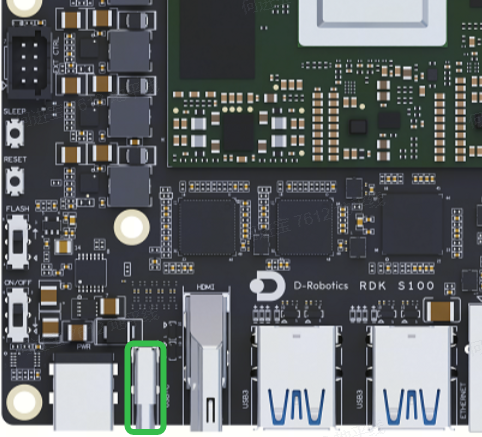
1. Connect the RDK_S100 development board’s USB 2.0 port to a PC’s USB 2.0 port, as shown below:
2. Configure the USB 2.0 port as a virtual network interface using the following commands:
usb-gadget.sh stop adb
usb-gadget.sh start rndis
Command output:
USB2.0 Gadget
Detecting platform:
 board : D-Robotics RDK S100 V0P5
 udc   : 39820000.dwc3
Stopping the USB gadget
Stoping & Delete usb-gadget g_comp
waiting...
... (omitted) ...
OK
Bind functions...
Bind functions according to .usb-config file
bind gadget rndis...
Creating RNDIS gadget functionality
OK
Pre run userspace daemons(eg. adb)...
0
waiting
.
OK
Binding USB Device Controller
OK
Run some userspace daemons(eg. usb_camera)...
usb-gadget start succeed.
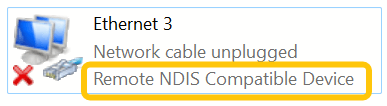
On the PC, open the network configuration panel and you should see a network adapter labeled Remote RNDIS Compatible Device, as shown below:
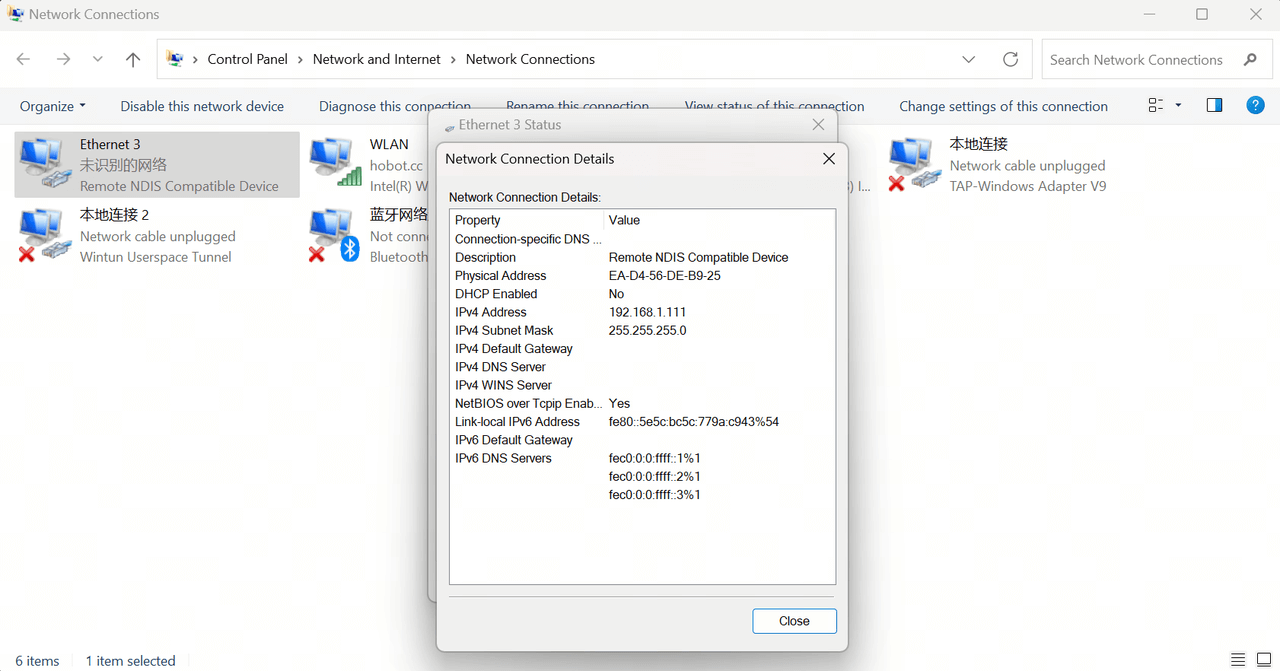
3. Use the following command to configure the IP address of the usb0 network interface so that it resides in the same subnet as the PC-side remote network adapter:
ifconfig usb0 192.168.1.110
PC-side remote network adapter IP configuration is shown below:
Test Method
On the PC side, run iperf3 to start the server. Launch the server by executing the following command in the Command Prompt (cmd):
iperf3 -s -p 5002
On the RDK_S100 development board, run iperf3 as a client. Use the same IP address and port number as configured on the server side to connect and initiate the test. Execute the following command:
root@ubuntu:~# iperf3 -c 192.168.1.111 -i 1 -t 600 -p 5002
Connecting to host 192.168.1.111, port 5002
[  5] local 192.168.5.10 port 57234 connected to 192.168.5.12 port 5002
[ ID] Interval           Transfer     Bitrate         Retr  Cwnd
[  5]   0.00-1.00   sec  34.4 MBytes   289 Mbits/sec    0   67.0 KBytes
[  5]   1.00-2.00   sec  33.8 MBytes   284 Mbits/sec    0   67.0 KBytes
[  5]   2.00-3.00   sec  34.0 MBytes   285 Mbits/sec    0   67.0 KBytes
[  5]   3.00-4.00   sec  34.0 MBytes   285 Mbits/sec    0   67.0 KBytes
If the client connects successfully, the PC server will print the following output:
Accepted connection from 192.168.1.110, port 57220
[  5] local 192.168.1.111 port 5002 connected to 192.168.1.110 port 57234
Test Metrics
Theoretical maximum speeds of USB buses:
- USB 2.0: 480 Mbps (i.e., 60 MB/s)
- USB 3.1 Gen 1 (i.e., USB 3.0): 5 Gbps (i.e., 625 MB/s)
- USB 3.1 Gen 2: 10 Gbps (i.e., 1250 MB/s)
Actual transfer speeds are typically lower than the theoretical maximum due to protocol overhead, hardware limitations, and device performance. In practice:
- USB 2.0 usually achieves 25 MB/s to 35 MB/s,
- USB 3.1 Gen 1 typically ranges from 40 MB/s to 200 MB/s,
- USB 3.1 Gen 2 usually delivers between 600 MB/s and 900 MB/s.
Common Influencing Factors
- USB Version: Bandwidth differences among USB 3.1 Gen 1, USB 3.1 Gen 2, and USB 2.0 directly impact data transfer rates. For example, using a device on a USB 2.0 port limits the theoretical maximum speed to 480 Mbps, with actual speeds often lower.
- Device Type: Different USB devices (e.g., USB flash drives, external HDDs, SSDs) exhibit varying read/write performance. Flash-based USB drives are generally slower, whereas SSDs offer better performance.
- Block Size (
bs): The block size used in theddcommand significantly affects test results. Larger block sizes may increase throughput, while excessively small block sizes can reduce efficiency. Adjusting theddcommand parameters appropriately can yield more accurate test results.
Test Results
Using the methods described in Test 1 and Test 2, the actual transfer speeds of USB 3.1 Gen 1 and USB 2.0 can be effectively measured, and the results align well with real-world USB performance.