7.6 Build System Development Guide
For BSP source package download addresses, please refer to: System Software (registration and login required)
The commercial edition provides more complete feature support, deeper hardware capability exposure, and exclusive customization content. To ensure content compliance and secure delivery, we will grant access to commercial edition materials through the following process.
Commercial edition acquisition process:
- Fill out the questionnaire: Submit your organization information, usage scenarios, and other basic details
- Sign a Non-Disclosure Agreement (NDA): We will contact you based on the submitted information, and sign the NDA after both parties confirm
- Content release: After the agreement is signed, we will provide you with commercial edition materials through private channels
If you wish to obtain commercial edition content, please click the link below to fill out the questionnaire. We will contact you within 3–5 business days: https://horizonrobotics.feishu.cn/share/base/form/shrcnpBby71Y8LlixYF2N3ENbre
Overview
This chapter is primarily intended for those who need to make customized modifications to the RDK build system. For usage instructions on rdk_gen, please refer to the README.md in the rdk_gen repository.
Basic usage instructions:
# Online image build: download dependent deb packages from D-Robotics and third-party APT sources
sudo ./pack_image.sh

# Offline image build: only install deb packages under out/product/deb_packages. When using this option, ensure that the debs in out/product/deb_packages meet expectations, and that a precompiled root filesystem package is already present under out/product/rootfs_packages
sudo ./pack_image.sh -l

# Only set up the deb package build environment without packaging the image
sudo ./pack_images.sh -p

# Build all deb packages
./mk_debs.sh

# Build a specific deb package, using hobot-configs as an example
./mk_debs.sh hobot-configs
Root Filesystem Precompiled Package Build Instructions
The root filesystem is generated by multistrap + chroot.
multistrap
Official Documentation
Tool Overview
In summary, multistrap is another tool, independent of debootstrap, for generating root filesystems based on APT sources under Debian/Ubuntu. It uses one or more configuration files to define the APT sources used for generating the root filesystem and which packages to include by default.
The main differences from debootstrap are:
- Flexibility:
multistrapallows users to fully customize all packages in the newly generated root filesystem, including those marked as required in the APT sources, but users must ensure the integrity and usability of the root filesystem themselves. - Build process: Unlike
debootstrap,multistrap's process can be summarized in the following steps. The biggest difference lies in step 4:multistraponly extracts packages and does not configure them (i.e., does not execute [pre/post]install scripts): - Read the configuration file
- Fetch metadata from the specified APT sources according to the configuration
- Attempt to download the specified packages according to the configuration
- Extract the specified packages according to the configuration
In the
multistrapbuild scripts provided by D-Robotics, based on practical experience, we usebinfmt-support + chrootto configure packages with sudo privileges, so that the resulting root filesystem can be directly flashed to the board and used.
Configuration File Overview
multistrap configuration files support both single-file and multi-file formats. In multi-file mode, the include field can be used to include all contents from the base version and then configure only for a specific version, greatly facilitating maintenance of multiple filesystems.
The configuration file paths for the following sections: samplefs/configs:
$ tree samplefs/configs/
samplefs/configs/
├── jammy-base.conf
├── jammy-desktop.conf
├── jammy-server.conf
├── noble-base.conf
├── noble-desktop.conf
└── pip-requirements.list

0 directories, 6 files
- RDK S100: Use
jammy-*configuration files (Ubuntu 22.04) - RDK S600: Use
noble-*configuration files (Ubuntu 24.04)
Basic Format Introduction
For detailed field descriptions, please refer to the official documentation. Here we focus on important configurations in D-Robotics' configuration files.
- Field: In the format
key1=value1, defines the value of fieldkey1asvalue1. - Stanza/Section: Defined by
[Some-Section], it groups all fields from that line until the next[Next-Section]into aSection.
Key fields:
- include
- Defines the path of configuration files to include.
- bootstrap
- Defines the APT source used to generate the root filesystem and the section containing packages to download and extract.
- aptsources
- Defines the section containing APT sources to be saved under
/etc/sources.list.d/in the generated root filesystem. Note: This source does not necessarily have to match the one used in bootstrap to generate the root filesystem, but we strongly recommend that the APT sources defined in aptsources be a superset of those defined in bootstrap.
- Defines the section containing APT sources to be saved under
- source/suite/components/omitdebsrc
- Defines keywords used for APT sources. Refer to APT source format definition
- source: The base URL of the APT source, matching the
urifield in APT source format. - suite: The suite of the APT source, matching the
suitefield in APT source format, generally representing the system code name + attributes, e.g., Ubuntu's jammy/focal/noble/jammy-updates/noble-security. - components: The components of the APT source, matching the
componentfield in APT source format; multiple components can be added. - omitdebsrc: Whether to download source packages corresponding to deb packages when fetching APT metadata and packages. Typically set to
true, meaning source packages are not downloaded, to speed up the build.
- packages
- A field for defining packages to fetch. One packages field can define multiple packages separated by spaces. The union of multiple packages fields becomes the final package definition.
Multi-File Configuration Example
Please refer to the code path samplefs/configs/jammy-desktop.conf
Please refer to the code path samplefs/configs/noble-desktop.conf
RDK Implementation
Configuration File Design
On RDK, multistrap configuration files are divided into multiple parts by platform:
- jammy-base.conf: Configures the default root filesystem settings common to RDK S100, including APT sources and packages included by default across all RDK S100 versions.
- jammy-desktop.conf: Configures additional packages for the RDK S100 desktop root filesystem on top of jammy-base.conf.
- jammy-server.conf: Configures additional packages for the RDK S100 server root filesystem on top of jammy-base.conf.
- noble-base.conf: Configures the default root filesystem settings common to RDK S600, including APT sources and packages included by default across all RDK S600 versions.
- noble-desktop.conf: Configures additional packages for the RDK S600 desktop root filesystem on top of noble-base.conf.
Build Process Description
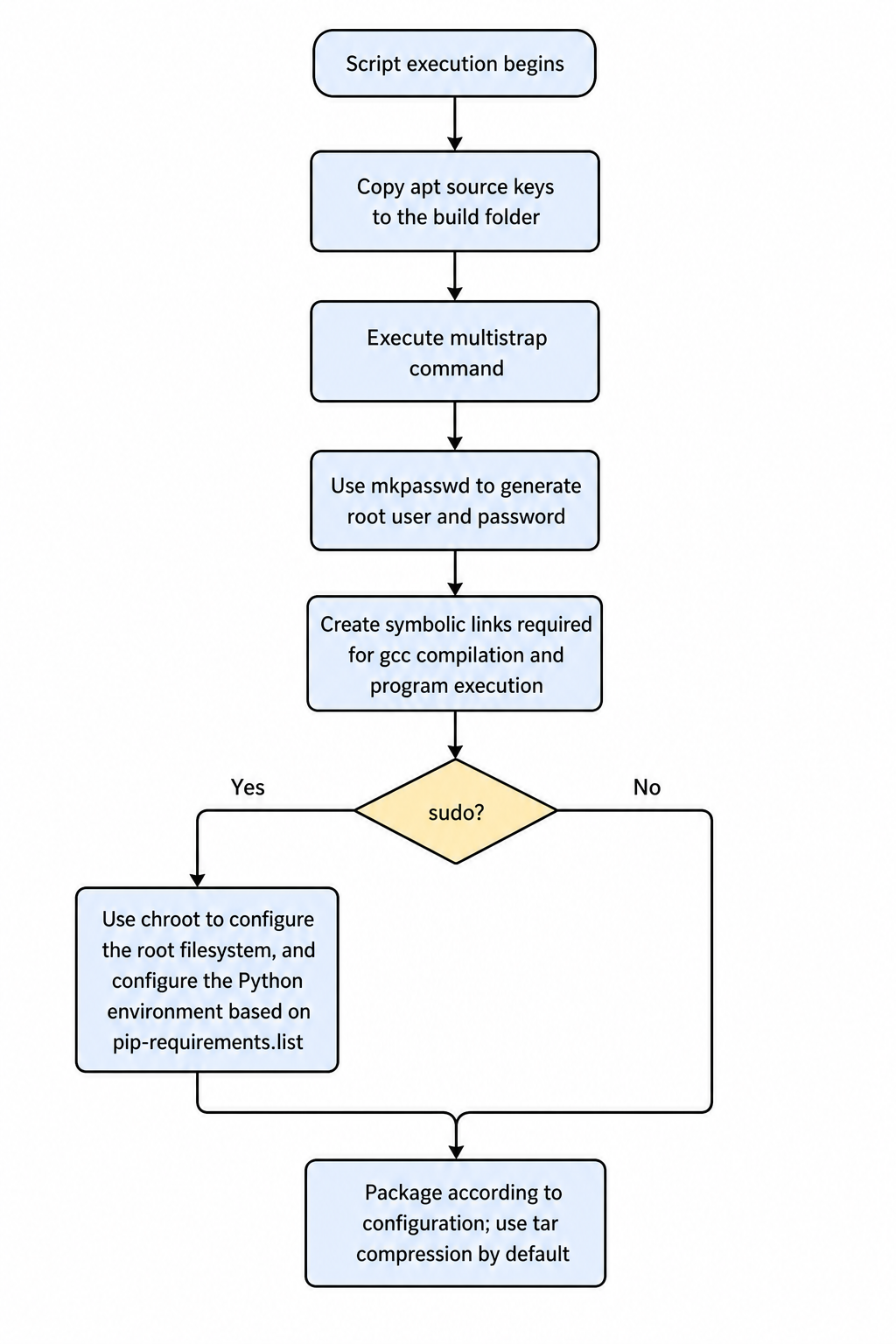
Users typically use the samplefs/make_ubuntu_samplefs.sh script to build the root filesystem. If the script is invoked with sudo, the build process includes package configuration, which significantly increases build time.
If the script is invoked without sudo, the build process does not include package configuration, so build time is reduced. However, on the first boot, the system must be initialized and rebooted using the following commands on the board:
rm -rf /var/lock/* ; dpkg --configure -a --force-confdef --force-confold ; systemctl enable /etc/systemd/system/S*.service
It is recommended to use sudo when invoking samplefs/make_ubuntu_samplefs.sh.
The samplefs/make_ubuntu_samplefs.sh script must be invoked from the samplefs directory.
Without any parameters, using sudo ./make_ubuntu_samplefs.sh:
The script builds a desktop image by default, i.e., using jammy-desktop.conf to build the root filesystem.
The script builds a desktop image by default, i.e., using noble-desktop.conf to build the root filesystem.
To specify a configuration file: sudo ./make_ubuntu_samplefs.sh build <config_file_name>. For example, if the new configuration file is new-desktop.conf, the command is: sudo ./make_ubuntu_samplefs.sh build new-desktop.conf. The new-desktop.conf file must be placed in the samplefs/configs folder.
The script build flowchart is as follows:
Methods for Trimming/Customizing the Root Filesystem
The Priority field in APT source (deb package control) information differentiates the trimming/customization process. multistrap installs all packages with Priority "Required" by default. D-Robotics also defines important packages to be installed.
Trimming/Customizing Only Packages with APT Priority Other Than "important"/"required"
Users can directly delete unwanted packages from the various packages fields in configuration files such as samplefs/configs/jammy-base.conf, or define a new section and remove the original section while adding their own to the bootstrap field in the [General] section.
Users can directly delete unwanted packages from the various packages fields in configuration files such as samplefs/configs/noble-base.conf, or define a new section and remove the original section while adding their own to the bootstrap field in the [General] section.
Trimming/Customizing Packages with APT Priority "important"/"required"
Note: Generally, maintainers of APT sources mark packages that constitute the minimal set for that system (various versions of Ubuntu/Debian) with Priority "Required", but further trimming is possible. When trimming the root filesystem to this extent, users must ensure the integrity and usability of the root filesystem themselves.
Steps:
- Add
omitrequired=trueto the[General]section. - Define all required packages in the
Packagesfield.
RDK deb Package Build Process Description
Introduction
RDK uses deb packages by default to manage user-level D-Robotics custom features. The source code for building all D-Robotics custom feature deb packages is stored in the SDK's source/ directory.
Build Script Introduction
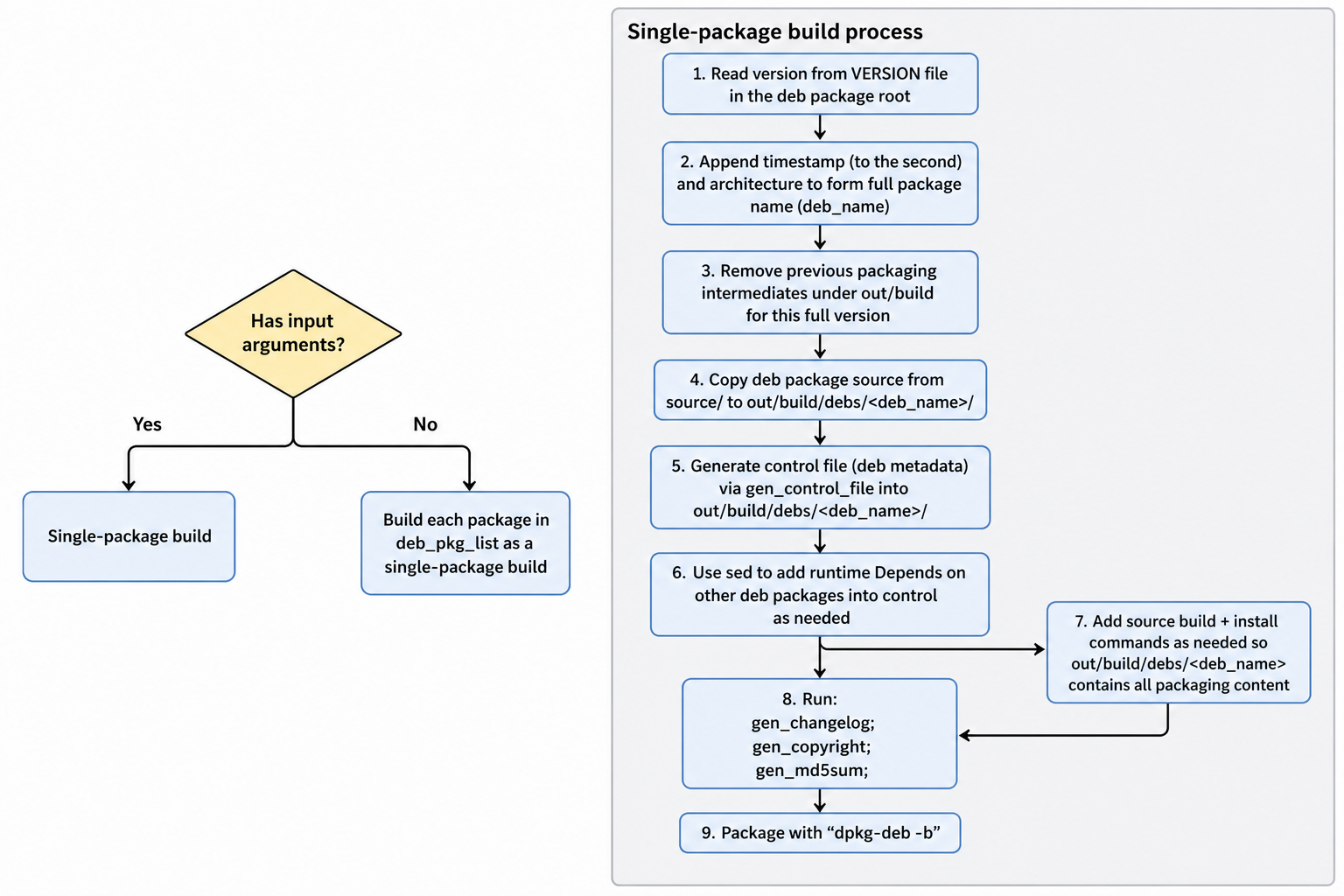
The entry script for building debs is mk_debs.sh, located in the root directory of the SDK package. Users can build deb packages in the repository using this script.
deb Package Source Directory
All directories under source, except bootloader, kernel, and hobot-drivers, contain source code for building D-Robotics custom feature deb packages. Among them, hobot-spdev, hobot-camera, hobot-io, etc., contain the source code for corresponding dynamic libraries. When building these packages with the mk_debs.sh script, the corresponding source code is compiled.
The basic structure of a deb package source directory (using hobot-configs as an example) includes:
hobot-configs/
├── LICENSE          # License information for the deb package source
├── README.md        # Brief description of the deb package
├── VERSION          # Version number of the deb package, in major.minor.patch format; a timestamp is appended by default during compilation
└── debian           # Root directory of the deb package, equivalent to the root directory when installed on the board
    ├── DEBIAN       # Metadata information of the deb package
    |   ├── postinst # One of the standard deb package scripts; executed after the dpkg installation copy step
    │   ├── postrm   # One of the standard deb package scripts; executed after the dpkg removal file deletion step
    │   ├── preinst  # One of the standard deb package scripts; executed before the dpkg installation copy step
    │   └── prerm    # One of the standard deb package scripts; executed before the dpkg removal file deletion step
    ├── etc          # Files to be copied to the root filesystem; create as needed. The directory relative to "debian" corresponds to the root filesystem path; e.g., this directory will be installed to /etc on the board
    ├── lib          # Files to be copied to the root filesystem; create as needed.
    └── usr          # Files to be copied to the root filesystem; create as needed.
For deb packages that include source code, additional source directories are present outside the debian directory, e.g., hobot-camera:
hobot-camera/
├── LICENSE
├── README.md
├── VERSION
├── debian
│   ├── DEBIAN
│   ├── etc
│   └── usr
├── drivers             # Source directory to be compiled
│   ├── Makefile        # Entry Makefile for source compilation
│   ├── deserial        # Source subdirectory
│   ├── inc
│   └── sensor
├── lib -> ../hobot-multimedia/debian/usr/hobot/lib # Symlink to source for convenience
├── sensor_calibration       # Sensor tuning library; the following libraries are examples only, subject to actual conditions
│   └── lib_imx219_linear.so
└── tuning_tool              # Sensor tuning tool provided by D-Robotics
    ├── bin
    ├── cfg
    ├── control_tool
    ├── res
    └── scripts
Build Process Description
For detailed process, please refer to the mk_debs.sh script implementation. Below is a simplified flowchart:
Custom deb Package Process Description
- Under the
source/folder, create a new folder named after the package name (package name in dpkg). Here, "new_package" is used as an example. - Under
source/new_package, create adebianfolder, and create four script files inside it. These four scripts can be empty:- preinst: Script to be executed before copying files when installing the new_package.
- postinst: Script to be executed after copying files when installing the new_package.
- prerm: Script to be executed before the removal command when removing the new_package.
- postrm: Script to be executed after the removal command when removing the new_package.
- If the package should be automatically built when
mk_debs.shis invoked without arguments, add thenew_packagefield to thedeb_pkg_listvariable in themk_debs.shscript. - In the
mk_debs.shscript, within theswitchof themake_debian_debfunction, add acasefornew_package:- In the
case, call thegen_control_filefunction to generate the control file required for building the deb package. - In the
case, use thesedcommand to replace the defaultdependsfield with the actual deb dependencies. Assumenew_packagedepends ondep_pkg1anddep_pkg2:- If there are dependencies, use
sed -i 's/Depends: .*$/Depends: dep_pkg1,dep_pkg2/' "${deb_dst_dir}"/DEBIAN/control; - If there are no dependencies, use
sed -i 's/Depends: .*$/Depends: /' "${deb_dst_dir}"/DEBIAN/control;
- If there are dependencies, use
- (Optional) If the deb requires source compilation before packaging, invoke the source compilation commands. Note that all final outputs must be placed under
out/build/debs/new_pkg/debian/. - Set
is_allowed=1.
- In the
Incorporating deb Packages into the Image Build Process
During image construction, deb packages are incorporated into the root filesystem on the board.
Online Image Build
Process Description
When pack_image.sh is invoked without the -l option, the online image build process is used. The process is as follows:
- Retrieve the current default build configuration file from the
DEFAULT_CONFIGfield inpack_image.sh. For example, S100 usesbuild_params/ubuntu-22.04_desktop_rdk-s100_release.conf, and S600 usesbuild_params/ubuntu-24.04_desktop_rdk-s600_release.conf.- This configuration file can be specified using the
-coption.
- This configuration file can be specified using the
- Retrieve the
RDK_DPKG_DEB_PKG_LISTfield from the build configuration file. - chroot into the
out/deploy/rootfsdirectory:- Attempt to download all deb packages from the existing board APT sources based on the
RDK_DPKG_DEB_PKG_LISTfield. - Install all deb packages.
- Attempt to download all deb packages from the existing board APT sources based on the
Method for Adding Additional deb Packages
- Find the package name to be installed.
- Add the corresponding package name to the
RDK_DPKG_DEB_PKG_LISTvariable in the specified build configuration file.
For how to obtain package names, please refer to How to Obtain Required deb Package Names.
Offline Image Build
Process Description
When pack_image.sh is invoked with the -l option, the offline image build process is used. The process is as follows:
- chroot:
- Install each deb package present in
out/product/deb_packages.
- Install each deb package present in
Method for Adding Additional deb Packages
- Find the package name to be installed.
- Download the corresponding package to
out/product/deb_packagesusing the following command:
cd out/product/deb_packages
apt download <package names>
For how to obtain package names, please refer to How to Obtain Required deb Package Names.
How to Obtain Required deb Package Names
Package names can be obtained in two ways:
- You only know the required file and the package has not been installed on the host:
- Use search engines like Google/Baidu to confirm the deb package name that owns the file, and verify the APT source of that deb package. The recommended process is:
- Search for the file name on debian.org to confirm the deb package name. Note: search under the "Search the contents of packages" section.
- After confirming the package name, search for the specific package source on Ubuntu Launchpad to confirm that the package is available in main/universe/multiverse components for jammy/jammy-updates (S100) or noble/noble-updates (S600).
- Use search engines like Google/Baidu to confirm the deb package name that owns the file, and verify the APT source of that deb package. The recommended process is:
- You know the required file and it is installed on the host:
- Use the
dpkg -S <filename>command to obtain the package name.
- Use the
Custom Partition Configuration
RDK S100 partition definition files are stored under source/bootloader/device/rdk/s100/partition_config_files. The default partition table used is: source/bootloader/device/rdk/s100/partition_config_files/s100-gpt.json
RDK S600 partition definition files are stored under source/bootloader/device/rdk/s600/partition_config_files. The default partition table used is: source/bootloader/device/rdk/s600/partition_config_files/s600-gpt.json
{
	"global": {
		"antirollbackUpdate_host": true,
		"antirollbackUpdate_hsm": false,
		"ab_sync": false,
		"backup_dir": "/tmp/ota/backup",
		"AB_part_a": "_a",
		"AB_part_b": "_b",
		"BAK_part_bak": "_bak"
	},
	"fpt": "fpt_common",                //------------------//
	"recovery": "recovery_common",      //                  //
	"misc": "misc_common",              //                  //
	"HB_APDP":"HB_APDP_common",         //                  //
	"keystorage": "keystorage_common",  //                  //
	"HSM_FW": "HSM_FW_common",          //  miniboot_flash  //
	"HSM_RCA": "HSM_RCA_common",        //                  //
	"keyimage": "keyimage_common",      //                  //
	"SBL": "SBL_common",                //                  //
	"scp": "scp_common",                //                  //
	"spl": "spl_common",                //                  //
	"MCU": "MCU_common",                //------------------//

	"quickboot": "quickboot_common",    //------------------// //------------------//
	"veeprom": "veeprom_common",        //                  // //                  //
	"ubootenv": "ubootenv_common",      //                  // //                  //
	"acore_cfg": "acore_cfg_common",    //   miniboot_emmc  // //                  //
	"bl31": "bl31_common",              //                  // //     emmc_disk    //
	"optee": "optee_common",            //                  // //                  //
	"uboot": "uboot_common",            //------------------// //                  //
	"boot": "boot_common",                                     //                  //
	"ota": "ota_common",                                       //                  //
	"log": "log_common",                                       //                  //
	"userdata": "userdata_common",                             //                  //
	"system": "system_common"                                  //------------------//
}
{
	"global": {
		"antirollbackUpdate_host": true,
		"antirollbackUpdate_hsm": false,
		"ab_sync": false,
		"backup_dir": "/tmp/ota/backup",
		"AB_part_a": "_a",
		"AB_part_b": "_b",
		"BAK_part_bak": "_bak"
	},
	"fpt": "fpt_common",                //------------------//
	"recovery": "recovery_common",      //                  //
	"misc": "misc_common",              //                  //
	"HB_APDP":"HB_APDP_common",         //                  //
	"keystorage": "keystorage_common",  //                  //
	"HSM_FW": "HSM_FW_common",          //  miniboot_flash  //
	"HSM_RCA": "HSM_RCA_common",        //                  //
	"keyimage": "keyimage_common",      //                  //
	"SBL": "SBL_common",                //                  //
	"spl": "spl_common",                //                  //
	"MCU": "MCU_common",                //------------------//

	"quickboot": "quickboot_common",    //------------------// //------------------//
	"veeprom": "veeprom_common",        //                  // //                  //
	"ubootenv": "ubootenv_common",      //                  // //                  //
	"acore_cfg": "acore_cfg_common",    //   miniboot_emmc  // //                  //
	"bl31": "bl31_common",              //                  // //     emmc_disk    //
	"optee": "optee_common",            //                  // //                  //
	"uboot": "uboot_common",            //------------------// //                  //
	"boot": "boot_common",                                     //                  //
	"ota": "ota_common",                                       //                  //
	"log": "log_common",                                       //                  //
	"userdata": "userdata_common",                             //                  //
	"system": "system_common"                                  //------------------//
}
Default Images and Partition Introduction
- miniboot_flash: The basic boot image stored on RDK NOR Flash, including system component images like HSM/MCU0.
- miniboot_emmc: The basic boot image stored on RDK eMMC, including system component images like BL31/Uboot.
- emmc_disk: The complete image on RDK eMMC, which includes miniboot_emmc. During compilation, it is automatically converted to Android Sparse image format (Android Sparse image description (third-party site, for reference only)) to reduce storage space usage.
Configuration File Description
The overall partition table configuration consists of global shared settings and per-partition settings. Global shared settings are placed in the global field and apply to all partitions.
Supported global parameters:
antirollbackUpdate_host: Whether to update the host's anti-rollback version, true or false.antirollbackUpdate_hsm: Whether to update the hsm's anti-rollback version, true or false.ab_sync: D-Robotics internal reserved field.backup_dir: hsm backup directory.AB_part_a: Suffix for the A partition of AB partitions.AB_part_b: Suffix for the B partition of AB partitions.BAK_part_bak: Suffix for the backup partition.
Per-partition configurations use the format "partition name": "partition configuration type". Different partition configuration types can be chosen as needed. For example, the boot partition first needs a description added in the global partition configuration, then a boot.json file must be created in the corresponding sub_config folder, defining boot_common:
Create boot.json in the source/bootloader/device/rdk/s100/partition_config_files/sub_config folder:
Create boot.json in the source/bootloader/device/rdk/s600/partition_config_files/sub_config folder:
{
	"boot_common": {
		"components":[
			"${TARGET_DEPLOY_DIR}/rootfs/boot/:60m"
		],
		"pre_cmd": [
			"pack_boot.sh;[ $? -ne 0 ] && exit 1;rm -rf ${TARGET_DEPLOY_DIR}/rootfs/boot/System.map*"
		],
		"post_cmd": [
			"pack_avb_img.sh boot boot"
		],
		"fs_type": "ext4",
		"medium": "emmc",
		"ota_is_update": false,
		"ota_update_mode": "image",
		"part_type": "AB",
		"part_type_guid": "C12A7328-F81F-11D2-BA4B-00A0C93EC93B",
		"size": "60m"
	},
	"boot_ota": {
		"components":[
			"${TARGET_DEPLOY_DIR}/rootfs/boot/:60m"
		],
		"pre_cmd": [
			"pack_boot.sh;[ $? -ne 0 ] && exit 1;rm -rf ${TARGET_DEPLOY_DIR}/rootfs/boot/System.map*"
		],
		"post_cmd": [
			"pack_avb_img.sh boot boot"
		],
		"fs_type": "ext4",
		"medium": "emmc",
		"ota_is_update": true,
		"ota_update_mode": "image",
		"part_type": "AB",
		"part_type_guid": "C12A7328-F81F-11D2-BA4B-00A0C93EC93B",
		"size": "60m"
	}
}
Supported partition parameters:
depends: Defines partition dependencies; which partitions must be built before the current partition can be built. A list of dependent partition names.components: Defines the contents of the current partition, which can be sub-image paths or file directories. File directories are made into a filesystem; currently supported filesystems are ext4 and fat16. Use:after the path to specify the size occupied by this part in the partition. Multiple sub-images are allowed; sub-images are recommended to be placed in the corresponding partition directory underout/xxx/deploy.components_nose: Non-secure boot image components.pre_cmd: Commands to be executed before creating the image from the component contents.post_cmd: Commands to be executed after creating the image from the component contents.fs_type: Image type: None/ext4/fat16/misc.medium: The storage medium for the image: emmc/nor.ota_is_update: Whether the full OTA package includes this partition.ota_update_mode: OTA update mode for the partition;imagefor image-level upgrade (default),image_difffor differential image upgrade.is_rootfs: Whether this is a rootfs partition.part_type: Partition type: currently supports AB, BAK, PERMANENT.size: Partition size; units can be k, m, g.magic: Magic number for the partition; only effective for partition images that include a flash image header.have_anti_ver: Whether the partition image contains an anti-rollback version, true or false.load_addr: Load address of the image; only effective for partition images that include a flash image header.entry_addr: Entry address of the image; only effective for partition images that include a flash image header.nose_support: Non-secure boot image support.
- The partition order in the JSON file is the actual partition order on the board.
- Partition sizes must be aligned with the sector size of the storage medium to which they belong.
Partition Modification Instructions
RDK S100 supports changing partitions on eMMC/UFS. Simply add, delete, or modify the corresponding partition fields in the partition configuration. For flash partition changes, please contact D-Robotics.
RDK S600 supports changing partitions on eMMC/UFS. Simply add, delete, or modify the corresponding partition fields in the partition configuration. For flash partition changes, please contact D-Robotics.
- In the partition table, partitions up to and including
logare boot partitions; modification is not recommended in principle. - Other partitions, such as
userdataandsystem, can be resized freely. If adding a new partition, remember to adjust thefstabfile to ensure the partition is mounted correctly.
After modifying the partition table, the following steps are required for the changes to take effect:
- Build the hobot-miniboot deb package:
# In RDK Source Root Directory
./mk_debs.sh hobot-miniboot - Build the image locally:
# In RDK Source Root Directory
sudo ./pack_image.sh -l
eMMC/UFS/NVMe Image Build Notes
Using D-Robotics' Provided ubuntu-22.04_desktop_rdk-s100_XXX.conf
For eMMC, UFS, and NVMe storage media, the corresponding drivers are differentiated by different configuration variables. Therefore, before building, the build configuration file must be modified according to the actual storage chip used.
Taking the S100 platform as an example, the following two configuration files must be modified:
- /build_params/ubuntu-22.04_desktop_rdk-s100_beta.conf
- /build_params/ubuntu-22.04_desktop_rdk-s100_release.conf
Using D-Robotics' Provided ubuntu-24.04_desktop_rdk-s600_XXX.conf
For eMMC, UFS, and NVMe storage media, the corresponding drivers are differentiated by different configuration variables. Therefore, before building, the build configuration file must be modified according to the actual storage chip used.
Taking the S600 platform as an example, the following two configuration files must be modified:
- /build_params/ubuntu-24.04_desktop_rdk-s600_beta.conf
- /build_params/ubuntu-24.04_desktop_rdk-s600_release.conf
In these two files, set the RDK_DISK_MEDIUM variable to the value corresponding to the actual storage chip:
# For eMMC chips
export RDK_DISK_MEDIUM="emmc"

# For UFS chips
export RDK_DISK_MEDIUM="ufs"

# For NVMe
export RDK_DISK_MEDIUM="nvme"
Using a Custom conf File
If a user writes their own conf file, two steps are required:
- The file must include the
RDK_DISK_MEDIUMvariable, and set its value to the type corresponding to the actual storage chip:
# For eMMC chips
export RDK_DISK_MEDIUM="emmc"

# For UFS chips
export RDK_DISK_MEDIUM="ufs"

# For NVMe
export RDK_DISK_MEDIUM="nvme"
- Modify the five locations in the S100 build system that reference the conf file. Using the release version as an example:
download_deb_packages.sh:
DEFAULT_CONFIG="${HR_LOCAL_DIR}/build_params/ubuntu-22.04_desktop_rdk-s100_release.conf"
download_samplefs.sh:
DEFAULT_CONFIG="${HR_LOCAL_DIR}/build_params/ubuntu-22.04_desktop_rdk-s100_release.conf"
mk_kernel.sh:
DEFAULT_CONFIG="${HR_LOCAL_DIR}/build_params/ubuntu-22.04_desktop_rdk-s100_release.conf"
pack_image.sh:
DEFAULT_CONFIG="${HR_LOCAL_DIR}/build_params/ubuntu-22.04_desktop_rdk-s100_release.conf"
mk_uboot.sh:
DEFAULT_CONFIG="${HR_LOCAL_DIR}/../../build_params/ubuntu-22.04_desktop_rdk-s100_release.conf"
Build Process After Modifying the conf File
After making the modifications, compile uboot/spl, update miniboot/bootloader, and perform a full build:
# cd to the source root directory, build the hobot-miniboot deb package
./mk_debs.sh hobot-miniboot # The generated deb package path is out/product/deb_packages/hobot-miniboot_4.0.Z-xxx_arm64.deb

./mk_kernel.sh # The generated deb package path is out/product/deb_packages/linux-image-rdk-s100*_arm64.deb

# Build the disk image
sudo ./pack_image.sh -l  # Use local deb packages during the build; the -l flag is required to use local packages; otherwise remote packages are used.
- Modify the five locations in the S600 build system that reference the conf file. Using the release version as an example:
download_deb_packages.sh:
DEFAULT_CONFIG="${HR_LOCAL_DIR}/build_params/ubuntu-24.04_desktop_rdk-s600_release.conf"
download_samplefs.sh:
DEFAULT_CONFIG="${HR_LOCAL_DIR}/build_params/ubuntu-24.04_desktop_rdk-s600_release.conf"
mk_kernel.sh:
DEFAULT_CONFIG="${HR_LOCAL_DIR}/build_params/ubuntu-24.04_desktop_rdk-s600_release.conf"
pack_image.sh:
DEFAULT_CONFIG="${HR_LOCAL_DIR}/build_params/ubuntu-24.04_desktop_rdk-s600_release.conf"
mk_uboot.sh:
DEFAULT_CONFIG="${HR_LOCAL_DIR}/../../build_params/ubuntu-24.04_desktop_rdk-s600_release.conf"
Build Process After Modifying the conf File
After making the modifications, compile uboot/spl, update miniboot/bootloader, and perform a full build:
# cd to the source root directory, build the hobot-miniboot deb package
./mk_debs.sh hobot-miniboot # The generated deb package path is out/product/deb_packages/hobot-miniboot_5.Y.Z-xxx_arm64.deb

./mk_kernel.sh # The generated deb package path is out/product/deb_packages/linux-image-rdk-s600*_arm64.deb

# Build the disk image
sudo ./pack_image.sh -l  # Use local deb packages during the build; the -l flag is required to use local packages; otherwise remote packages are used.
- NVMe boot is supported only on RDKS100 V0P6, RDKS600 V1P0, and later versions. The [D13:D12] DIP switches on the board can be set to [1:0].
- The miniboot_flash image compiled under NVMe mode supports only NVMe boot and does not support other modes. The miniboot_flash image compiled under eMMC/UFS mode supports NVMe boot.
- The download tool version 1.1.10 and later supports NVMe image flashing.