Voice Interaction
- LLM Model: Qwen2.5-1.5B
- ASR Model: SenseVoice
- TTS and KWS Models: sherpa-onnx
- Audio Stream Processing: https://github.com/D-Robotics/magicbox_audio_io
- Large Language Model: https://github.com/D-Robotics/magicbox_qwen_llm
- Lighting Control Library: https://github.com/D-Robotics/magicbox_lighting_control
Audio Stream Processing Function Description
Currently, only Chinese interaction is supported.
-
For instructions on using the voice interaction feature, refer to Quick Start Voice Interaction.
-
In addition to the default continuous conversation mode, it also supports a continuous wake-up mode, i.e., "one wake-up, one conversation."
- You can wake up the device by saying "Hello, Digua" to initiate a single conversation.
- You can also directly start a conversation by saying "Hello, Digua + your question."
-
After detecting "Hello, Digua," the light will flash. You can enable or disable the continuous wake-up mode by modifying the
continuous_wake_modesetting in/userdata/magicbox/app/ros_ws/src/magicbox/magicbox_audio_io/launch/audio_io.launch.py.-
How to set: Use the script launch command
ros2 launch audio_io audio_io.launch.py continuous_wake_mode:=true.
-
-
This function is used together with
qwen_llm, so it will wait forqwen_llmto start. If you want to use it independently, you can switch thewait_for_llmsetting in/userdata/magicbox/app/ros_ws/src/magicbox/magicbox_audio_io/launch/audio_io.launch.py.-
How to set: Use the script launch command
ros2 launch audio_io audio_io.launch.py wait_for_llm:=false.
-
-
After the TTS audio playback is complete and the
endmessage is received, the microphone will be reactivated (with the light constantly on). Theendmessage is primarily used to confirm that the large language model has finished outputting. -
Due to the long initialization time of the audio processing node, it starts automatically after booting. The button only controls the start and stop of the large language model node, but both nodes will wait for each other to start before functioning.
-
For more parameter details and compilation instructions, refer to the README file in the code repository.
Large Language Model Function Description
-
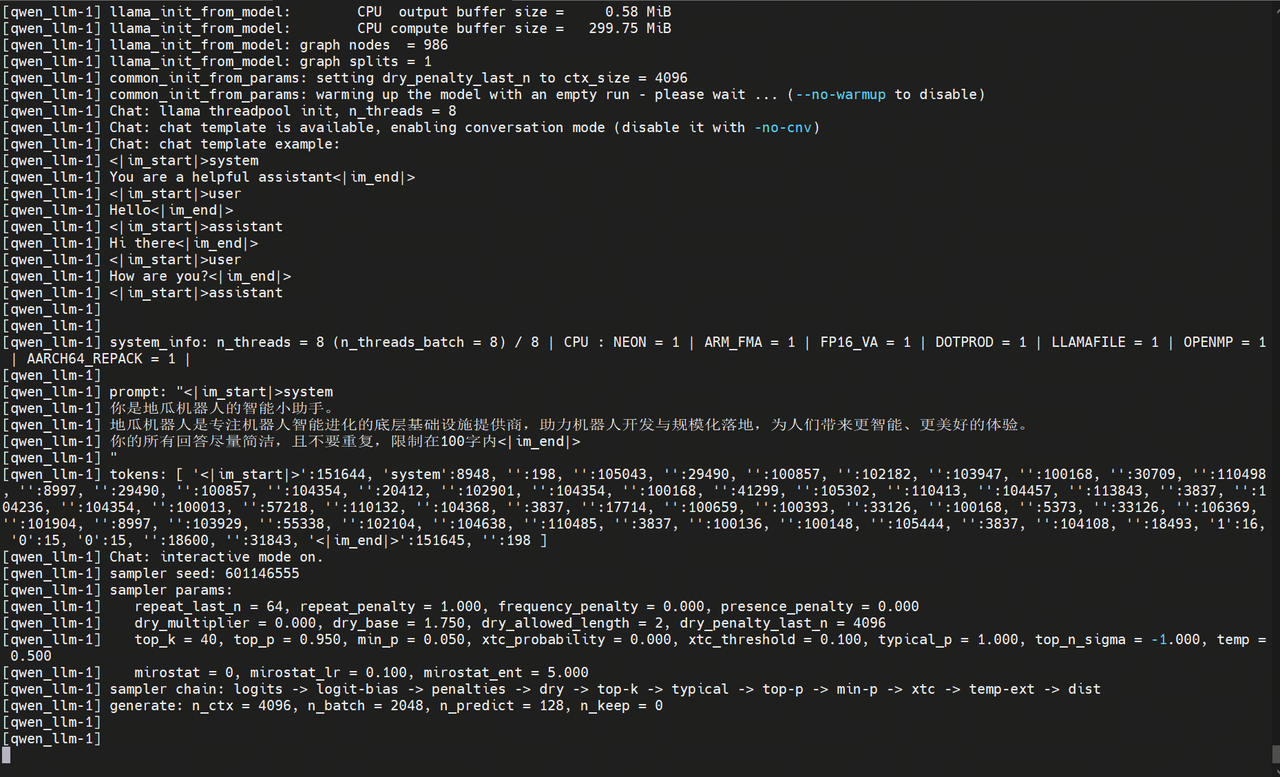
The default model path is
/dev/shm/qwen2.5-1.5b-instruct-q5_k_m.gguf, so the model must be placed in memory first to avoid long initialization times when starting with the button. To change the model path, modify thellm_model_pathparameter in/userdata/magicbox/app/ros_ws/src/magicbox/magicbox_qwen_llm/launch/qwen_llm.launch.py. -
This functionality package is used by default with
audio_io, so it will block and wait for theaudio_ionode to start. If you want to use it independently, you can switch it viawait_for_audioin/userdata/magicbox/app/ros_ws/src/magicbox/magicbox_qwen_llm/launch/qwen_llm.launch.py.-
Configuration method: Use the script startup command
ros2 launch qwen_llm qwen_llm.launch.py wait_for_audio:=false.
-
-
For more parameter details and compilation instructions, refer to the README file in the code repository.
Functional Architecture Diagram
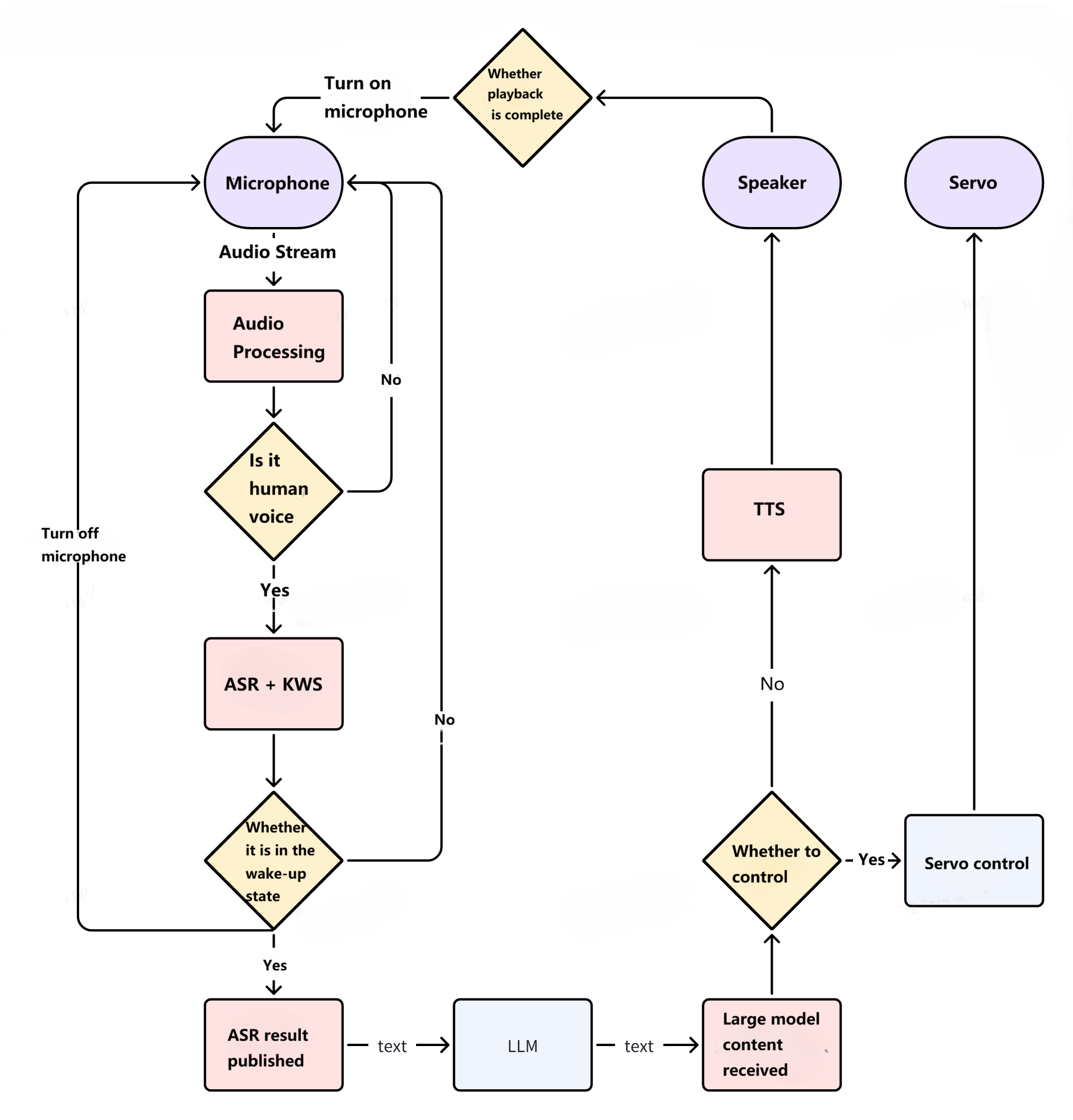
Startup Steps
-
Use the following command to start audio stream processing.
# Start audio stream processing
cd /userdata/magicbox
source /opt/tros/humble/setup.bash
source app/ros_ws/install/setup.bash
ros2 launch audio_io audio_io.launch.py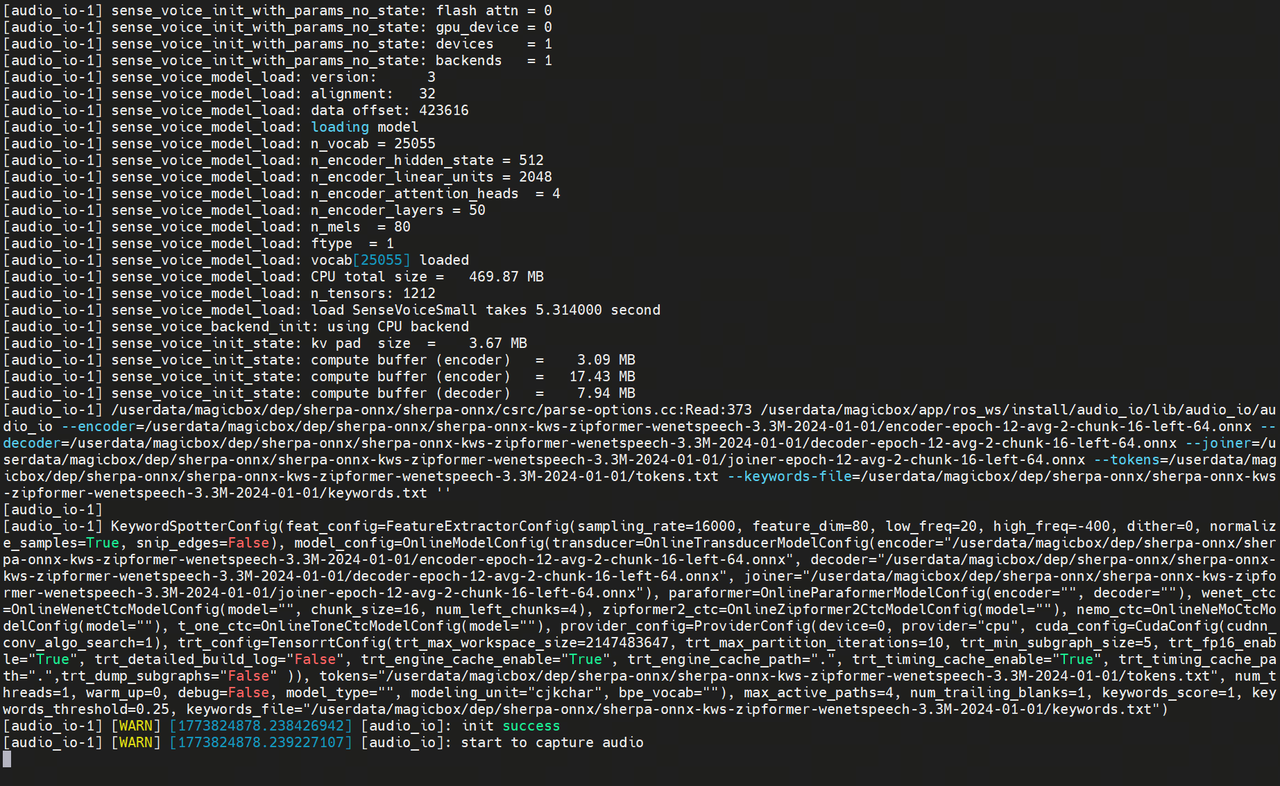
-
Open a new terminal and use the following command to start the large language model.
warningPlease specify the model path
llm_model_pathin/userdata/magicbox/app/ros_ws/src/magicbox/magicbox_qwen_llm/launch/qwen_llm.launch.pyfirst.# Start the large language model
cd /userdata/magicbox
source /opt/tros/humble/setup.bash
source app/ros_ws/install/setup.bash
ros2 launch qwen_llm qwen_llm.launch.py