Intelligent Voice
Introduction
The intelligent voice algorithm runs in local offline mode. It subscribes to audio data and sends it to the BPU for processing, then publishes messages such as wake-up and command word recognition, DOA angle information for sound source localization, and ASR recognition results. The intelligent voice functionality is implemented by the TogetheROS.Bot hobot_audio package, and is suitable for the circular and linear four-microphone arrays that come with the RDK.
Code repository: (https://github.com/D-Robotics/hobot_audio.git)
Application scenarios: The intelligent voice algorithm can recognize wake words and custom command words in audio, interpret speech content as corresponding commands or convert it to text, enabling voice control and speech translation. It is mainly used in smart home, smart cockpit, smart wearables, and other fields.
Voice-controlled car movement example: Voice-Controlled Car Movement
Supported Platforms
| Platform | Runtime Environment | Example Functionality |
|---|---|---|
| RDK X3 | Ubuntu 20.04 (Foxy), Ubuntu 22.04 (Humble) | Start the audio module algorithm and display results in the terminal |
| RDK X5, RDK X5 Module | Ubuntu 22.04 (Humble) | Start the audio module algorithm and display results in the terminal |
Preparation
-
The RDK has been flashed with the Ubuntu system image.
-
TogetheROS.Bot has been successfully installed on the RDK.
-
The intelligent voice algorithm package has been successfully installed on the RDK. Installation commands:
- Foxy
- Humble
sudo apt update
sudo apt install tros-hobot-audio
sudo apt update
sudo apt install tros-humble-hobot-audio- Humble
sudo apt update
sudo apt install tros-humble-hobot-audio
If the sudo apt update command fails or reports an error, please refer to the FAQ section Q10: How to handle apt update command failure or error? for resolution.
If the sudo apt update command fails or reports an error, please refer to the FAQ section Q10: How to handle apt update command failure or error? for resolution.
- Connect the circular or linear four-microphone audio board to the RDK as described below.
Connect Audio Board
Interface Connection
Circular Microphone Array
The circular microphone board is an integrated design. The physical product is shown below:
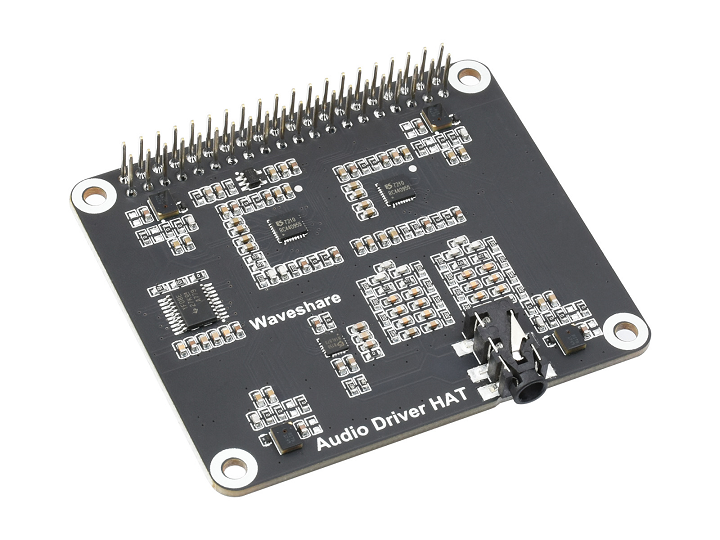
Purchase link:
(https://www.waveshare.net/shop/Audio-Driver-HAT.htm)
Connection steps:
-
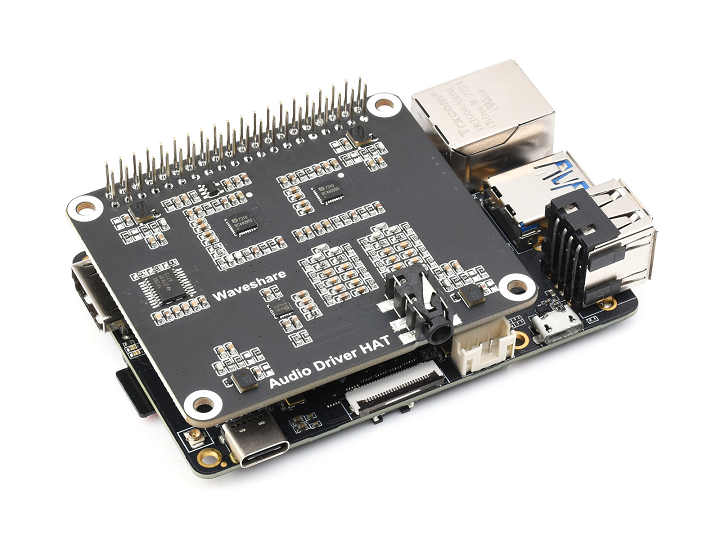
Connect the microphone board to the RDK X3 40PIN GPIO interface. After connection, the physical setup is shown below:
-
Connect power, Ethernet cable, etc.
Linear Microphone Array
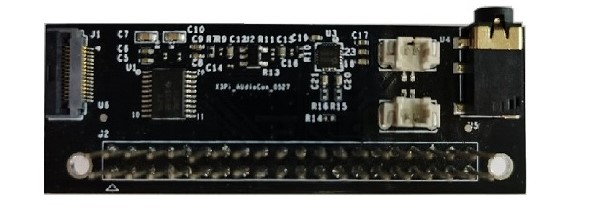
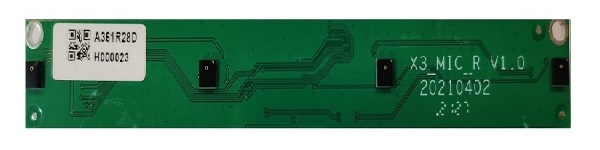
The linear microphone array consists of an audio adapter board and a linear microphone board. Physical photos and connection instructions are as follows:
Audio adapter board:
Linear microphone board:
-
First, connect the RDK X3 to the audio adapter board. Pin-to-pin alignment is required. The physical connection is shown below:
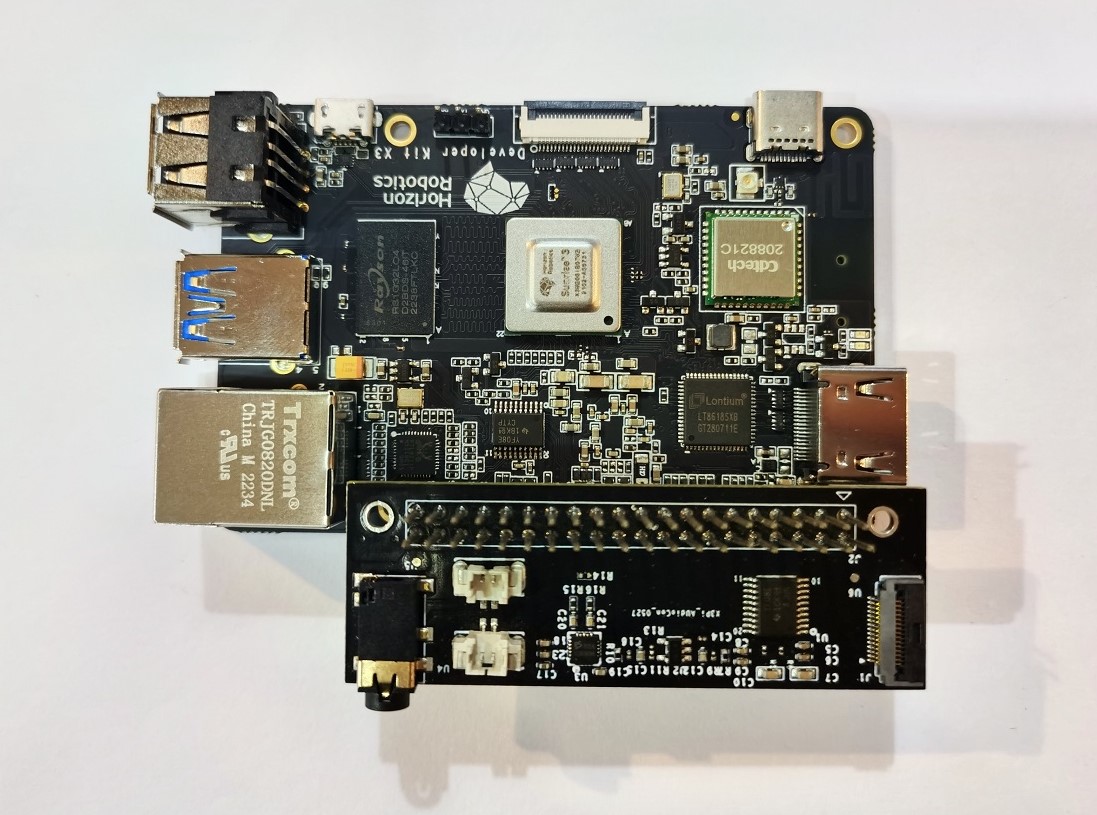
-
Next, connect the RDK X3 to the microphone array pickup board. Connect the adapter board FPC interface to the microphone array pickup board via a 15-pin reverse-side FFC cable, with the gold fingers facing down. The physical connection is shown below:
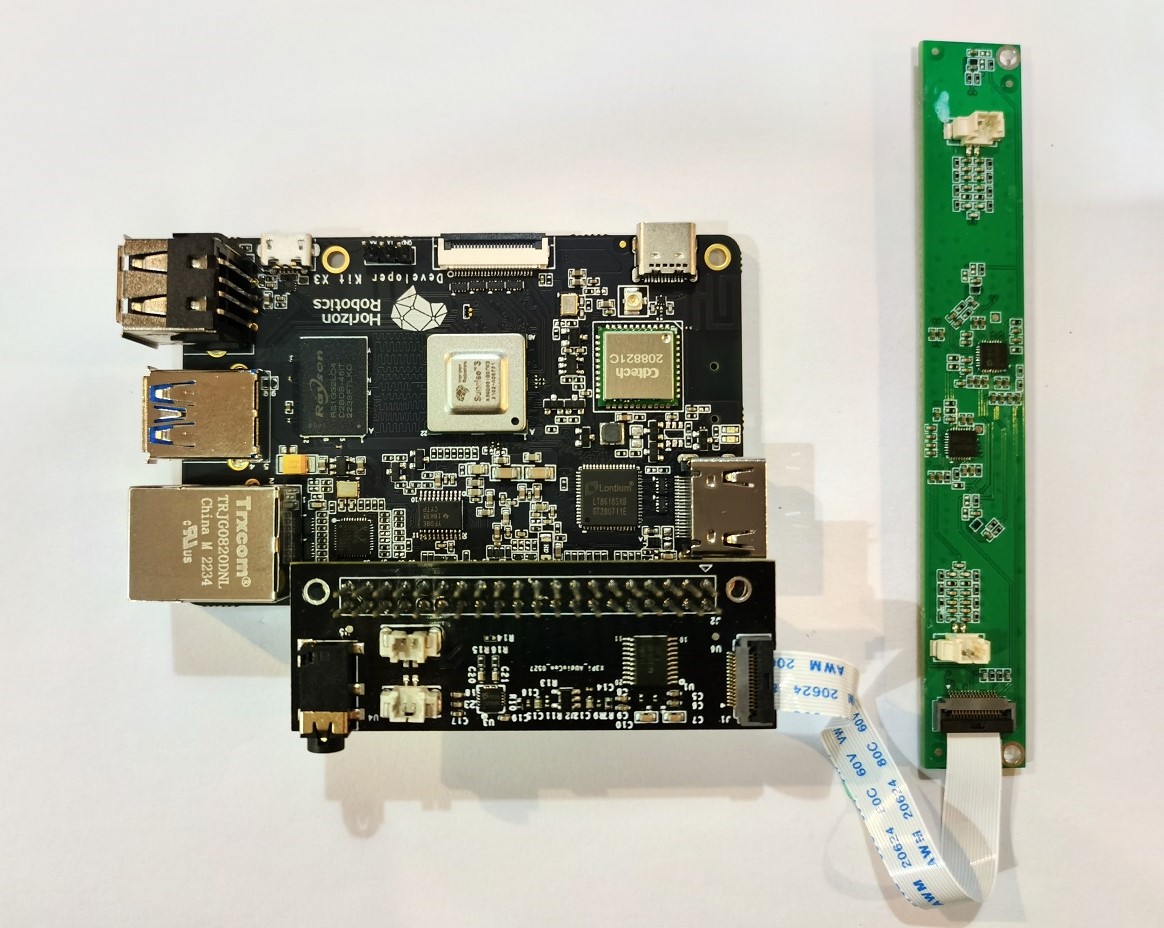
-
Connect the AEC cable.
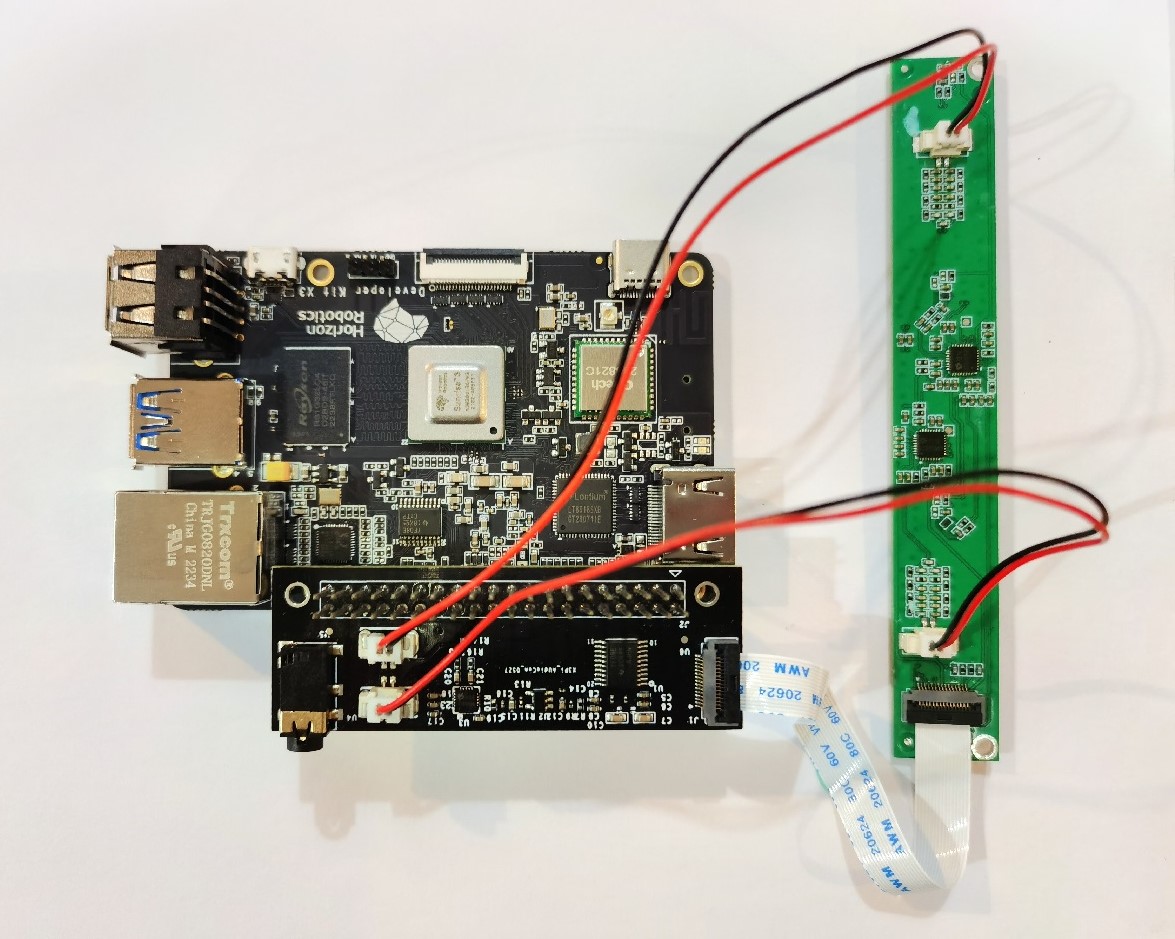
-
Connect power, Ethernet cable, etc.
Power-On Check
After connecting the RDK and microphone array, power on the device. On the serial console, use the command i2cdetect -r -y 0 to check device connection status. If connected successfully, three addresses can be read on I2C by default, as shown below:
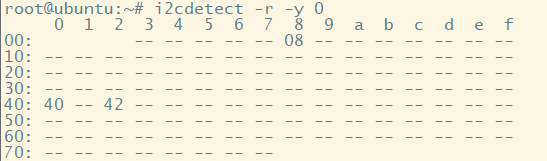
If not detected, please recheck the device connections.
Configure Audio Board
For first-time use of the audio board, configure it using srpi-config . For configuration instructions, refer to the RDK user manual RDK X3 Waveshare Audio Drive section.
For first-time use of the audio board, configure it using srpi-config . For configuration instructions, refer to the RDK user manual RDK X5 Waveshare Audio Drive section.
Usage
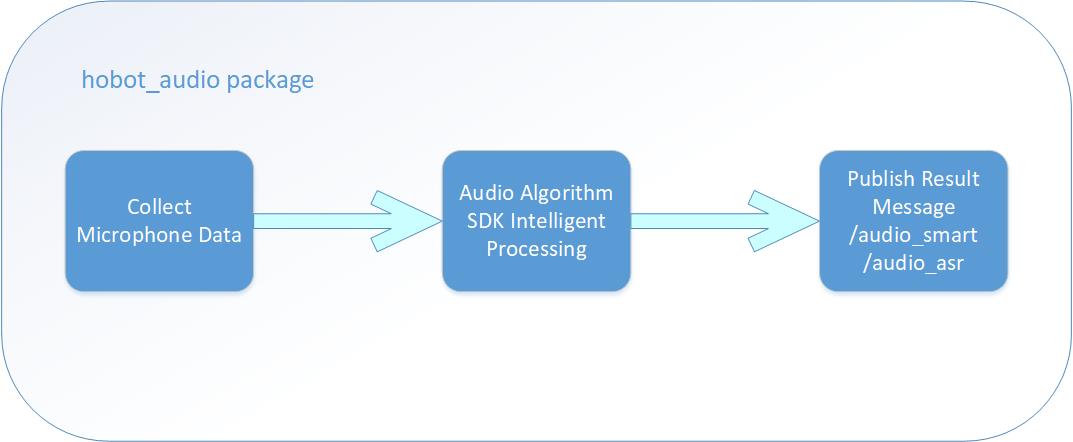
After the intelligent voice hobot_audio package starts running, it collects audio from the microphone array and sends the collected audio data to the intelligent voice algorithm SDK module for processing, outputting intelligent information such as wake-up events, command words, and ASR results. Wake-up events and command words are published as audio_msg::msg::SmartAudioData messages, and ASR results are published as std_msgs::msg::String messages.
The process flow is shown below:
The intelligent voice functionality supports ASR recognition after noise reduction of raw audio. Default wake words and command words are defined in the config/hrsc/cmd_word.json file at the root of the intelligent voice code module:
{
    "cmd_word": [
        "地瓜你好",
        "向前走",
        "向后退",
        "向左转",
        "向右转",
        "停止运动"
    ]
}
Users can configure wake words and command words as needed. Changing wake words may produce results different from the default wake word and command word effects. It is recommended to use Chinese for wake words and command words, preferably catchy phrases, with a recommended length of 3–5 characters.
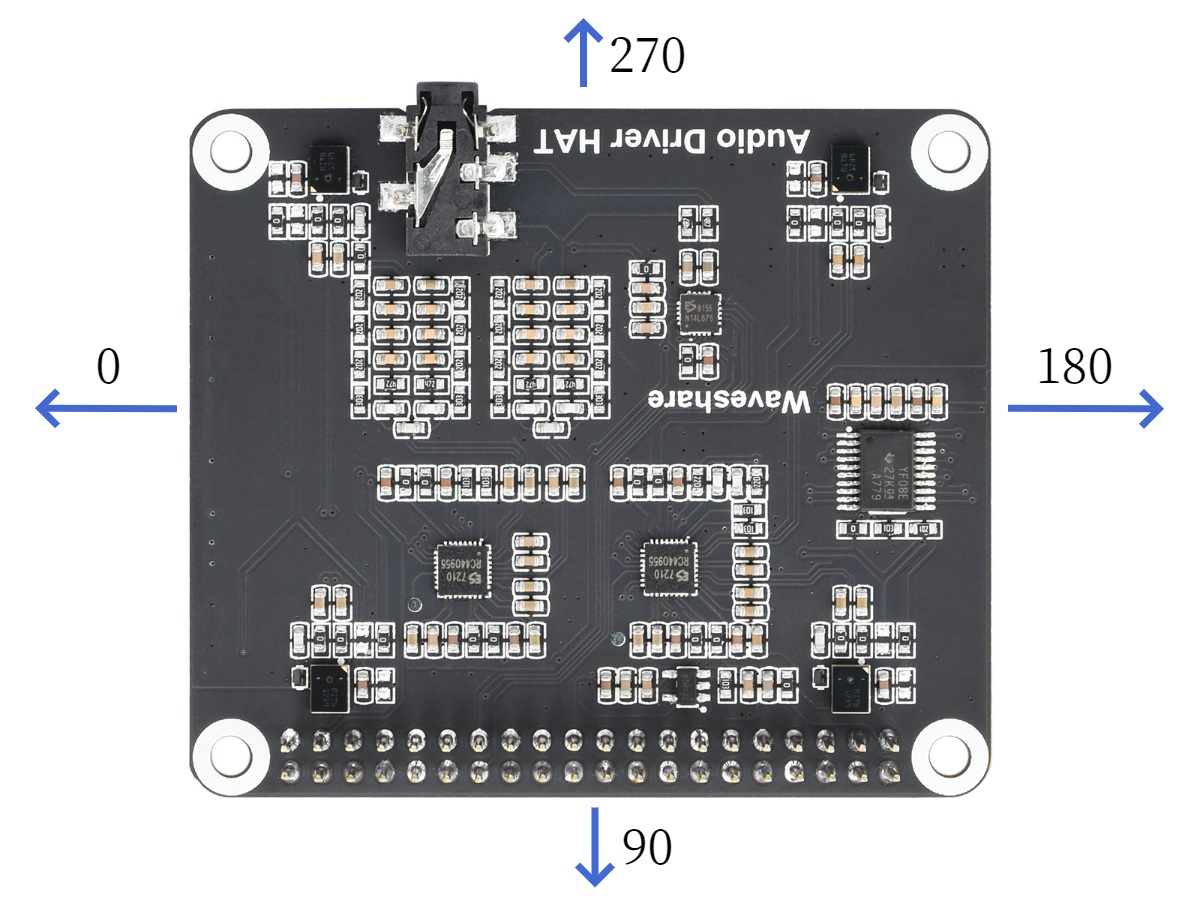
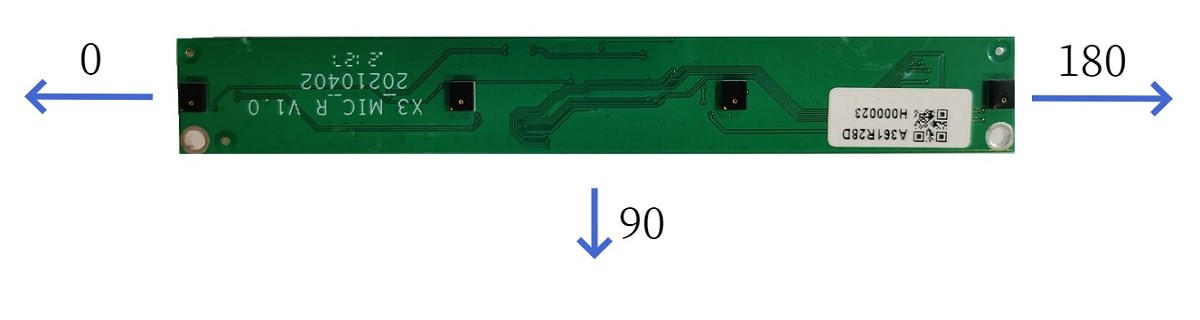
Additionally, the intelligent voice functionality supports output of DOA angle information for sound source localization, in degrees. For the circular microphone array, the range is 0°–360°; for the linear microphone array, the range is 0°–180°.
The relative angular position relationship is strongly related to the microphone installation position. The DOA angle diagram for the circular microphone array is shown below:
The DOA angle diagram for the linear microphone array is shown below:
Run the hobot_audio package on the RDK board:
- Copy configuration files
- Foxy
- Humble
# Configure tros.b environment
source /opt/tros/setup.bash
# Configure tros.b environment
source /opt/tros/humble/setup.bash
- Humble
# Configure tros.b environment
source /opt/tros/humble/setup.bash
# Copy the configuration files required to run the example from the tros.b installation path. Skip if already copied.
cp -r /opt/tros/${TROS_DISTRO}/lib/hobot_audio/config/ .
-
Verify configuration file
The default configuration in config/audio_config.json is as follows:
{
   "micphone_enable": 1,
   "micphone_name": "hw:0,0",
   "micphone_rate": 16000,
   "micphone_chn": 8,
   "micphone_buffer_time": 0,
   "micphone_nperiods": 4,
   "micphone_period_size": 512,
   "voip_mode": 0,
   "mic_type": 0,
   "asr_mode": 0,
   "asr_channel": 3,
   "save_audio": 0
}
Configurations to verify: microphone device number, microphone array type, and whether ASR results should be published.
- Microphone device number is set via the
micphone_namefield. Default is "hw:0,0", meaning audio device Card0 Device0. Device numbers can be checked with the commandls /dev/snd, e.g., "pcmC0D1c"; the last letter c indicates a capture device, C0 means Card0, D1 means Device1 — change the parameter to "hw:0,1". - Microphone array type is set via the
mic_typefield. Default value is0, indicating a circular microphone array. If using a linear microphone array, change this field to1. - ASR output is set via the
asr_modefield. Default value is0, meaning ASR results are not output. To enable ASR result output, change this field to1or2, where1means perform ASR recognition once after wake-up and publish results, and2means continuously perform ASR recognition and publish results.
- Microphone device number is set via the
-
Configure tros.b environment and start application
- Foxy
- Humble
# Configure tros.b environment
source /opt/tros/setup.bash

# Suppress debug log output
export GLOG_minloglevel=3

# Launch launch file
ros2 launch hobot_audio hobot_audio.launch.py
# Configure tros.b environment
source /opt/tros/humble/setup.bash

# Suppress debug log output
export GLOG_minloglevel=3

# Launch launch file
ros2 launch hobot_audio hobot_audio.launch.py
- Humble
# Configure tros.b environment
source /opt/tros/humble/setup.bash

# Suppress debug log output
export GLOG_minloglevel=3

# Launch launch file
ros2 launch hobot_audio hobot_audio.launch.py
Result Analysis
The terminal output when running on the Sunrise X3 board is as follows:
alsa_device_init, snd_pcm_open. handle((nil)), name(hw:0,0), direct(1), mode(0)
snd_pcm_open succeed. name(hw:0,0), handle(0x557d6e4d00)
Rate set to 16000Hz (requested 16000Hz)
Buffer size range from 16 to 20480
Period size range from 16 to 10240
Requested period size 512 frames
Periods = 4
was set period_size = 512
was set buffer_size = 2048
alsa_device_init. hwparams(0x557d6e4fa0), swparams(0x557d6e5210)
The log above shows that the audio device initialized successfully, the audio device was opened, and audio can be captured normally.
When a person sequentially speaks the command words "地瓜你好" (D-Robotics hello), "向前走" (move forward), "向左转" (turn left), "向右转" (turn right), and "向后退" (move backward) near the microphone, the voice algorithm SDK outputs recognition results after intelligent processing. The log is as follows:
recv hrsc sdk event wakeup success, wkp count is 1
[WARN] [1657869437.600230208] [hobot_audio]: recv event:0
recv hrsc sdk doa data: 100
recv hrsc sdk command data: 向前走
[WARN] [1657869443.870029101] [hobot_audio]: recv cmd word:向前走
recv hrsc sdk doa data: 110
recv hrsc sdk command data: 向左转
[WARN] [1657869447.623147766] [hobot_audio]: recv cmd word:向左转
recv hrsc sdk doa data: 100
recv hrsc sdk command data: 向右转
[WARN] [1657869449.865822772] [hobot_audio]: recv cmd word:向右转
recv hrsc sdk doa data: 110
recv hrsc sdk command data: 向后退
[WARN] [1657869452.313969277] [hobot_audio]: recv cmd word:向后退
The log shows that voice command words "向前走" (move forward), "向左转" (turn left), "向右转" (turn right), and "向后退" (move backward) were recognized, and DOA angle information was output. For example, the field "recv hrsc sdk doa data: 110" indicates a DOA angle of 110 degrees.
hobot_audio publishes intelligent voice messages to the topic /audio_smart by default. In another terminal, use the ros2 topic list command to query this topic:
$ ros2 topic list
/audio_smart
If ASR output is enabled, the published topic is /audio_asr. The ros2 topic list result is:
$ ros2 topic list
/audio_smart
/audio_asr