Windows environment
Before using XBurn on Windows, you need to install and verify two types of drivers: the USB Driver (ADB, Fastboot, DFU, for flashing) and the USB to Serial Driver (CH341, for the serial console).
Install drivers
-
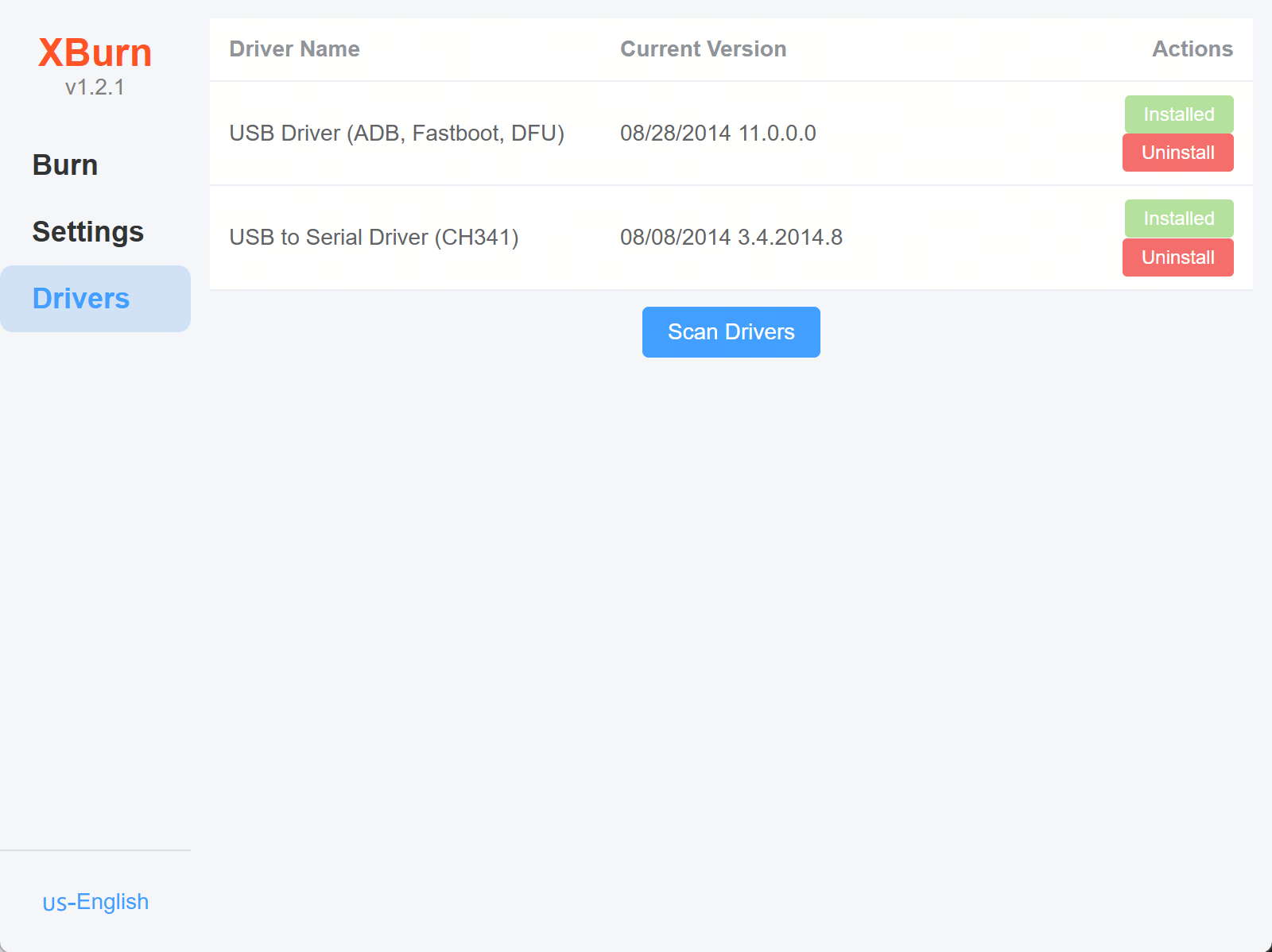
Open XBurn and click Drivers on the left.
-
In the driver list, click Install to the right of USB Driver (ADB, Fastboot, DFU) and USB to Serial Driver (CH341).
-
After installation, an Installed status in the action column means success.
Verify drivers
After both drivers are installed, verify each:
Verify the serial driver
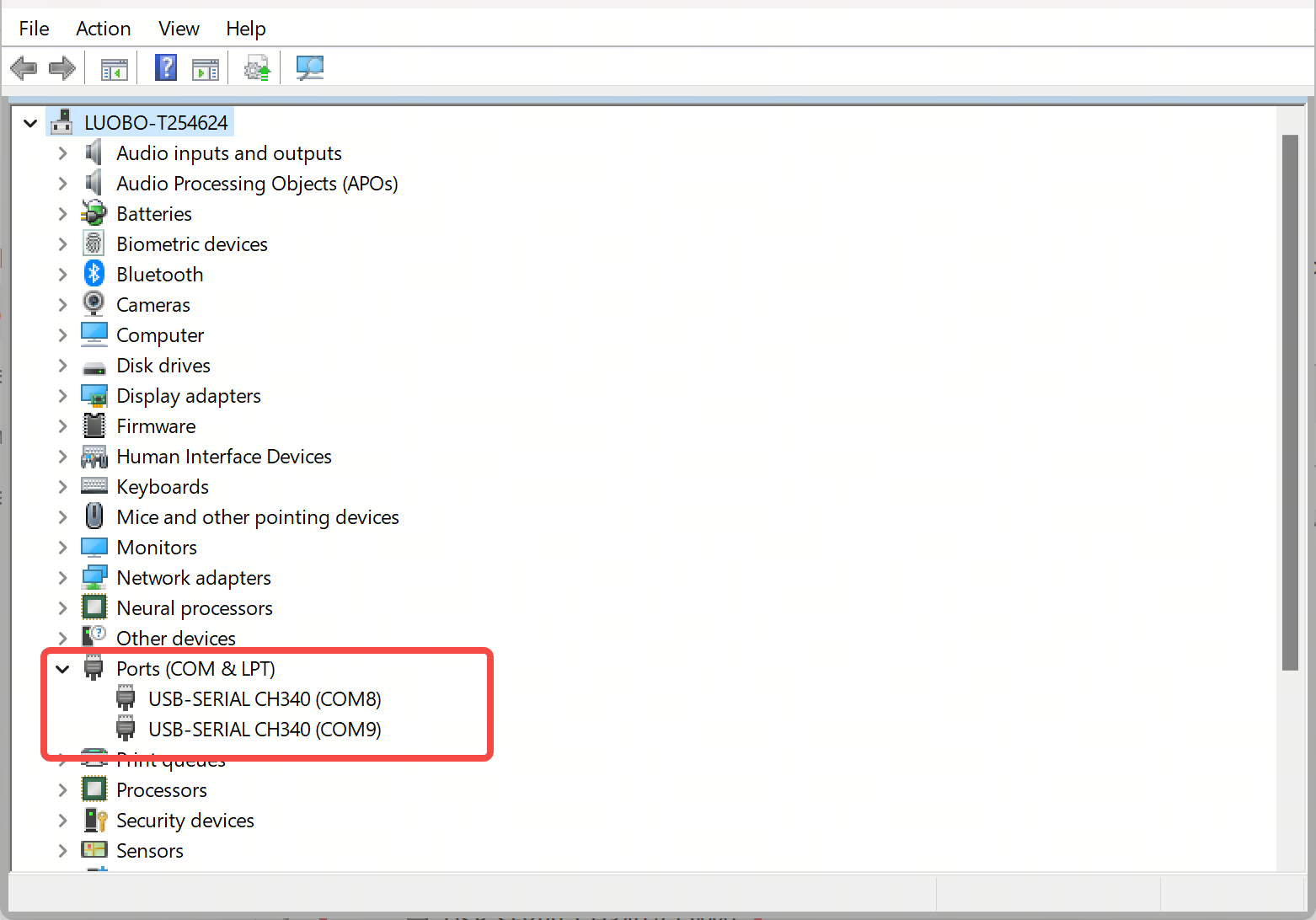
Connect the device to the PC and confirm in Device Manager that the serial port is recognized as USB-SERIAL CH340, which means the serial driver is installed successfully.
Verify the USB driver
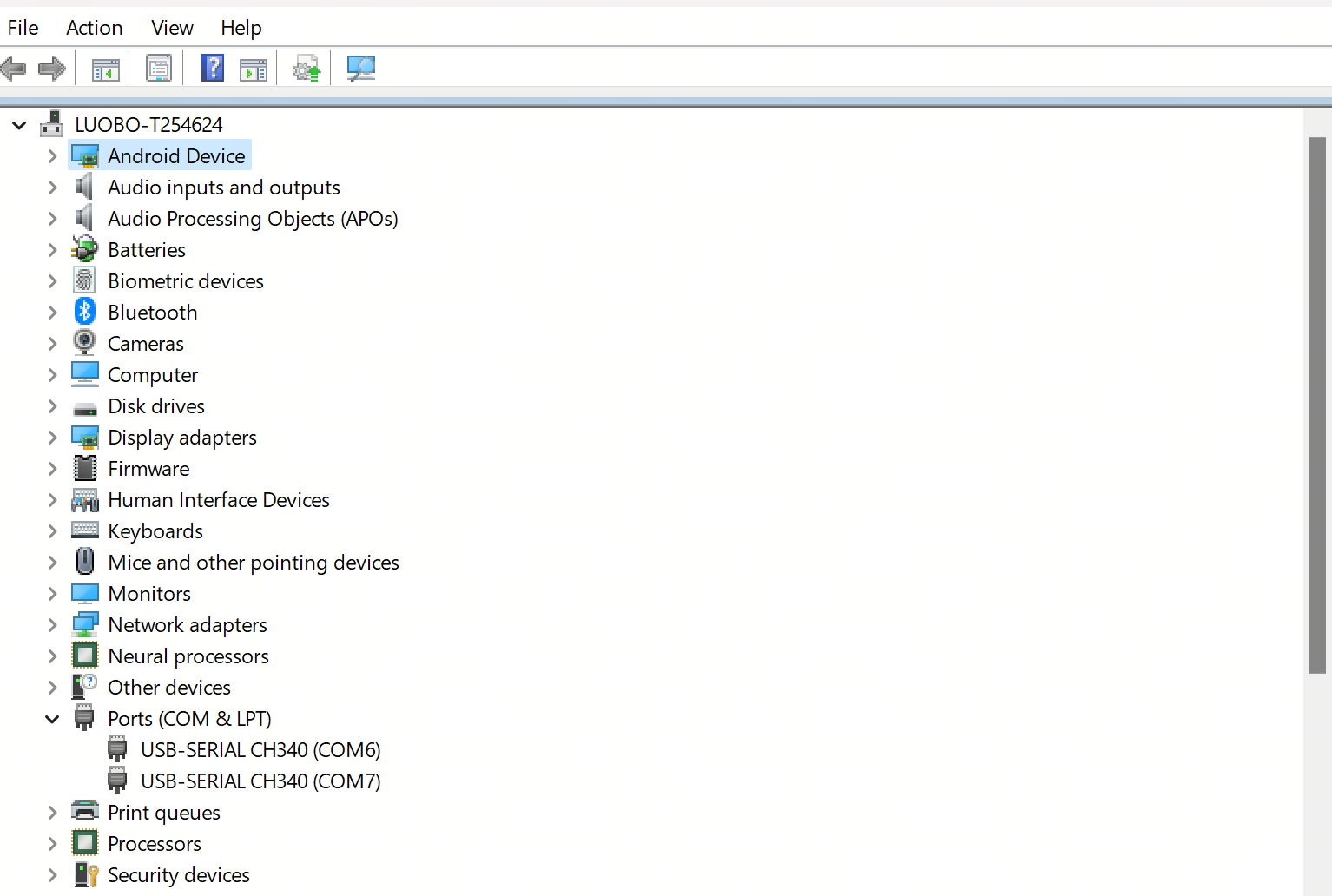
Use the MobaXterm serial console to put the device into Fastboot mode. When Device Manager recognizes it as Android Device, the USB driver is installed successfully.
-
Download the remote connection tool MobaXterm.
-
Open MobaXterm, click Session, select Serial, and enter the serial configuration. The parameters are split into Basic Serial settings and Advanced Serial settings:
Basic Serial settings:
Setting Value Serial port COM3(use the actual USB-SERIAL CH340 port number detected by the PC)Speed (bps) 921600(115200for RDK X5)Advanced Serial settings:
Setting Value Description Serial engine PuTTYAllows manual COM port selection Data bits 8Data bits Stop bits 1Stop bits Parity NoneParity Flow control NoneFlow control 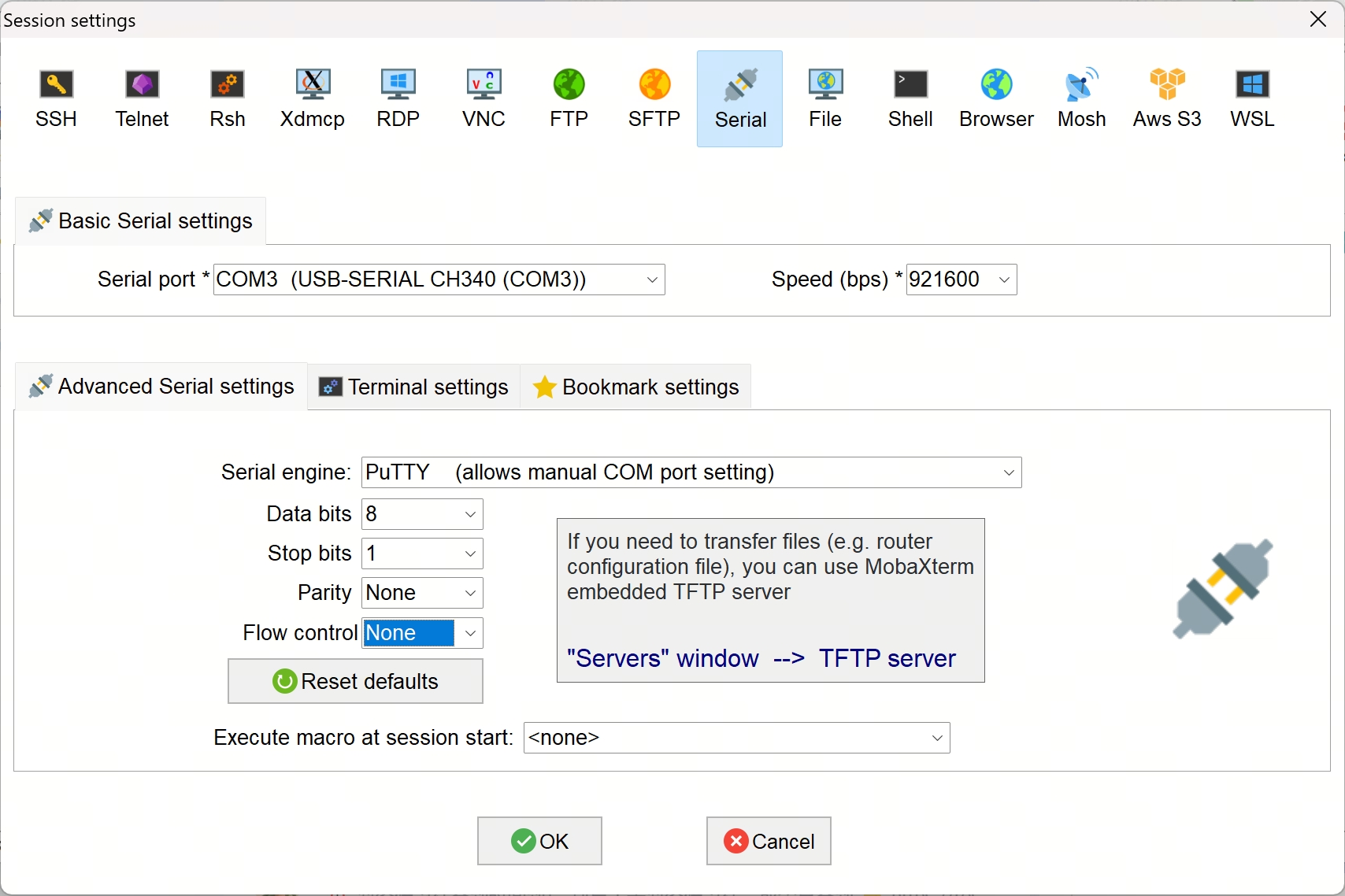
-
Click OK to create the serial session.
-
Power on the device and immediately hold the space bar to enter the U-Boot command line.
-
In the U-Boot command line, enter
fastboot 0to put the device into Fastboot mode. -
In Device Manager, confirm that Android Device appears, which means the USB driver is installed successfully.
 Driver not recognized
If Device Manager shows an unknown device for USB download gadget, the USB driver was not installed successfully. Go back to Install drivers to reinstall, or click Scan driver to recheck the status.