Back up and restore the image
This page describes how to back up the current RDK S100 system to an image, and restore it to the source board or copy it to a new board.
Overview
Backing up saves the current system as an image. After backing up, flash the image to the target board to restore it. The target board can be the source board or a new board:
- Restore to the source board: Restore the system to the state it was in when it was backed up.
- Copy to a new board: Copy the system to another development board.
Backing up does not support batch operation. Back up one device at a time.
Prerequisites
Source board preparation
Confirm that the source board boots normally and that ADB is enabled.
XBurn version requirement
XBurn 1.2.2 or later is required. For installation, see Install XBurn.
SDK version requirement
- On SDK 4.0.5 or later, start backing up directly.
- On SDK 4.0.5 or earlier, U-Boot does not support backing up partitions larger than 4 GB, so update it first.
Update U-Boot on the source board before backing up:
- Obtain
uboot.img:- Option 1: Apply the patch and compile to produce
uboot.img. - Option 2: Download a prebuilt
uboot.img— either uboot-debug.img (includes debug messages) or uboot-release.img (for production).
- Option 1: Apply the patch and compile to produce
- Replace
uboot.imgin theproductfolder (productis the extracted folder downloaded in Image download), overwriting:product/xmodem_tools/sec/out/s100/uboot.imgproduct/img_packages/uboot.img
- Flash to the
ubootpartition on the source board:-
Option 1: In XBurn, select the
ubootpartition and flash.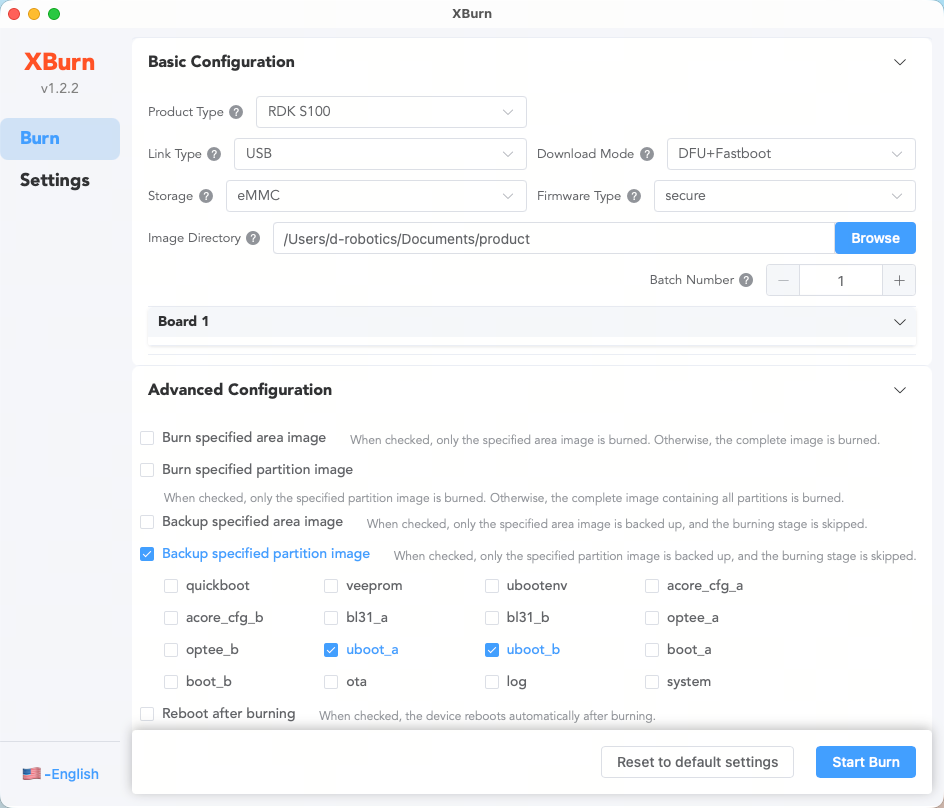
-
Option 2: On the board, first enter Fastboot mode (after power-on, press and hold the spacebar to enter the U-Boot command line, then enter
fastboot 0), then run:fastboot oem interface:blk
fastboot oem bootdevice:mmc
fastboot flash uboot_a uboot.img
fastboot flash uboot_b uboot.img
-
Back up the full image
Back up the complete system image for restoring to the source board or copying to a new board.
-
Starting from the steps in Flash the full image, expand Advanced configuration, and select the
minibootregions and thebootandsystempartitions.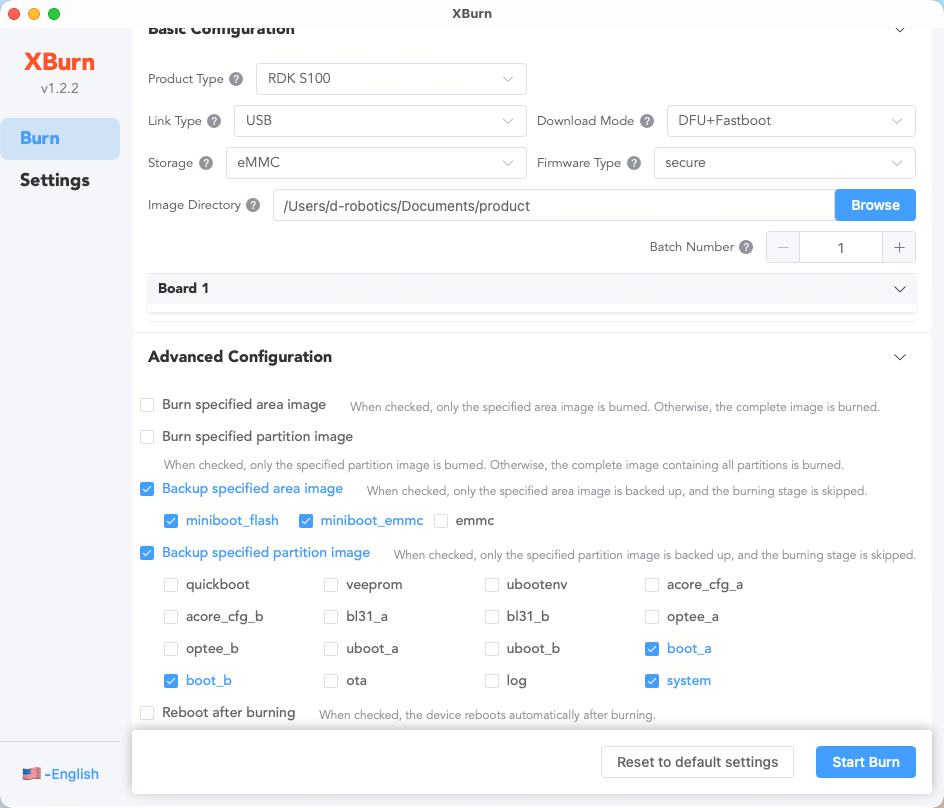
Region/Partition Description miniboot_flashregionNOR Flash boot image miniboot_emmcregioneMMC basic boot image boot,system, and other partitions (as needed)Partitions after U-Boot noteDo not select the
emmcregion, becauseminibootalready covers the boot image, and the rest is backed up by partition. -
Wait for the backup to complete, then check the images under the
img_packages/directory in the extractedproductfolder:Path Content Naming rule img_packages/disk/Region backup images [region]_backup.img(such asminiboot_flash_backup.img,miniboot_emmc_backup.img)img_packages/backup/Individual partition backup images [partition].img(such asboot.img,system.img)Do not interrupt the backupThe backup takes a long time (a large partition such as a 45 GB
systemtakes about 30 minutes or more). Wait patiently and do not interrupt the backup. -
Rename the backup images, removing the
_backupsuffix from the filenames:Original path Path after rename Naming rule img_packages/disk/Unchanged Remove _backup
-miniboot_flash_backup.img→miniboot_flash.img
-miniboot_emmc_backup.img→miniboot_emmc.imgimg_packages/backup/img_packages/Names unchanged (such as boot.img,system.img) -
Flash via Flash specific regions and Flash specific partition images, selecting the same regions and partitions as you backed up.
Back up specific regions
Back up the image of specific regions to your PC. The supported backup regions are:
| Region | Actual storage medium | Firmware content | Backup image |
|---|---|---|---|
| miniboot_flash | NOR Flash | Basic boot image on NOR Flash | img_packages/disk/miniboot_flash_backup.img |
| miniboot_emmc | eMMC | Basic boot image on eMMC | img_packages/disk/miniboot_emmc_backup.img |
| emmc | eMMC | Complete eMMC image | img_packages/disk/emmc_disk_backup.img |
-
Starting from the steps in Flash the full image, expand Advanced configuration, select Back up specific regions, and select the target regions (such as
miniboot_flashandminiboot_emmc).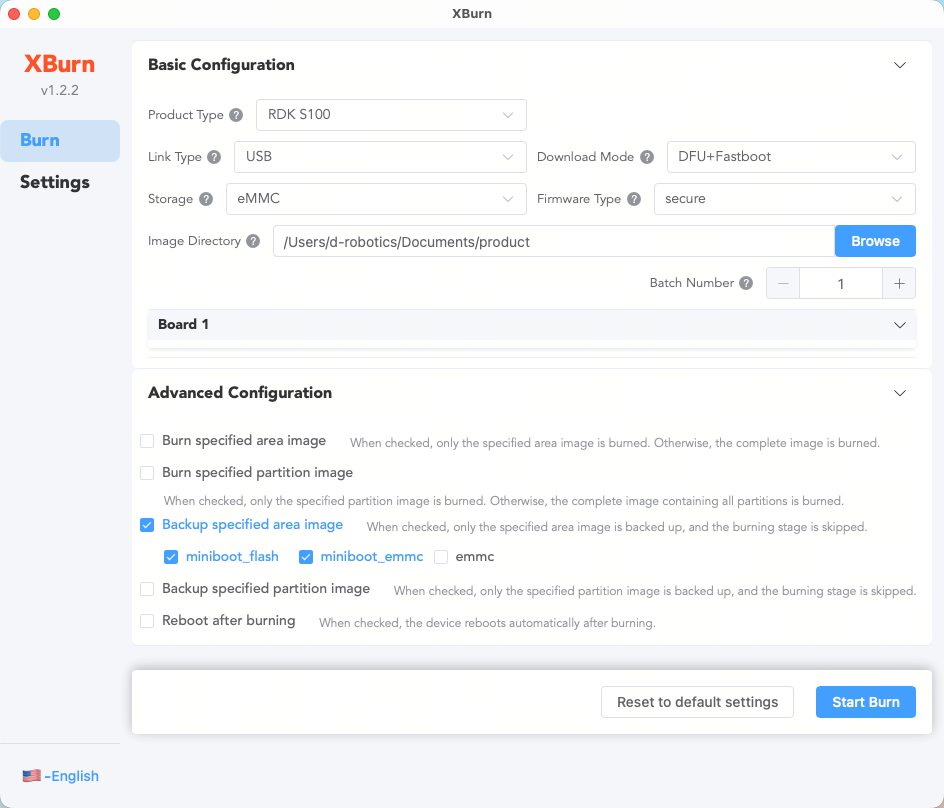 Backup takes time
Data backup takes a long time. Wait patiently.
-
After the backup completes, open
img_packages/disk/and check the backup image files (such asminiboot_flash_backup.imgandminiboot_emmc_backup.img). -
Rename the backup images, removing the
_backupsuffix from the filenames:Region Backup image Renamed to miniboot_flash miniboot_flash_backup.imgminiboot_flash.imgminiboot_emmc miniboot_emmc_backup.imgminiboot_emmc.imgemmc emmc_disk_backup.imgemmc_disk.simgnoteThe
emmcregion requires changing the extension from.imgto.simg. -
Flash via Flash specific regions, selecting the same regions as you backed up.
Back up specific partition images
Back up by individual system component partition, at a finer granularity than Back up specific regions. This is partition-level (a single component partition, such as uboot, boot, or system).
-
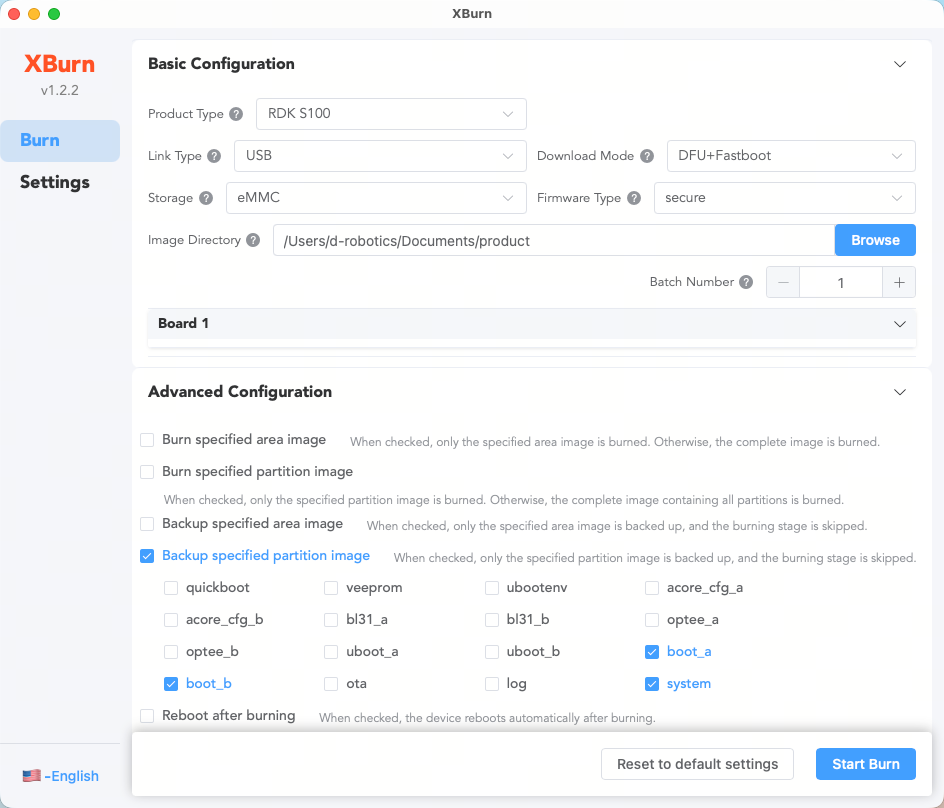
Starting from the steps in Flash the full image, expand Advanced configuration, select Back up specific partition images, select the target partitions, and complete the backup.
The partition options that appear after selection are:
-
After the backup completes, the partition images are saved in
img_packages/backup/(such asboot.imgandsystem.img). -
Before flashing, replace the partition images by overwriting the same-named files under
img_packages/(such asboot.imgandsystem.img). -
Flash via Flash specific partition images, selecting the same partitions as you backed up.