3.1.1 Using MIPI Camera
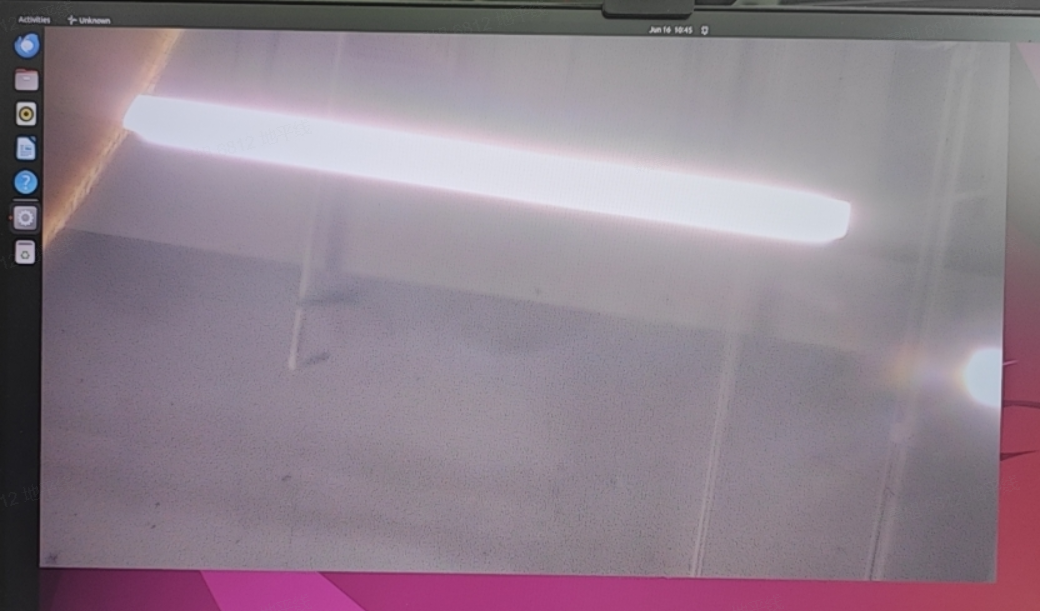
The mipi_camera_streamer.py program is installed on the development board to test the MIPI camera data pipeline. This example captures image data from the MIPI camera in real time and outputs the image data via the HDMI interface.
Environment Setup
- Connect the MIPI camera module to the MIPI CSI interface on the development board. For specific connection instructions, please refer to - Hardware Introduction - MIPI Interface
- Currently, this sample only supports MIPI sensors: IMX219, SC230AI
- Connect the development board to a display using an HDMI cable
- Connect the MIPI camera module to the MIPI CSI interface on the development board. For specific connection instructions, please refer to - Hardware Introduction - MIPI Interface
- Currently, this sample supports MIPI sensors: IMX219, SC230AI, shw3hstd_amsl-60fps
- Connect the development board to a display using an HDMI cable
How to Run
Execute the program with the following commands:
sunrise@ubuntu:~$ cd /app/pydev_demo/mipi_camera_sample
sunrise@ubuntu:/app/pydev_demo/mipi_camera_sample$ python 05_mipi_camera_streamer.py -w 1920 -h 1080
The command above first lists the detected sensor configurations and asks you to choose one:
[0] INFO: Found sensor name:imx219-30fps on mipi rx csi 4, i2c addr 0x10, config_file:linear_1920x1080_raw10_30fps_1lane.c
[1] INFO: Found sensor name:shw3hstd_amsl-60fps on mipi rx csi 4, i2c addr 0x10, config_file:linear_1920x1536_60fps_1lane.c
please choose sensor config,the number should small than 2
Enter 0 and press Enter to continue. The number corresponds to the [x] INFO: Found sensor name entries printed above, so 0 selects the imx219-30fps configuration in this example.
Expected Result
After running the program, the display will show the live camera feed in real time, as shown below: