8.6 TROS/ROS Development
This section answers common questions related to developing and using the D-Robotics Robot Operating System (TogetheROS.Bot, tros.b) and general ROS/ROS2 on the RDK platform.
Q1: When TROS-related packages fail at runtime, what are the recommended preliminary troubleshooting steps?
A:
- Ensure your tros packages are up to date: Many issues may have been fixed in newer versions. After confirming that the D-Robotics official APT source (such as
sunrise.horizon.ccor the latestarchive.d-robotics.cc) is configured correctly, run the following command to update all tros-related packages:When asking for help, also provide your system and package version information using commands such assudo apt update && sudo apt upgraderdkos_info,apt list --installed | grep tros, andapt show <tros_package_name>. - Try to locate the ROS node where the problem occurs:
- Refer to the launch file of the corresponding package and change the log level parameter to
debug(for example, add['--ros-args', '--log-level', 'DEBUG']to the Node arguments). - Rerun the launch file and use the detailed debug log output to identify which node is causing the problem.
- TROS package launch files are usually located under
/opt/tros/<tros_distro>/share/<package_name>/launch/(for example,/opt/tros/humble/share/mipi_cam/launch/). - ROS2 log files are usually stored in
~/.ros/log/or/root/.ros/log/. Before troubleshooting, you can runrm -rf ~/.ros/log/*(or the corresponding root path) to clear old logs, then rerun the package to collect the latest logs related to the current issue.
- Refer to the launch file of the corresponding package and change the log level parameter to
- Reinstall the related tros package:
- If you suspect that a tros package configuration file was modified incorrectly or the installation is incomplete, try reinstalling the package.
- Using
hobot_usb_camas an example, the reinstallation steps are roughly as follows:- Find the exact package name:
apt list --installed | grep hobot-usb-cam(adjust the search term as needed) - Remove the package:
sudo apt remove <tros_package_name_found>(for example,sudo apt remove tros-hobot-usb-cam) - Ensure the APT source is configured correctly and update the cache:
sudo apt update - Reinstall the package:
sudo apt install <tros_package_name_found>
- Find the exact package name:
Q2: What is the difference between TROS and standard ROS2? How do I upgrade from TROS Foxy to TROS Humble?
A:
-
Relationship between TROS and ROS2:
- TROS (TogetheROS.Bot) is a robot operating system released by D-Robotics based on the open-source ROS2 (Robot Operating System 2), optimized and adapted for its RDK hardware platform.
- It is usually built on an LTS (Long-Term Support) version of ROS2, for example:
- On RDK OS 2.x (based on Ubuntu 20.04), TROS is usually based on ROS2 Foxy Fitzroy.
- On RDK OS 3.x (based on Ubuntu 22.04), TROS is usually based on ROS2 Humble Hawksbill.
- On top of standard ROS2, TROS integrates drivers for D-Robotics hardware (such as BPU, VPU, JPU, Sensor, etc.), hardware acceleration libraries, and optimized solutions and examples for common robot functions.
- TROS is fully compatible with the corresponding version of standard ROS2 in core APIs and communication mechanisms. This means nodes and services developed for standard ROS2 Foxy/Humble can usually run directly or with minor modifications on the corresponding version of TROS, and vice versa. They can communicate with each other.
-
TROS version upgrade (for example, from Foxy to Humble):
- Because TROS versions are closely tied to the underlying Ubuntu version of RDK OS (for example, Foxy corresponds to Ubuntu 20.04 and Humble corresponds to Ubuntu 22.04), you usually cannot upgrade TROS from one major LTS version (such as Foxy) to another major LTS version (such as Humble) directly through commands such as
apt upgrade. - The correct upgrade method is: Flash a complete RDK OS system image that includes the new TROS version (such as Humble) and the corresponding new Ubuntu version (such as 22.04) to upgrade the entire system and TROS together.
- Because TROS versions are closely tied to the underlying Ubuntu version of RDK OS (for example, Foxy corresponds to Ubuntu 20.04 and Humble corresponds to Ubuntu 22.04), you usually cannot upgrade TROS from one major LTS version (such as Foxy) to another major LTS version (such as Humble) directly through commands such as
-
ROS2 runtime environment on the board:
- TROS installed on an RDK board is itself a complete ROS2 runtime environment.
- You can also install other standard ROS2 distributions (such as Foxy, Humble) or ROS1 (such as Noetic) on the board in addition to TROS. They can coexist with TROS, but as mentioned above, only one ROS environment can be sourced in a terminal session.
colconis a commonly used build tool for ROS2. If it is not preinstalled in your system image, you may need to install it manually:sudo apt update
sudo apt install python3-colcon-common-extensions python3-catkin-pkg-modules python3-rosdep
# or install via pip:
# pip3 install -U colcon-common-extensions empy
-
Note: Any ROS package compiled directly on an x86 platform (rather than cross-compiled) cannot run directly on an ARM-based RDK board, and vice versa. Ensure programs are compiled for the target platform architecture.
Q3: How is TROS installed on an RDK board? Is manual installation required?
A:
- TROS is usually built in and preinstalled on the board when you flash the official RDK OS system image. You do not need to perform a full TROS installation manually after flashing the system.
- You can use the APT package manager to update or incrementally install individual TROS packages. With the D-Robotics official APT source configured correctly, running
sudo apt update && sudo apt upgradeupdates installed TROS packages to the latest version. - Steps that existed in older versions, such as the
hhptool or manually creating symbolic links, are usually no longer needed in newer versions of TROS.
Q4: Where can I find the source code for TROS-related packages?
A:
- TROS manual: In the official D-Robotics TROS user manual, when introducing core packages or examples, links to the corresponding GitHub source repositories are usually provided.
- NodeHub: If a package is provided as part of NodeHub (the D-Robotics app store or component platform), its introduction page usually also includes a source code link.
- GitHub D-Robotics organization: Most TROS-related open-source packages are hosted under the D-Robotics organization on GitHub (https://github.com/D-Robotics). You can search within the organization by package name (or partial name) to find the source repository.
- README documentation: Usually, each TROS package source repository contains a detailed
README.mdfile that explains compilation methods, usage instructions, parameter configuration, dependencies, and other important information.
Q5: What should I pay attention to when compiling TROS package source code?
A:
-
When source compilation is needed:
- Trying out features: If you only want to try existing TROS features, you usually do not need to compile from source. Flash the latest RDK OS system image and run the precompiled packages according to the manual.
- Secondary development: If you need to modify and develop further based on an official TROS package, download the source code of that package and modify and compile it. In this case, it is usually recommended to compile directly on the RDK board (if board resources allow and the necessary build tools are installed) or in a configured cross-compilation Docker environment.
- Full TROS build: If you need to build the entire TROS distribution from scratch (for example, for deep customization or porting to new hardware), this is a very complex process and usually requires the official cross-compilation Docker environment on a powerful x86 Ubuntu development machine.
-
Cross-compilation Docker environment:
- Version matching: Ensure the cross-compilation Docker image version you pull matches your target TROS version (Foxy or Humble) and target RDK OS version.
- Source branch: When pulling TROS package source code from GitHub or other platforms, switch to the correct branch corresponding to your target TROS version (for example, the
foxybranch,humblebranch, or a specific release tag). Avoid using development branches such asmainordevelopdirectly unless you clearly understand their compatibility.
-
Dependency issues:
- During source compilation, you may encounter missing dependency libraries ("missing packages or libraries"). Resolving such compilation dependency issues is a basic skill that C/C++ developers should have.
- Read the error messages carefully to identify the missing library or header file names.
- Try using
apt search <package_name>to find the corresponding Debian package and install it withsudo apt install <package_name-dev>(development packages usually have a-devsuffix). - For ROS-specific dependencies, you can use the
rosdeptool to install them:sudo apt install python3-rosdep
sudo rosdep init # only needs to be run once
rosdep update
cd <your_ros_workspace_root>
rosdep install --from-paths src --ignore-src -r -y - The community usually cannot provide one-on-one support for dependency issues in individual compilation environments.
Q6: What should I do if I encounter errors when trying to install standard ROS2 on an RDK board?
A: When installing a standard ROS2 distribution (such as Foxy, Humble) on an RDK board (which may already have TROS preinstalled), if you encounter problems:
- Use recommended installation tools:
- You can try widely recommended third-party ROS installation tools in the community, such as the FishROS one-click installation series. These tools usually handle tedious steps such as software source configuration and dependency installation.
wget http://fishros.com/install -O fishros && bash fishros
- You can try widely recommended third-party ROS installation tools in the community, such as the FishROS one-click installation series. These tools usually handle tedious steps such as software source configuration and dependency installation.
- Install from source (if tool installation fails):
- If the one-click installation tool also fails, you can clone the installation script source from FishROS's GitHub repository and run the Python installation script manually. This sometimes provides more detailed error output or allows some custom modifications.
git clone https://github.com/fishros/install
cd install
sudo python3 install.py
- If the one-click installation tool also fails, you can clone the installation script source from FishROS's GitHub repository and run the Python installation script manually. This sometimes provides more detailed error output or allows some custom modifications.
- Check network and software sources: Ensure the board has a normal network connection and can access the official ROS software source (
packages.ros.org) and Ubuntu official software sources. - Review error logs: Carefully read any error messages during installation. They usually indicate the specific cause (such as dependency conflicts, download failures, compilation errors, etc.).
Q7: What recommended reference resources are available for multimedia solutions in TROS (such as video stream processing and encoding/decoding)?
A: The official D-Robotics TROS manual usually has dedicated sections or examples explaining how to use RDK multimedia capabilities in a ROS2 environment.
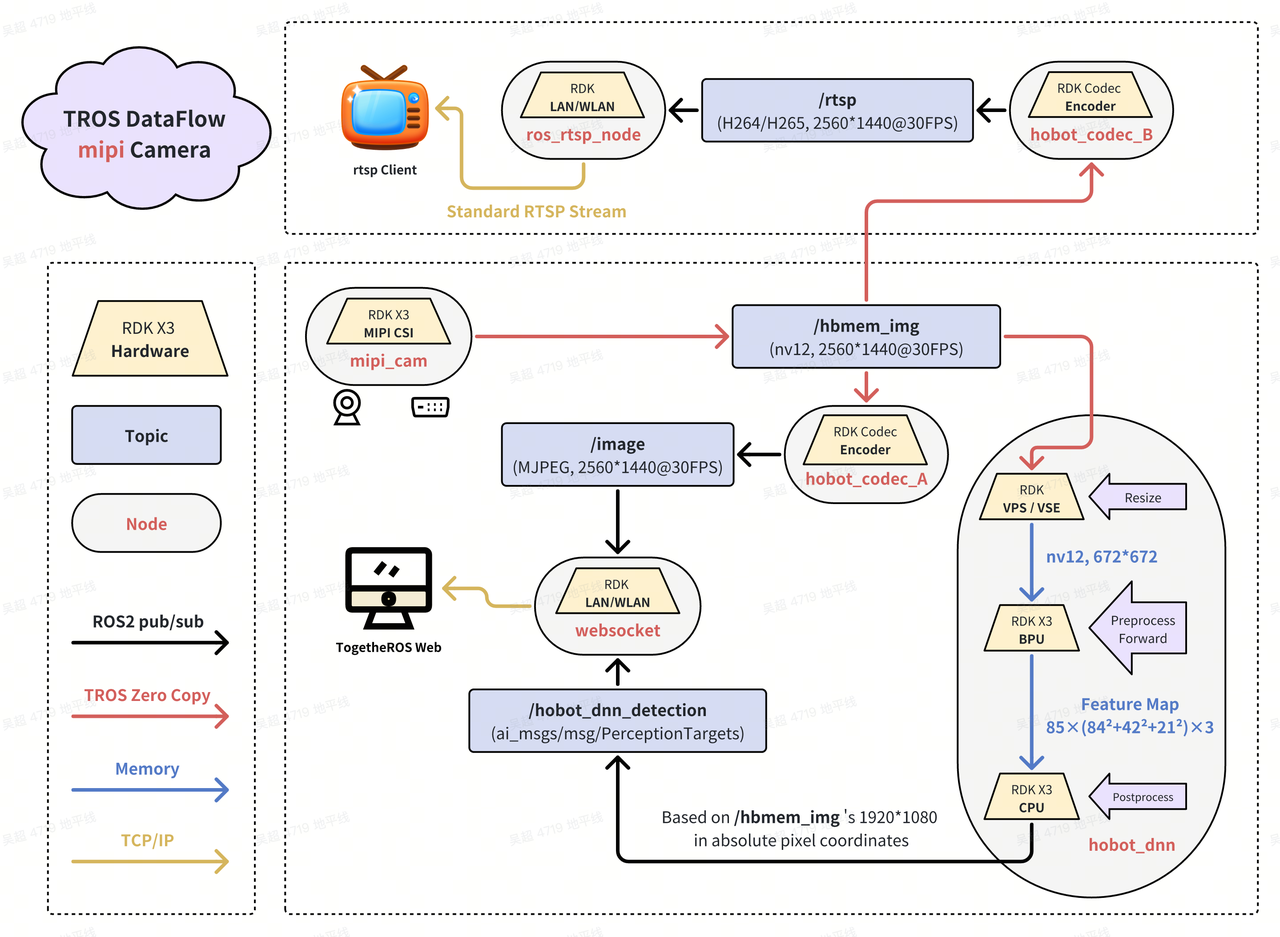
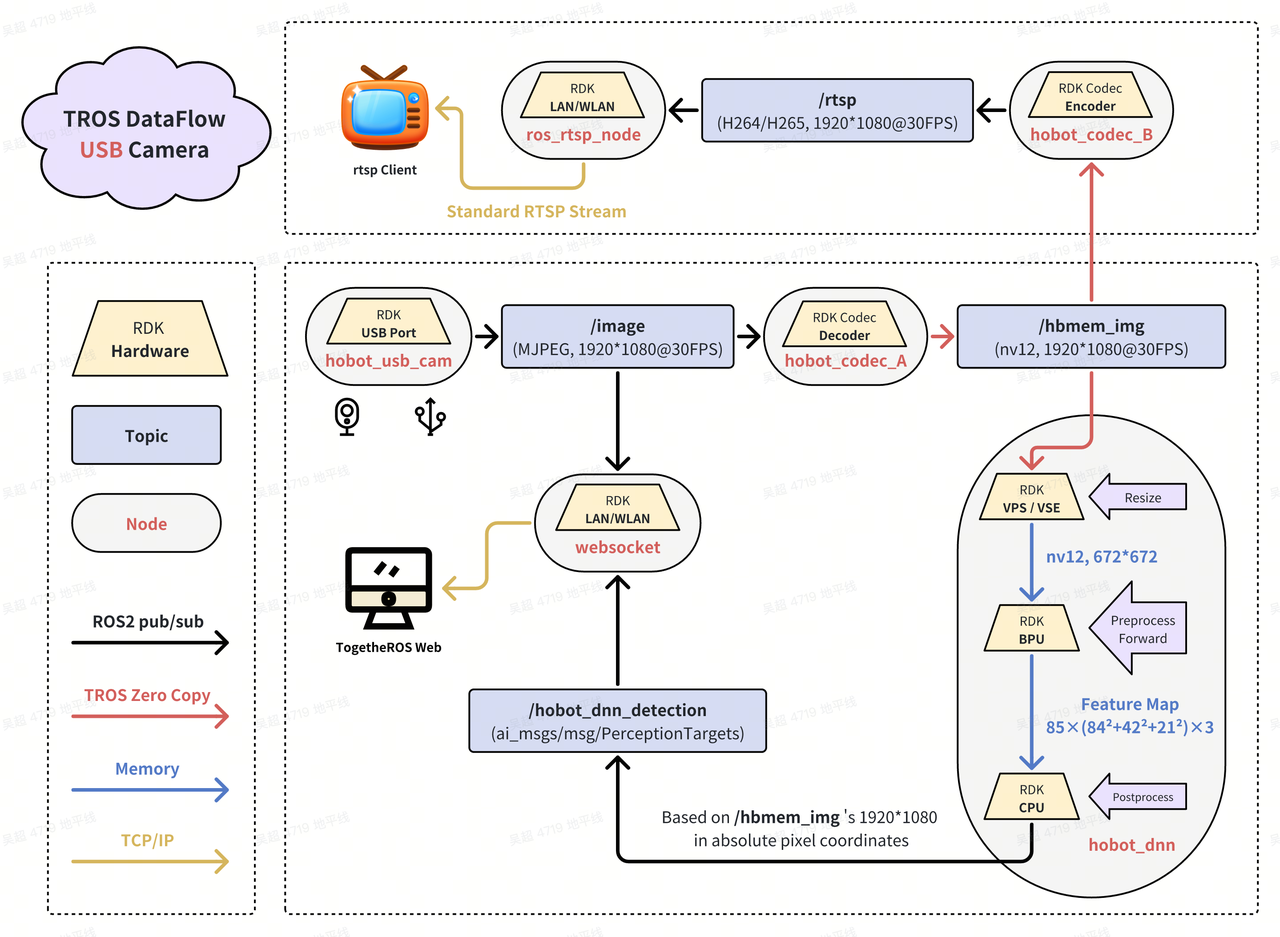
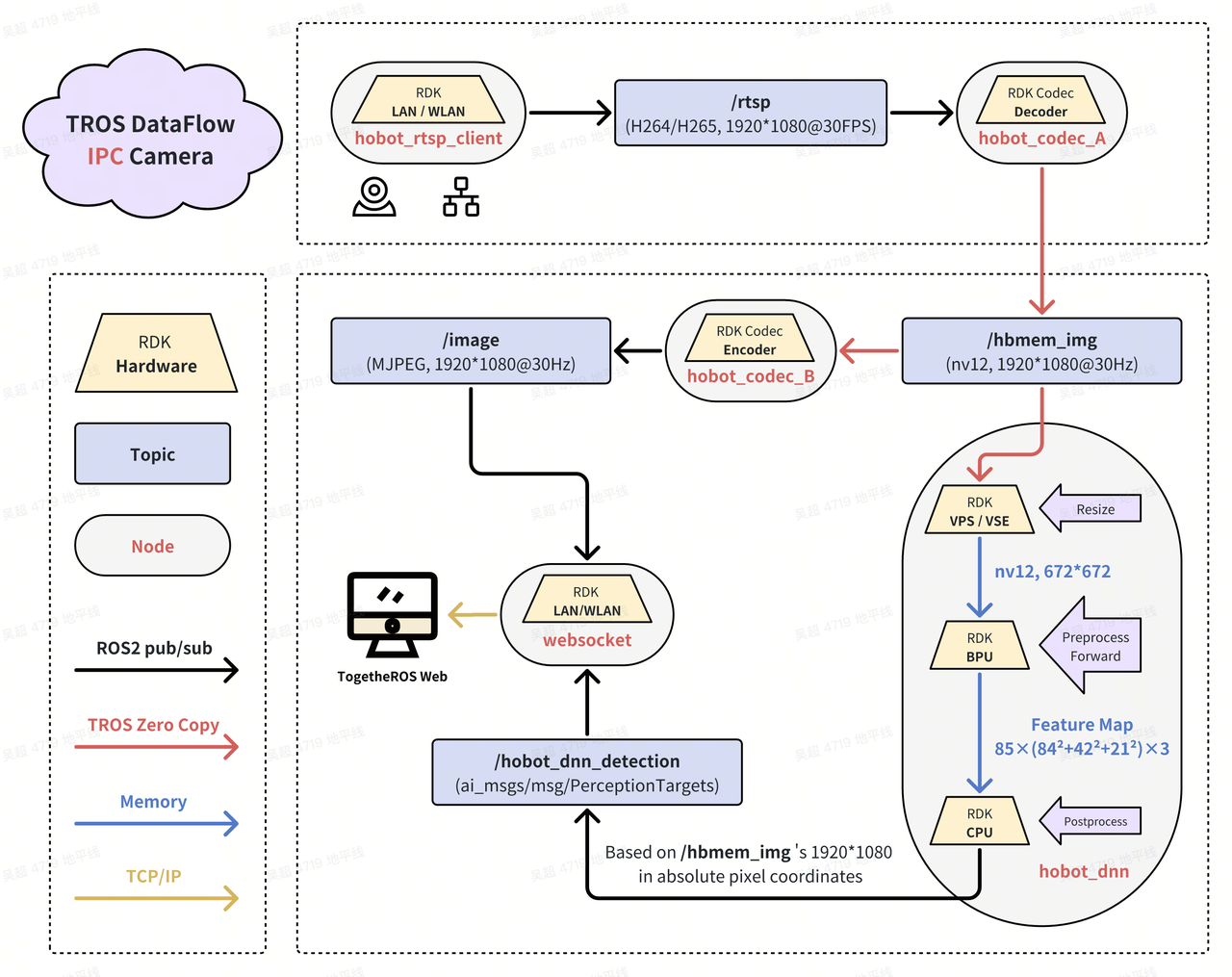
- Community manual - Robot Development - Application Examples - Video Applications (video_boxs):
https://developer.d-robotics.cc/rdk_doc/Robot_development/apps/video_boxs
(Please confirm that this link is the latest and valid.)
The page or its subpages linked here usually include:
- How to publish image topics using MIPI cameras or USB cameras.
- How to use the hardware codec (
hobot_codec) for image/video encoding (such as H.264, H.265, MJPEG) and decoding. - How to transfer image data efficiently between ROS2 nodes (possibly involving zero-copy technology).
- Related sample code and launch files.
Q8: After starting a USB or MIPI camera node, the terminal shows "calibration data does not exist" (for example, [usb_camera_calibration.yaml] does not exist!). Is this normal?
A: This message itself is usually normal and does not necessarily mean the camera cannot work.
- Log level: The default log level of many ROS nodes is
INFOorWARN. When a camera node starts, it tries to load the camera intrinsic calibration file (usually a.yamlfile containing focal length, distortion coefficients, and other parameters). If the file cannot be found, it outputs a warning message but usually continues running with a default or uncalibrated parameter set. - Function verification:
- Even if this warning appears, the camera itself may already be publishing image data normally.
- In another terminal (after sourcing the TROS environment), run the following commands to verify:
ros2 topic list: Check whether image topics (such as/image_raw,/image_color,/hbmem_img, etc.) are being published.ros2 topic hz /your_image_topic_name: Check the publishing frequency of the image topic.ros2 topic echo /your_image_topic_name: Check whether image message data is being output (the data volume will be large and will quickly fill the screen; mainly check whether there is a data stream).- Use
rqt_image_view(on a PC or on the board Desktop environment) to subscribe to the image topic and check whether the image is displayed.
- When a calibration file is needed: If your application requires precise image measurement, 3D reconstruction, or image undistortion, providing the correct camera calibration file is very important. If you only need to display images or perform AI inference that does not depend on precise pixel correspondence, missing a calibration file may have little impact.
Q9: When using TROS WebSocket visualization, images or AI results do not appear in the browser. What could be the cause?
A: There are many possible reasons why WebSocket visualization shows no content. Troubleshoot step by step:
-
Ensure related ROS nodes are running normally:
- Image publishing node: A node (such as
mipi_cam,usb_cam, or an image playback node) must be publishing image topics. - AI inference node (if AI results need to be displayed): A node must be performing AI inference and publishing AI result topics.
- WebSocket node itself (
hobot_websocketor similar): This node converts ROS topic data into WebSocket messages and sends them to the browser. - Use
ros2 node listandros2 topic listto check whether these nodes and topics are active.
- Image publishing node: A node (such as
-
Network connection and IP address:
- Ensure your PC (running the browser) and the RDK board (running the WebSocket service) are on the same LAN.
- The IP address accessed in the browser must be the correct IP address of the RDK board.
- Check for IP address conflicts or routing issues.
-
Proxy server settings:
- If your PC network connection is configured with a proxy server, check whether the proxy settings may block direct access to LAN IP addresses (the RDK board). Try temporarily disabling the proxy or configuring proxy exception rules.
-
WebSocket node parameters and AI message synchronization (for missing AI results):
- When starting, if the
only_show_imageparameter of thehobot_websocketnode is set toFalse(meaning both image and AI results are expected), it may need to receive the first AI result message (ai_msg) before it can start synchronizing image and AI data and rendering them. - Check: Ensure your AI inference node actually detects targets and publishes at least one frame of AI results. If the AI node never outputs results, the WebSocket side may appear to show no overlay results because it is waiting for the first frame of AI data.
- When starting, if the
-
Network bandwidth and quality:
- Transmitting uncompressed image data (especially at high resolution and high frame rate) requires significant network bandwidth. If the network connection between your RDK board and PC is poor (for example, weak Wi-Fi signal, network congestion, or insufficient bandwidth from a mobile hotspot), WebSocket data transmission may stutter, have excessive latency, or fail.
- Try reducing image resolution or frame rate, or use compressed image formats for transmission.
-
High CPU load on the RDK board:
- If you open a browser on the RDK board's own graphical desktop environment (via VNC or a directly connected display) to view WebSocket rendering results, the board CPU may simultaneously handle ROS node execution, WebSocket service, graphical desktop rendering, and browser rendering. This can cause performance bottlenecks and prevent processes from running normally.
- Recommendation: It is usually recommended to open a browser on another PC to access the WebSocket service on the RDK.
-
Browser compatibility or cache:
- Try clearing the browser cache or testing with a different browser (such as the latest versions of Chrome, Firefox, or Edge).
- Check the Console and Network tabs in the browser developer tools for JavaScript errors, WebSocket connection errors, or resource loading failures.
-
Refresh the page: Sometimes simply refreshing the page (Ctrl+R or Cmd+R) may resolve temporary stuttering or connection issues.
Q10: When using TROS intelligent voice features, errors occur, or I want to use my own USB microphone. How should I configure it?
A:
-
Check sound card devices:
- First, confirm that your microphone device (whether onboard or external USB) is recognized correctly by the system. Use the following commands to view recognized sound cards:
cat /proc/asound/cards
ls /dev/snd/
cat /proc/asound/cardslists sound cards and their indices (such as card 0, card 1).ls /dev/snd/shows PCM device nodes (such aspcmC0D0c, meaning card 0, device 0, capture).
- First, confirm that your microphone device (whether onboard or external USB) is recognized correctly by the system. Use the following commands to view recognized sound cards:
-
Configure the microphone device number for TROS voice nodes:
- TROS intelligent voice related nodes (for example, nodes responsible for recording or speech recognition) usually have a parameter (in the launch file or parameter configuration file) to specify which microphone device to use. This parameter may be named
micphone_name,device_name,alsa_device, or similar. - The parameter value is usually an ALSA device name in the format
hw:X,Y, whereXis the card number andYis the PCM device number on that card. - Default value: It may default to
"hw:0,0", meaning card 0, device 0. - Modification: If your target microphone (for example, a USB microphone) is recognized as the capture endpoint on card 1, device 0 (capture device node names usually end with
c, such aspcmC1D0c), change the parameter value to"hw:1,0". - Example: If
cat /proc/asound/cardsshows your USB microphone ascard 1, andarecord -l(list recording devices) shows its corresponding PCM device asdevice 0, set the parameter tohw:1,0.
- TROS intelligent voice related nodes (for example, nodes responsible for recording or speech recognition) usually have a parameter (in the launch file or parameter configuration file) to specify which microphone device to use. This parameter may be named
-
Check ALSA volume and mute settings:
- Run the
alsamixercommand in the terminal, pressF6to select the correct sound card, then pressF4to view and adjust capture-related volume controls (such as 'Mic', 'Capture', 'ADC PGA Gain', etc.). Ensure they are not muted (Muted, usually shown as MM; press M to toggle) and that volume levels are set appropriately.
- Run the
-
Permission issue: Ensure the process running the voice node has permission to access the audio device.
Q11: Why is it not recommended to run Rviz or Gazebo directly on embedded terminal devices such as RDK? What is the recommended approach?
A:
-
Resource consumption: Rviz (ROS Visualization tool) and Gazebo (robot simulator) are both powerful but resource-intensive applications. They require strong CPU processing capability, large amounts of memory, and (especially Gazebo and Rviz configurations with complex 3D rendering) good GPU graphics acceleration.
-
Embedded device limitations: As embedded development boards, RDK series boards usually have far less CPU, memory, and graphics processing capability than standard PCs or workstations. Running Rviz or Gazebo directly on an RDK board:
- May exhaust board resources, making the system extremely slow or even frozen.
- Even if they can barely run, the user experience will be very poor, with poor visualization effects and extremely slow simulation speed.
- Will seriously affect the real-time performance and efficiency of other core robot programs on the board (such as perception, decision-making, and control nodes).
-
Recommended approach:
- Distributed ROS network: Use the distributed nature of ROS/ROS2 to run Rviz or Gazebo on a PC or Ubuntu virtual machine with better performance on the same LAN as the RDK board.
- Topic subscription/publication:
- Nodes on the RDK board publish sensor data (such as images, point clouds, odometry, etc.), robot state, AI detection results, and other topics.
- Rviz running on the PC subscribes to these topics from the RDK board for data display and visualization.
- Gazebo running on the PC can simulate robot models and environments and interact with control nodes on the RDK board through ROS topics (for example, the RDK sends control commands to the robot in Gazebo, and Gazebo publishes simulated sensor data to the RDK).
- Network configuration: Ensure network configuration between the PC and RDK board is correct, and that ROS_DOMAIN_ID (ROS2) or ROS_MASTER_URI/ROS_IP (ROS1) is set correctly so they can discover and communicate with each other. For ROS2, they can usually discover each other automatically as long as they are on the same network and share the same DOMAIN_ID.
- Virtual machine configuration: If you run Rviz/Gazebo in an Ubuntu virtual machine on a PC, set the VM network mode to "Bridged Adapter" so the VM can obtain an independent IP address on the same network segment as the RDK board.
In this way, compute-intensive visualization and simulation tasks can run on the PC, while the RDK board focuses on running real-time robot applications, ensuring overall system performance and stability.
Q12: How do I configure a zero-copy data transmission environment for TROS?
A: Zero-copy is a technique to optimize large-data (such as image) transmission performance between ROS2 nodes by avoiding unnecessary memory copies through mechanisms such as shared memory. TROS (based on ROS2) also supports zero-copy.
-
TROS Foxy version (based on ROS2 Foxy):
- ROS2 Foxy itself does not yet have mature zero-copy support. D-Robotics may enhance or implement zero-copy-like functionality in TROS Foxy through custom shared memory solutions (such as the
hobot_shmpackage). - Refer to the official documentation for the corresponding TROS Foxy version or the README of the
hobot_shmpackage for its specific configuration and usage.
- ROS2 Foxy itself does not yet have mature zero-copy support. D-Robotics may enhance or implement zero-copy-like functionality in TROS Foxy through custom shared memory solutions (such as the
-
TROS Humble version (based on ROS2 Humble):
- ROS2 Humble has more mature and standardized zero-copy support (especially through loaned messages and DDS shared memory transport).
- Configuration method: This usually involves setting a series of environment variables to enable shared memory transport in Fast DDS (a DDS implementation). For detailed steps, refer to Q15: How do I configure and use zero-copy data transmission in TROS Humble? in the "8.3 Applications and Examples" section of this FAQ document.
Brief review of key environment variables:
export RMW_IMPLEMENTATION=rmw_fastrtps_cpp
export FASTRTPS_DEFAULT_PROFILES_FILE=/opt/tros/humble/lib/hobot_shm/config/shm_fastdds.xml # confirm path
export RMW_FASTRTPS_USE_QOS_FROM_XML=1
export ROS_DISABLE_LOANED_MESSAGES=0
-
General reference:
- Official D-Robotics documentation on TROS communication optimization or specific demos (such as image transmission demos) usually includes zero-copy configuration guides. For example: RDK Documentation - ROS Communication - Zero-Copy Configuration (Please confirm the link is up to date).
Q13: Besides the D-Robotics official APT source, are there other public ROS2 software sources available?
A: Yes. Standard ROS2 distributions (such as Foxy, Humble, Iron, etc.) have official APT software sources maintained by Open Robotics (now Intrinsic).
-
Official ROS2 source:
- The address is usually
http://packages.ros.org/ros2/ubuntu. - When installing standard ROS2 or third-party software that depends on standard ROS2 packages, you usually need to add this source to your system.
- Installation method (using Humble as an example, for Ubuntu Jammy 22.04):
- Set locale:
sudo apt update && sudo apt install locales
sudo locale-gen en_US en_US.UTF-8
sudo update-locale LC_ALL=en_US.UTF-8 LANG=en_US.UTF-8
export LANG=en_US.UTF-8 - Add ROS2 GPG key and source:
sudo apt install software-properties-common
sudo add-apt-repository universe
sudo apt update && sudo apt install curl -y
sudo curl -sSL https://raw.githubusercontent.com/ros/rosdistro/master/ros.key -o /usr/share/keyrings/ros-archive-keyring.gpg
echo "deb [arch=$(dpkg --print-architecture) signed-by=/usr/share/keyrings/ros-archive-keyring.gpg] http://packages.ros.org/ros2/ubuntu $(. /etc/os-release && echo $UBUNTU_CODENAME) main" | sudo tee /etc/apt/sources.list.d/ros2.list > /dev/null - Update APT cache:
sudo apt update
- Set locale:
- After that, you can install standard ROS2 Humble packages with
sudo apt install ros-humble-desktop(full desktop edition) orros-humble-<package_name>(specific package).
- The address is usually
-
Domestic mirror sources:
- To accelerate downloads, some universities and institutions in China (such as Tsinghua TUNA, USTC LUG, SJTU SJTUG, etc.) also provide mirrors of the official ROS2 software source. You can replace the
packages.ros.orgaddress above with the mirror site address. Refer to the help documentation of the corresponding mirror site for specific addresses.
- To accelerate downloads, some universities and institutions in China (such as Tsinghua TUNA, USTC LUG, SJTU SJTUG, etc.) also provide mirrors of the official ROS2 software source. You can replace the
Note: When both the D-Robotics TROS source and the official ROS2 source exist in the system, apt selects packages based on version and priority during installation or updates. Usually, TROS packages are specifically optimized for RDK hardware.